
How to Upload Images in Product Store
This demo showcases how to upload and organize product images in Product Store
1. Introduction
Images can be uploaded both manually in the UI or via integrations.
For images to be connected to products in the platform the image name must be referenced in the product data.
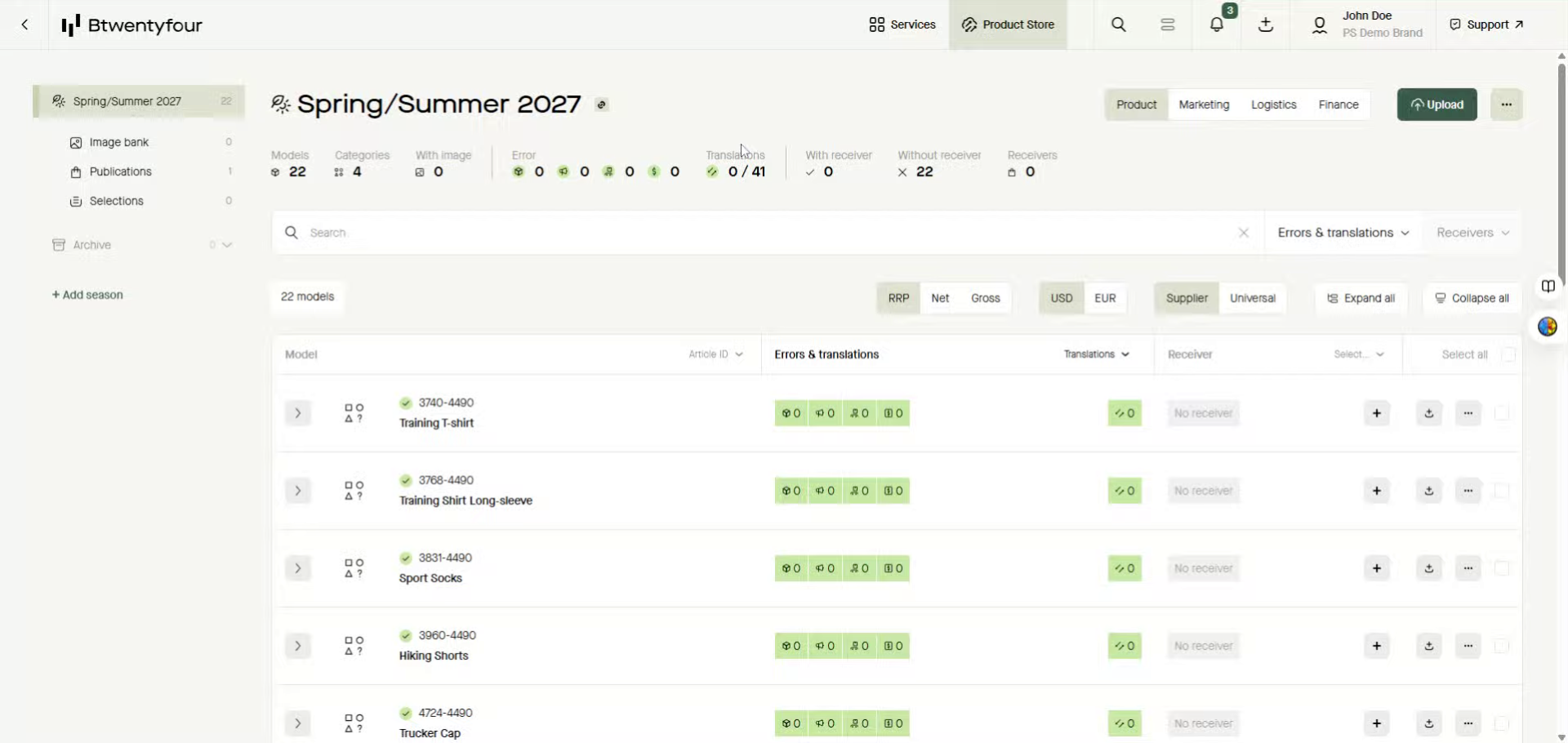
2. Access Image Bank
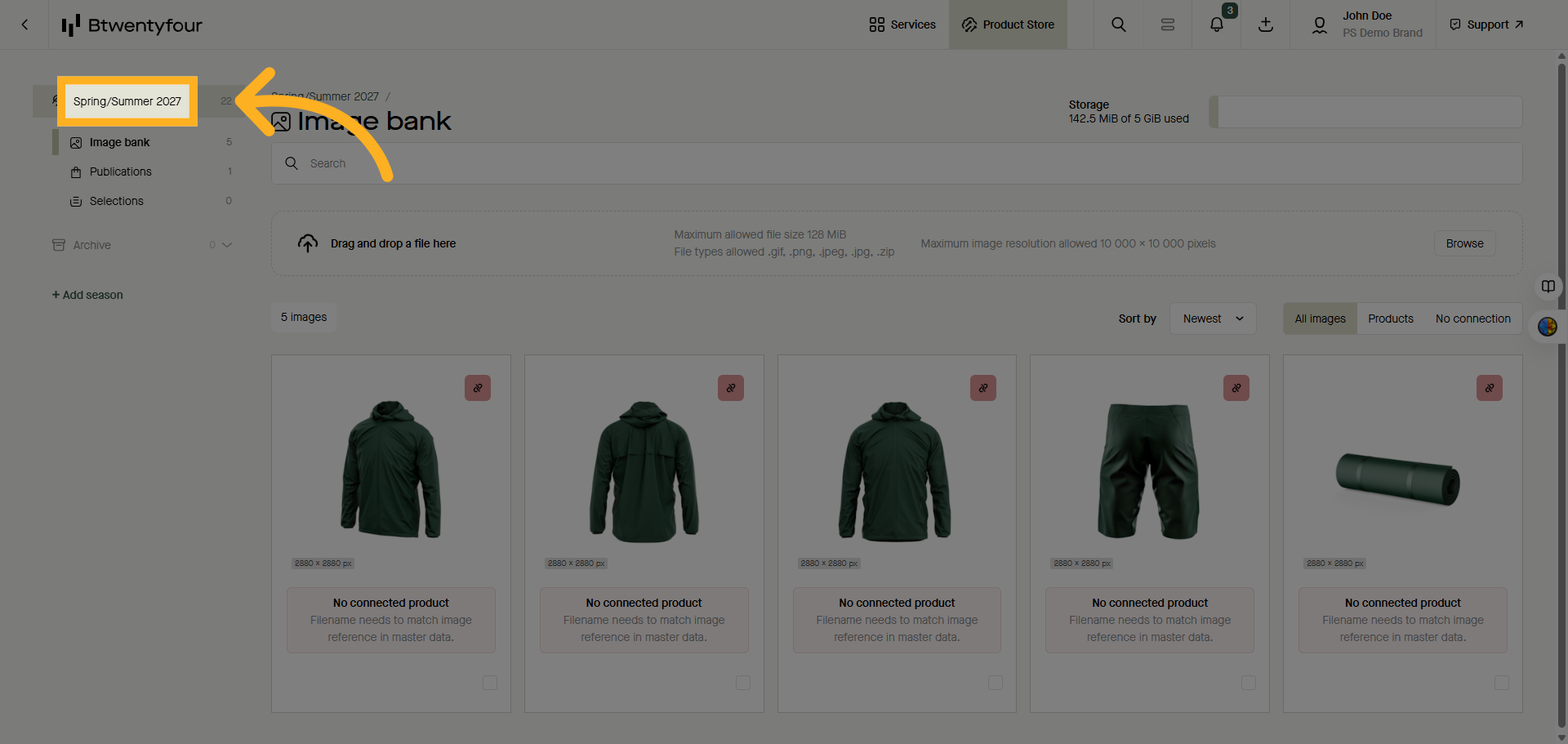
Click the Image bank to open the repository where all product images are stored and managed.
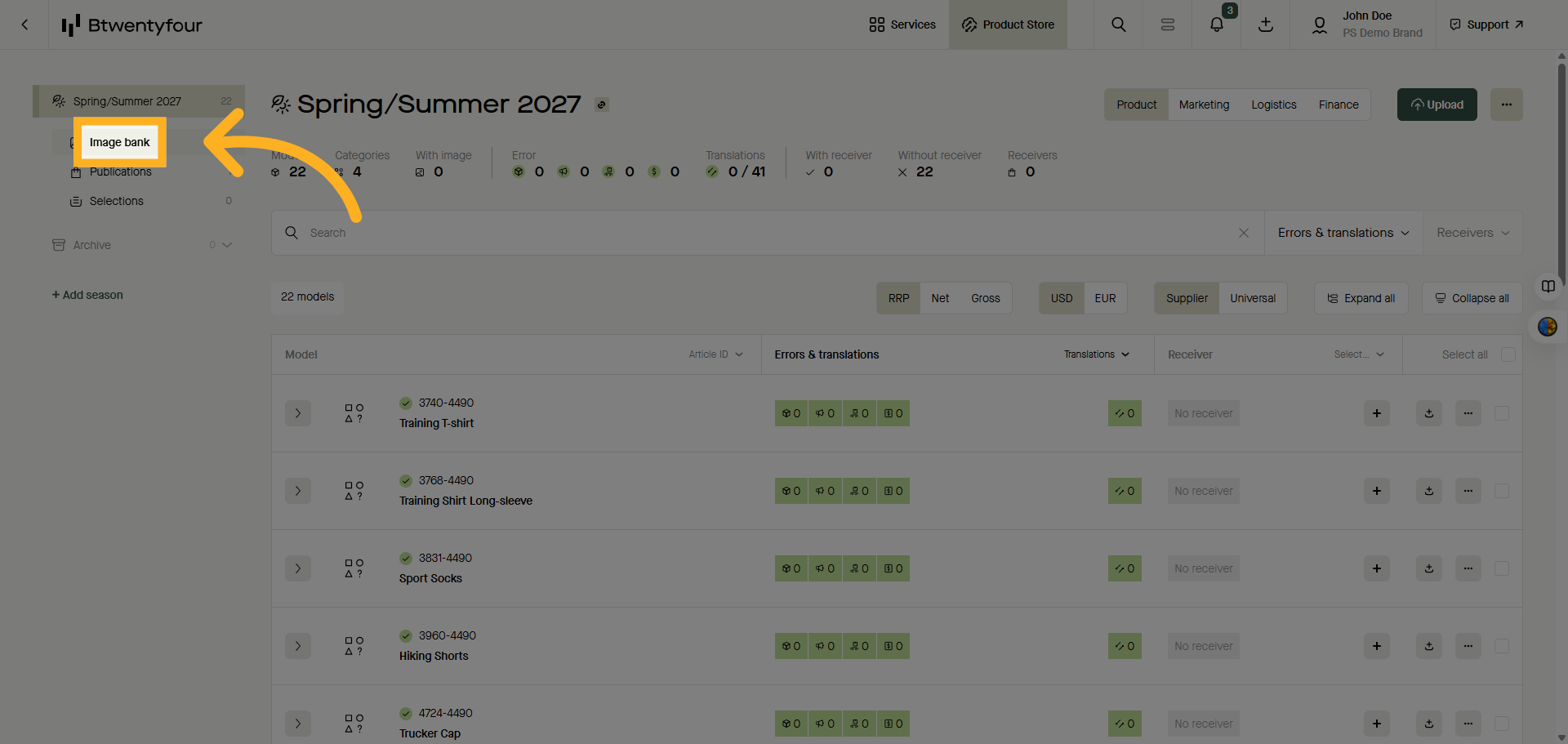
3. Open File Browser
Click Browse to open the file selection dialog for uploading new images to your product store. you can upload multiple images at a time or choose use zip files for bulk uploading.
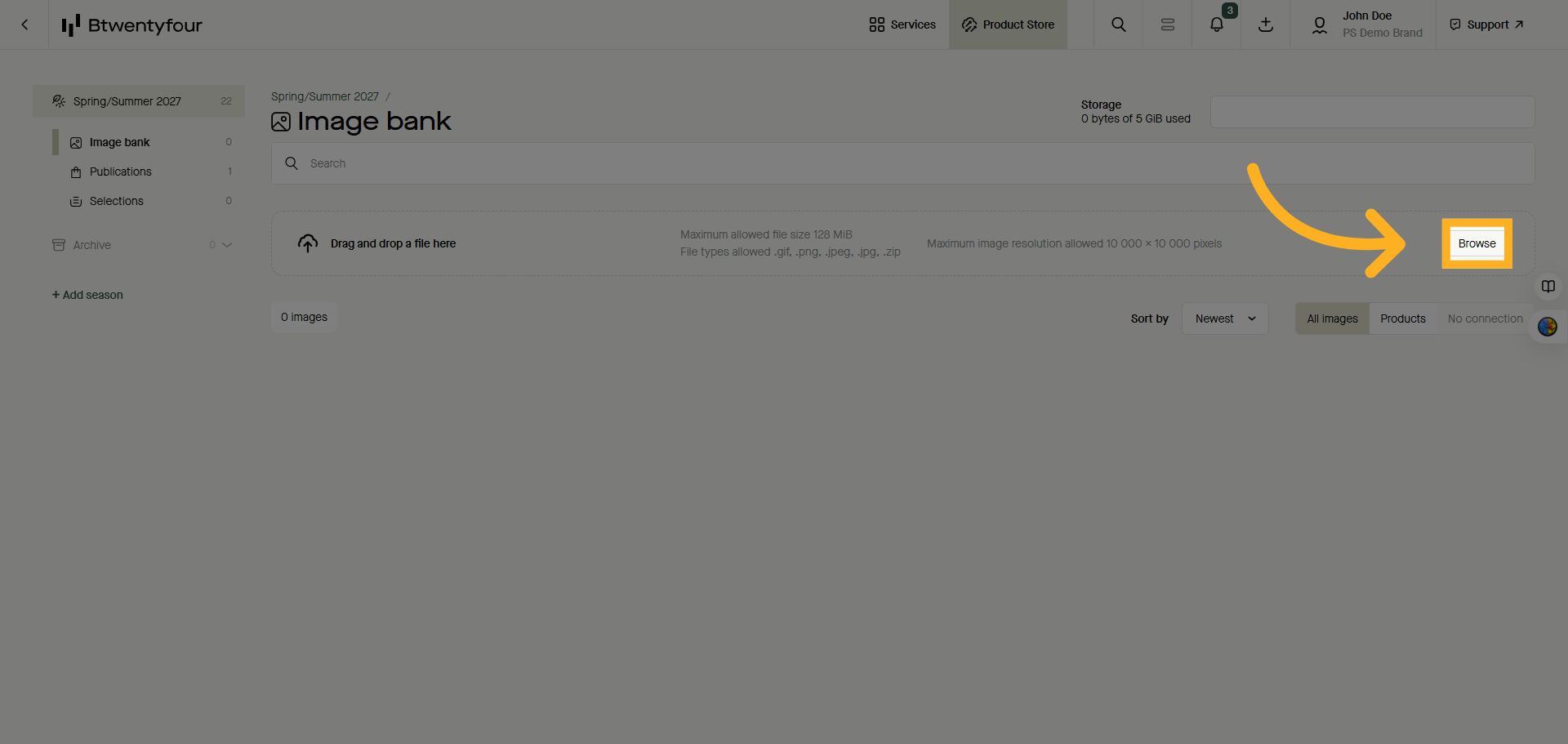
4. Upload Progress
Once all uploads are done you can either close the progress bar or wait for it to close by itself.
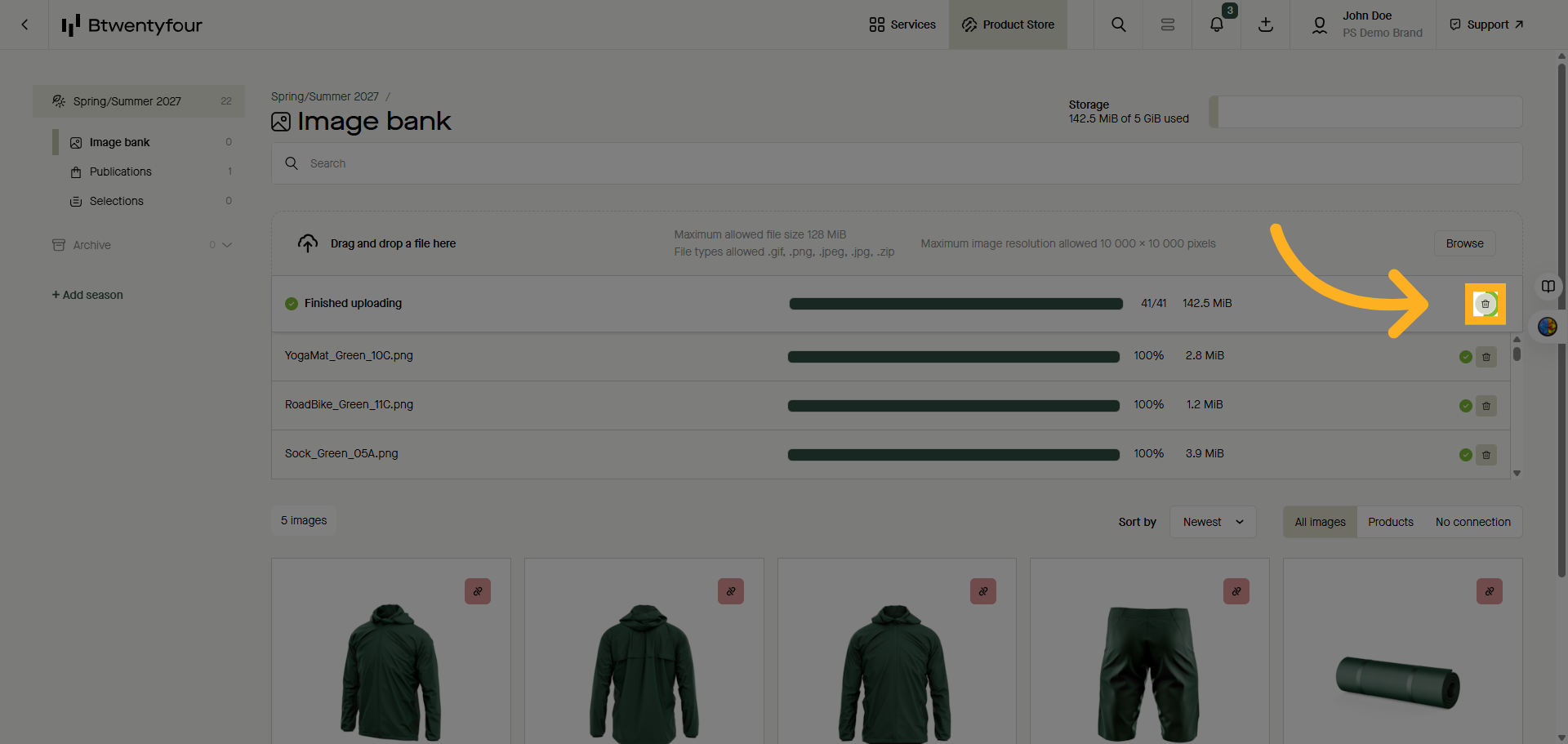
5. Go back to Model List
to review the result of your upload go back to the model list.
6. Open Model
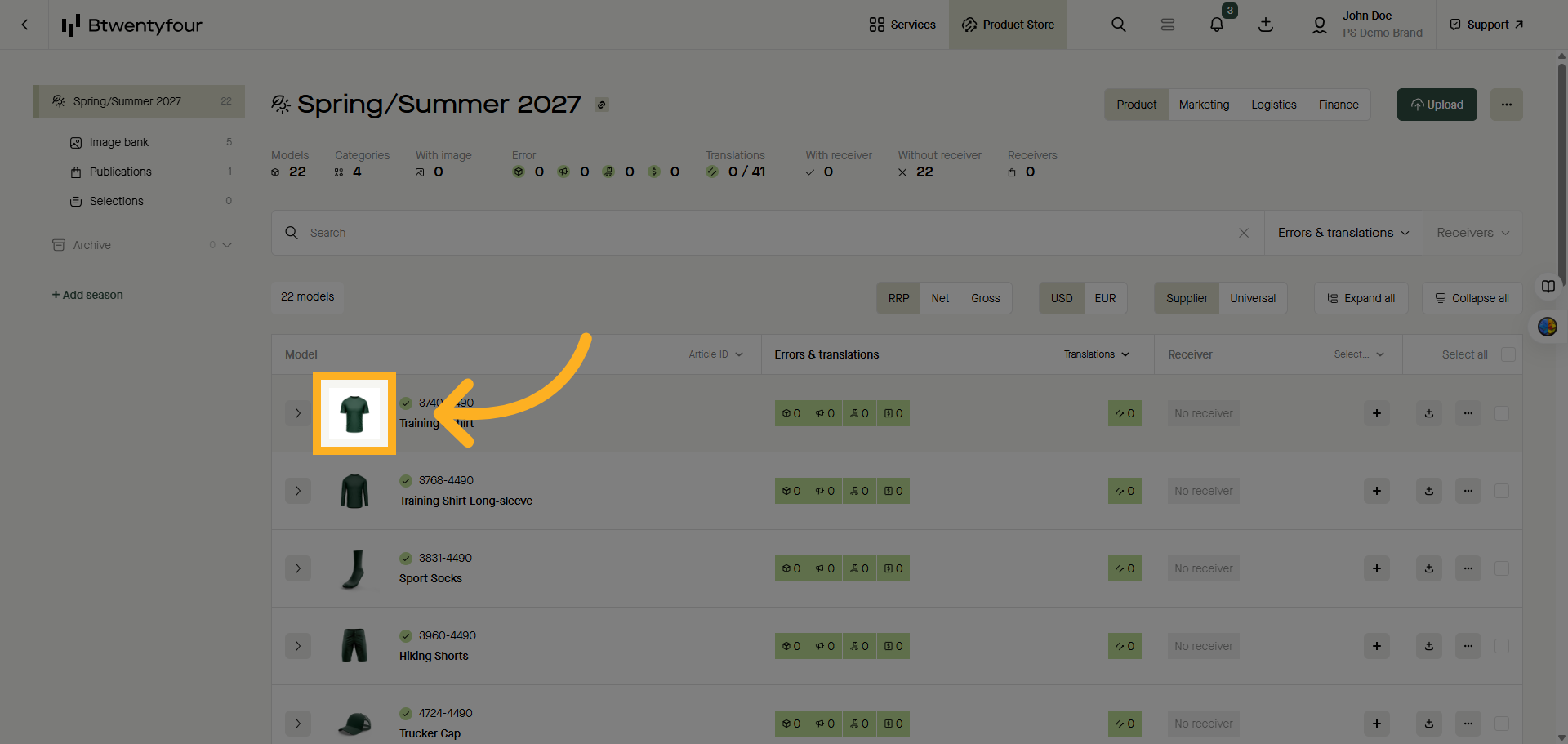
A thumbnail of the primary image per model should appear in the list and in the item card.
7. See Image Details
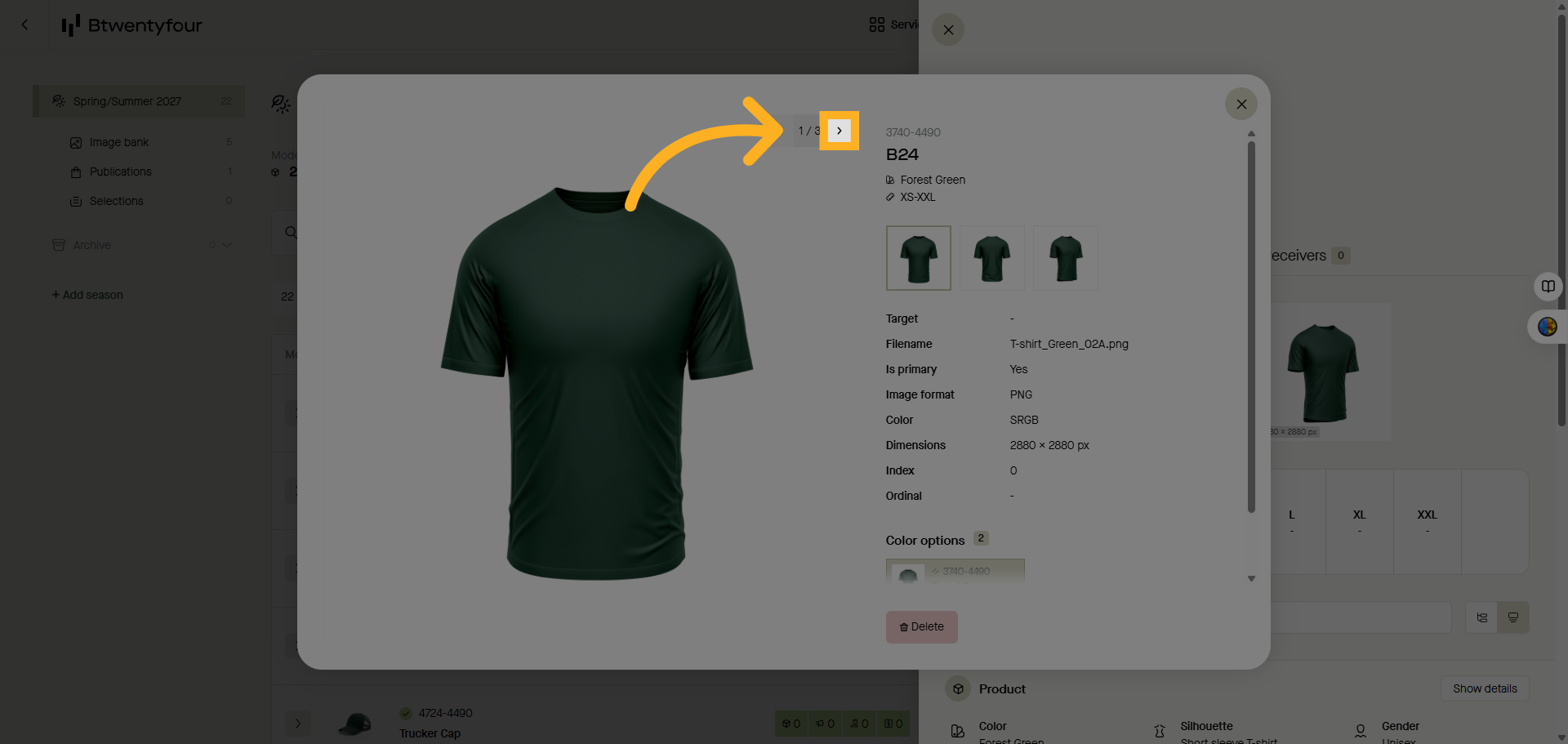
Click here to manage metadata or other details linked to the image for better organization.
Thank you for watching