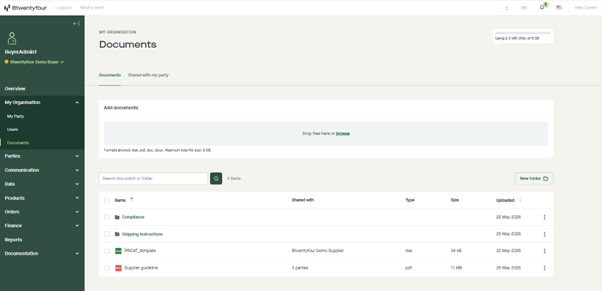
You can upload documents in the following formats: .xlsx, .pdf, .doc, and .docx. The maximum total file size is 5 GB, shared with your account's existing image storage.
To upload a document:
- Go to My organisation > Documents in the main menu.
- Make sure you're on the Documents tab.
- In the Add documents area, either:
- Drag and drop one or more files directly into the upload area, or
- Click browse to select files from your computer.
- The uploaded files will appear in the documents list below.
You can track your current storage usage in the top-right corner of the page (e.g., "Using 1.1 MB (0%) of 5 GB").
The same Add documents area is available inside any folder or subfolder, so you can upload files directly into the location where you want them. Just open the folder first, then drag and drop or browse as usual.
Organizing your documents
Once uploaded, you can keep things tidy by:
- Creating folders and subfolders using the New folder button in the top right of the documents list.
- Moving files between folders.
- Using the Search document or folder field to quickly find what you need.
Note: Uploading entire folders or zip files is not supported — folders need to be created within BOP and files moved into them.