
How to Solve Translations Errors in Product Store
This teaches you how to manage data translation errors in product store.
1. Introduction
Translation errors are errors where certain data is required to be translated into a universal data set, or a retailer specific one. Common examples are age group, gender, size and silhouette values that the retailers in the network requires to be harmonized across all brands into universal values. The universal values are maintained by Btwentyfour, whereas retailer specific sets are maintained by the retailers.
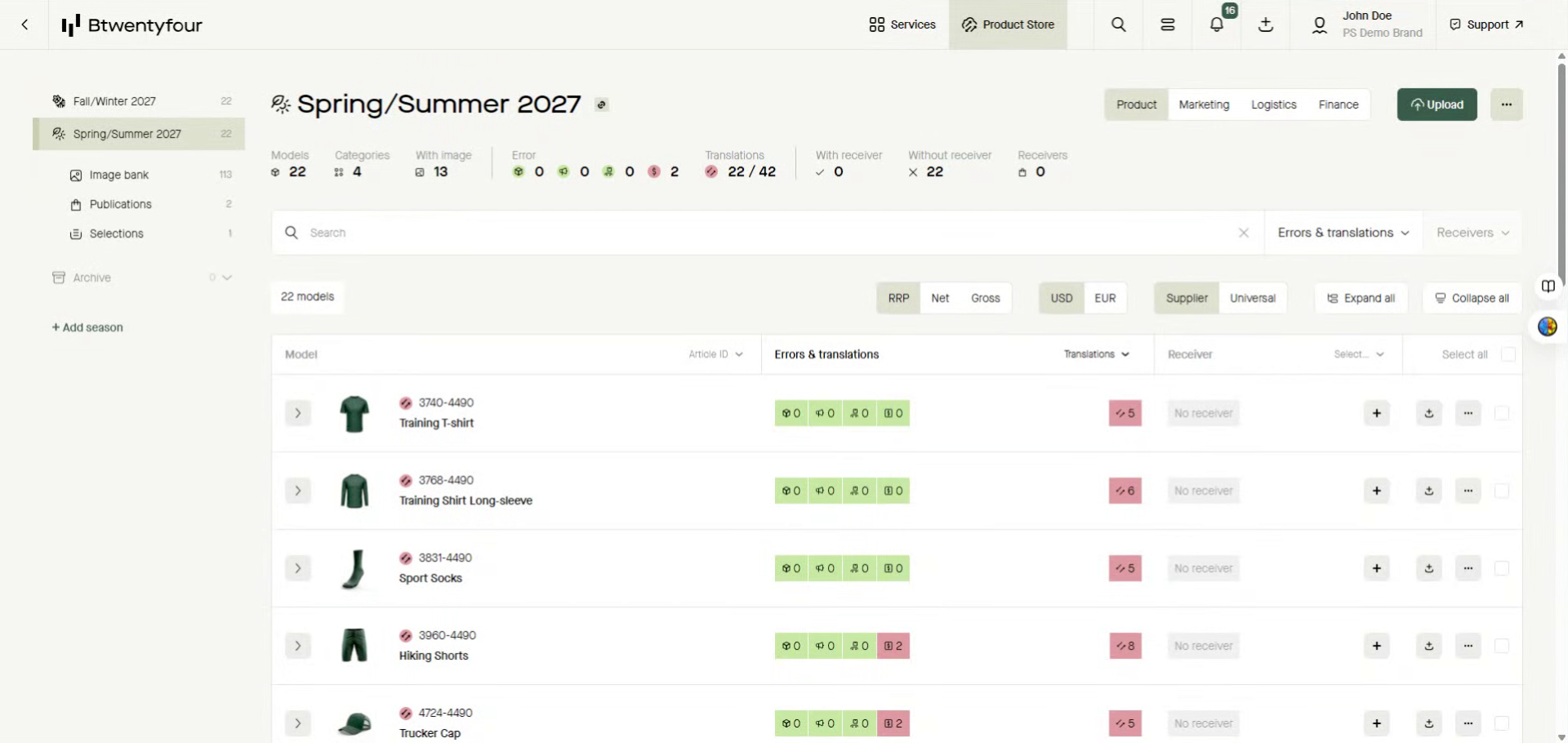
2. Select Model
Select the model you want to fix, and open the item card
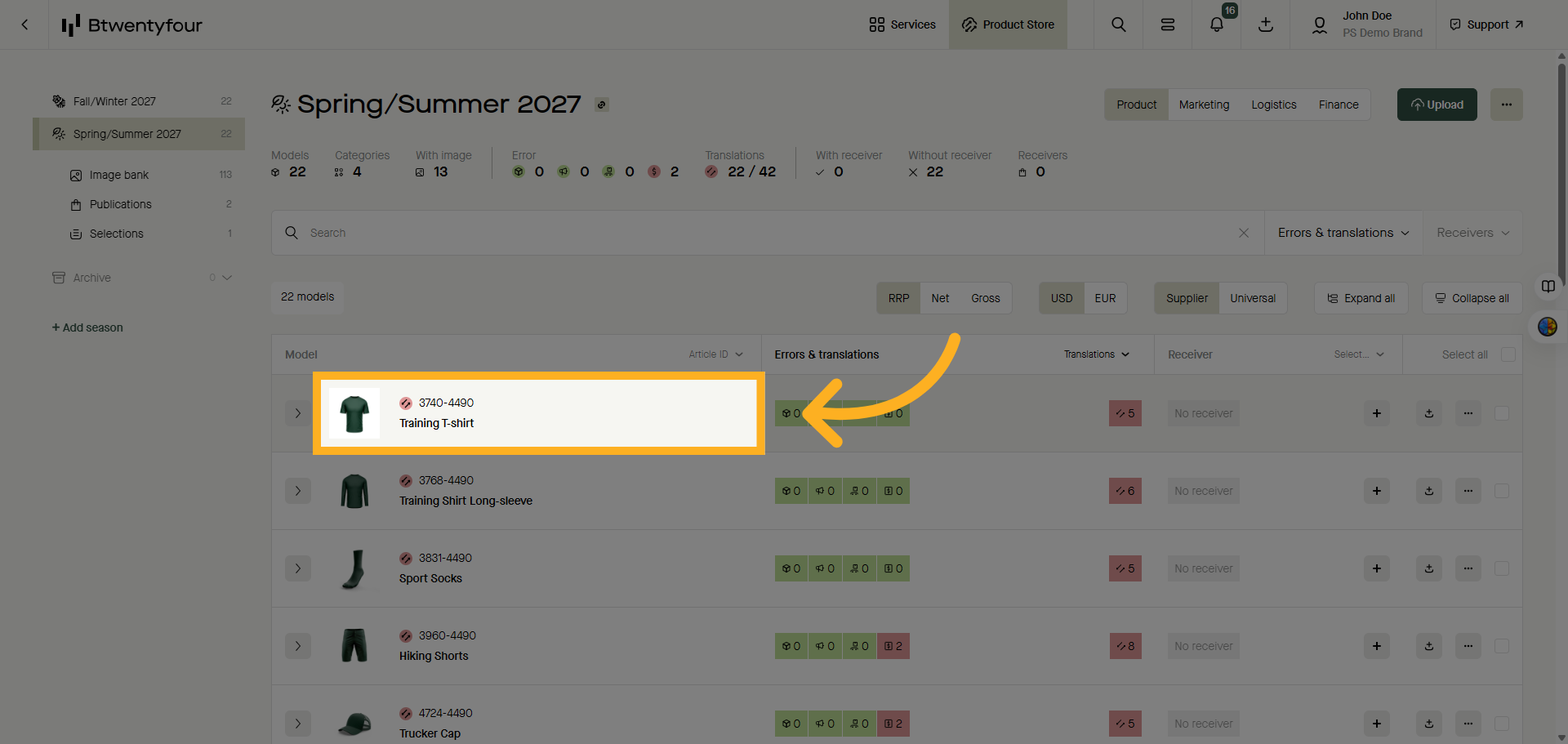
3. Open Translations Tab
Open the translations tab. Translation errors are divided into Mandatory translations, which are translations that needs to be done prior publishing and optional ones that Btwentyfour recommend you to translate, in order to ease adding more connections in the network as these are common requirements.
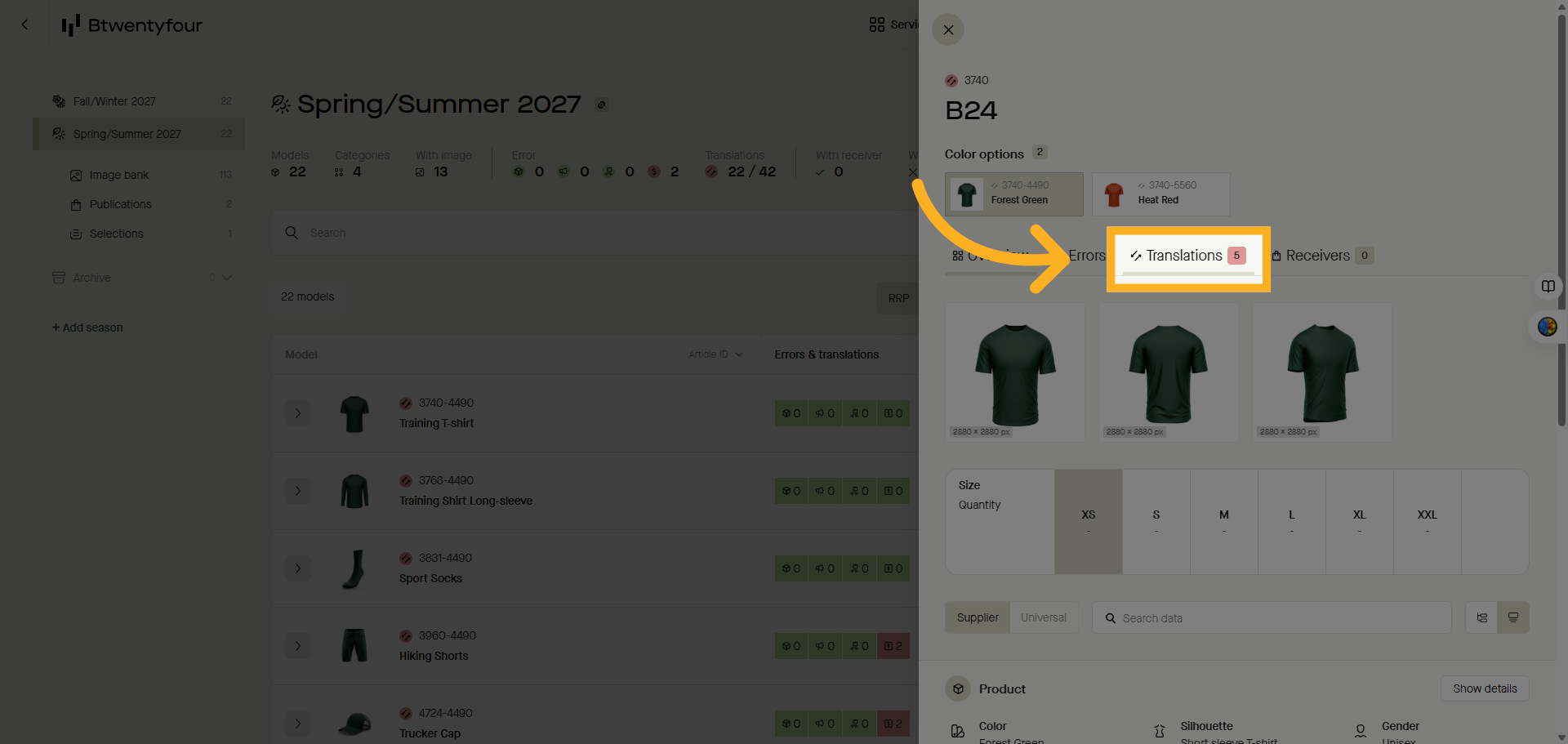
4. View Translations
To proceed click view translations to show the errors under each category.
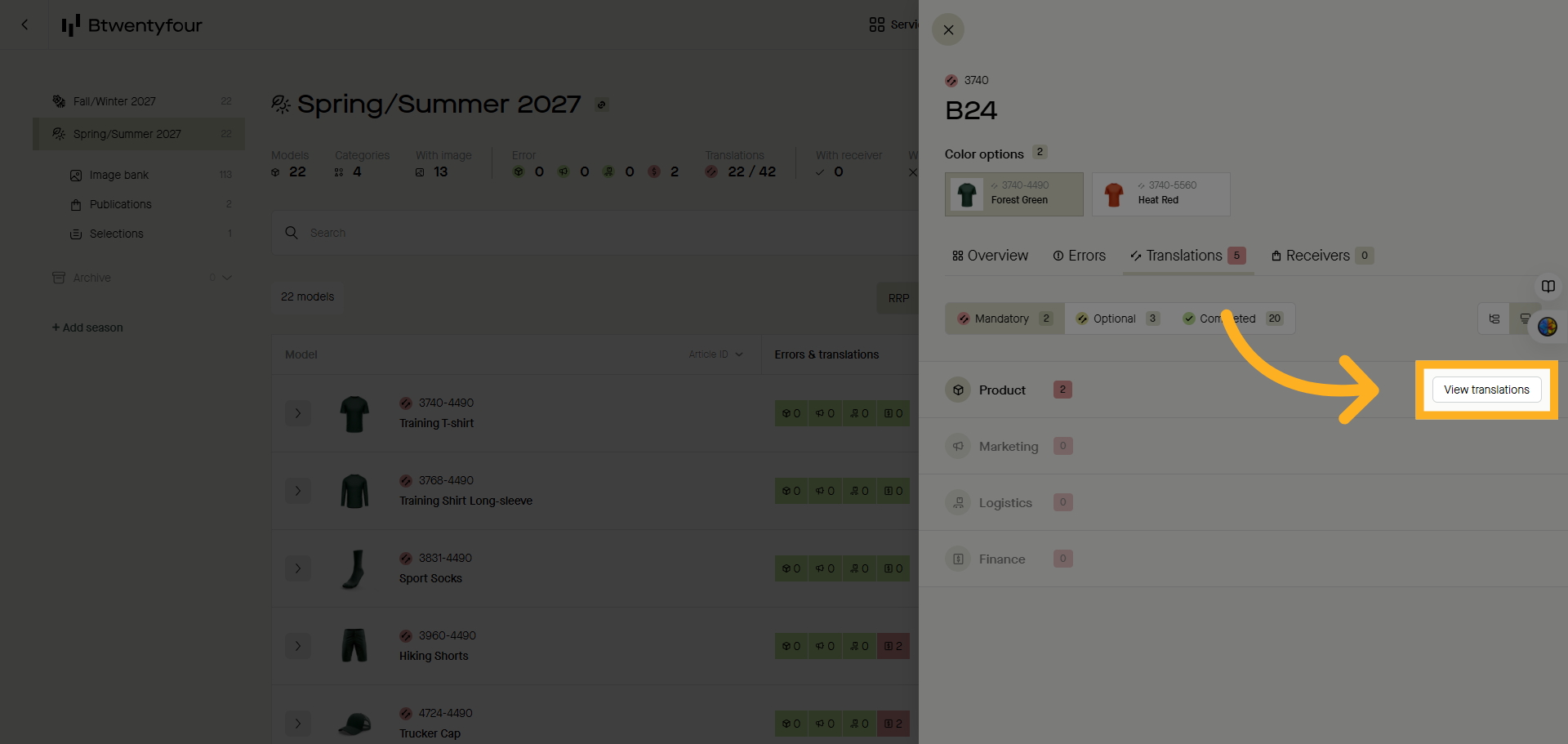
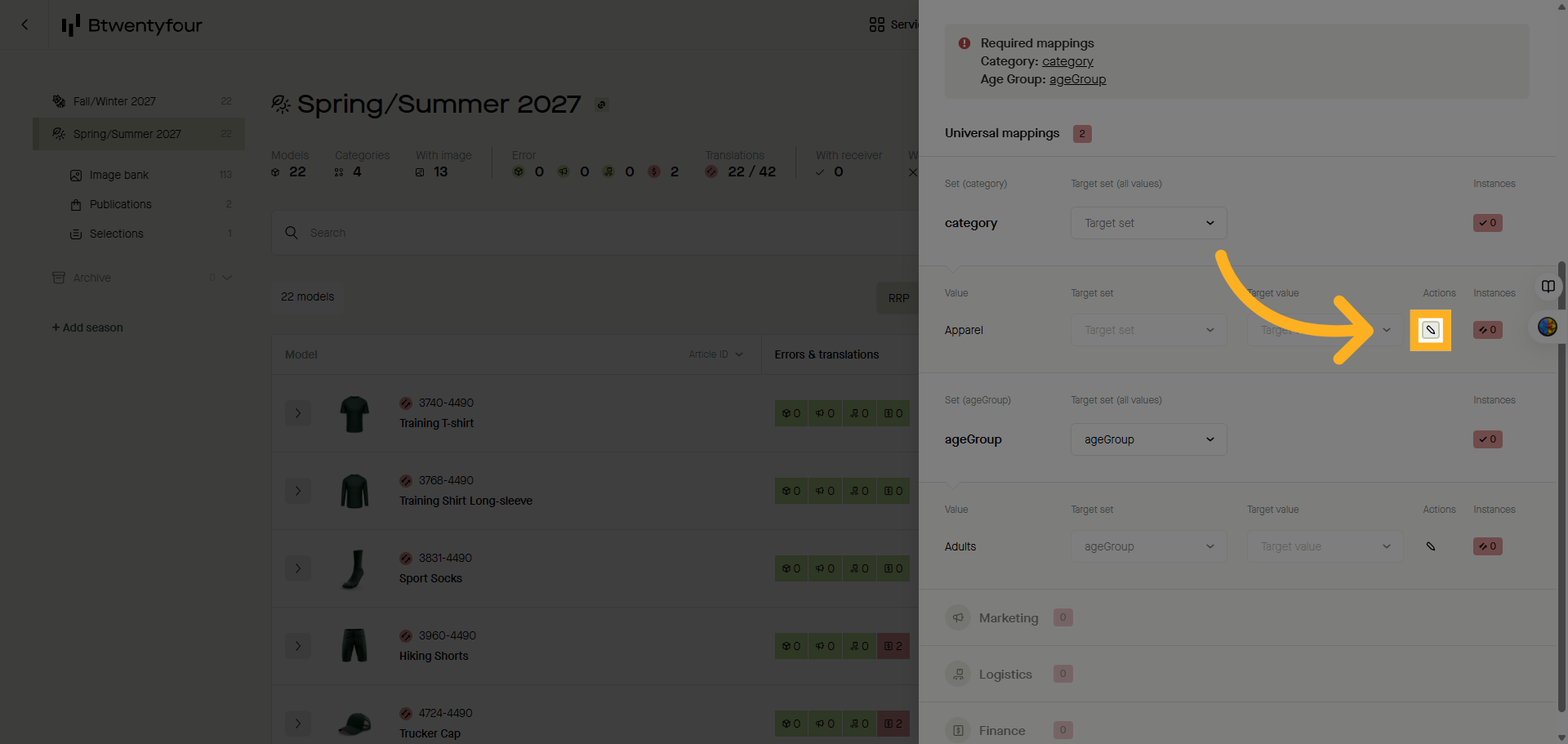
5. Activate the translations tool
Activate the tool by clicking the edit button.
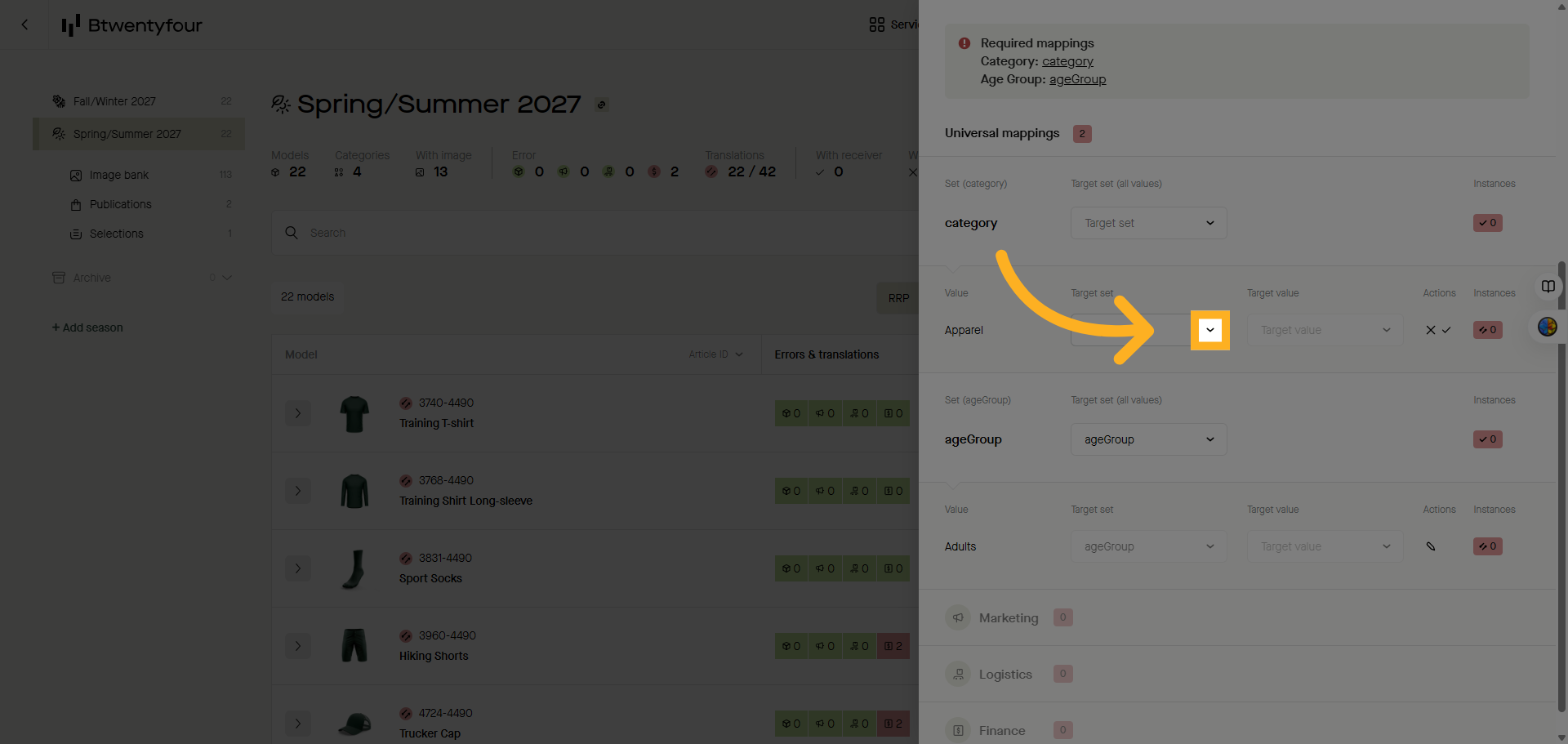
6. Choose target set
Choose the target set most fitting to the source value you are about to map
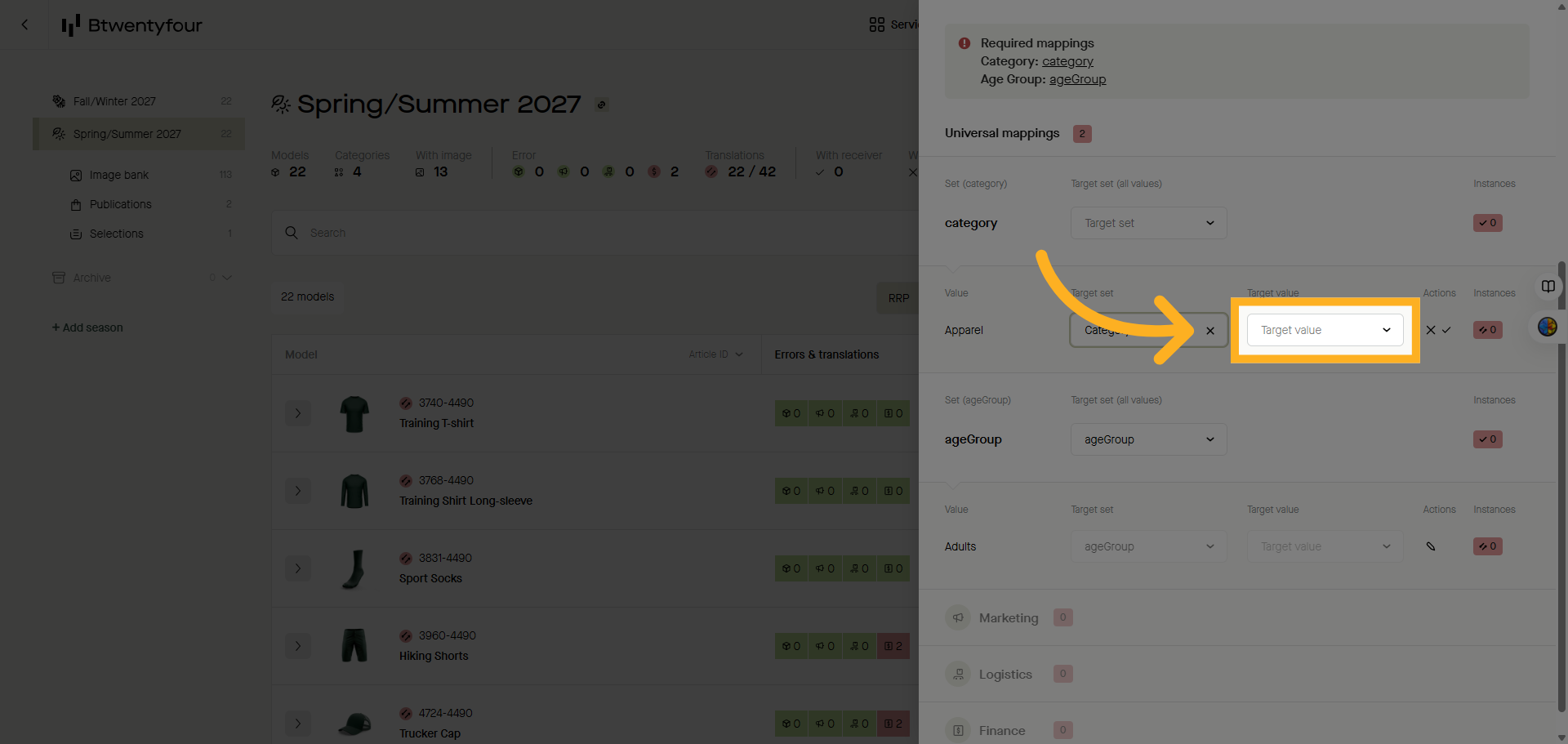
7. Choose target value
Select the target value most fitting the source value in the product data.
The instances symbol next to the translation errors shows the number of instances where the specific value is used and which will be solved by saving the translation.
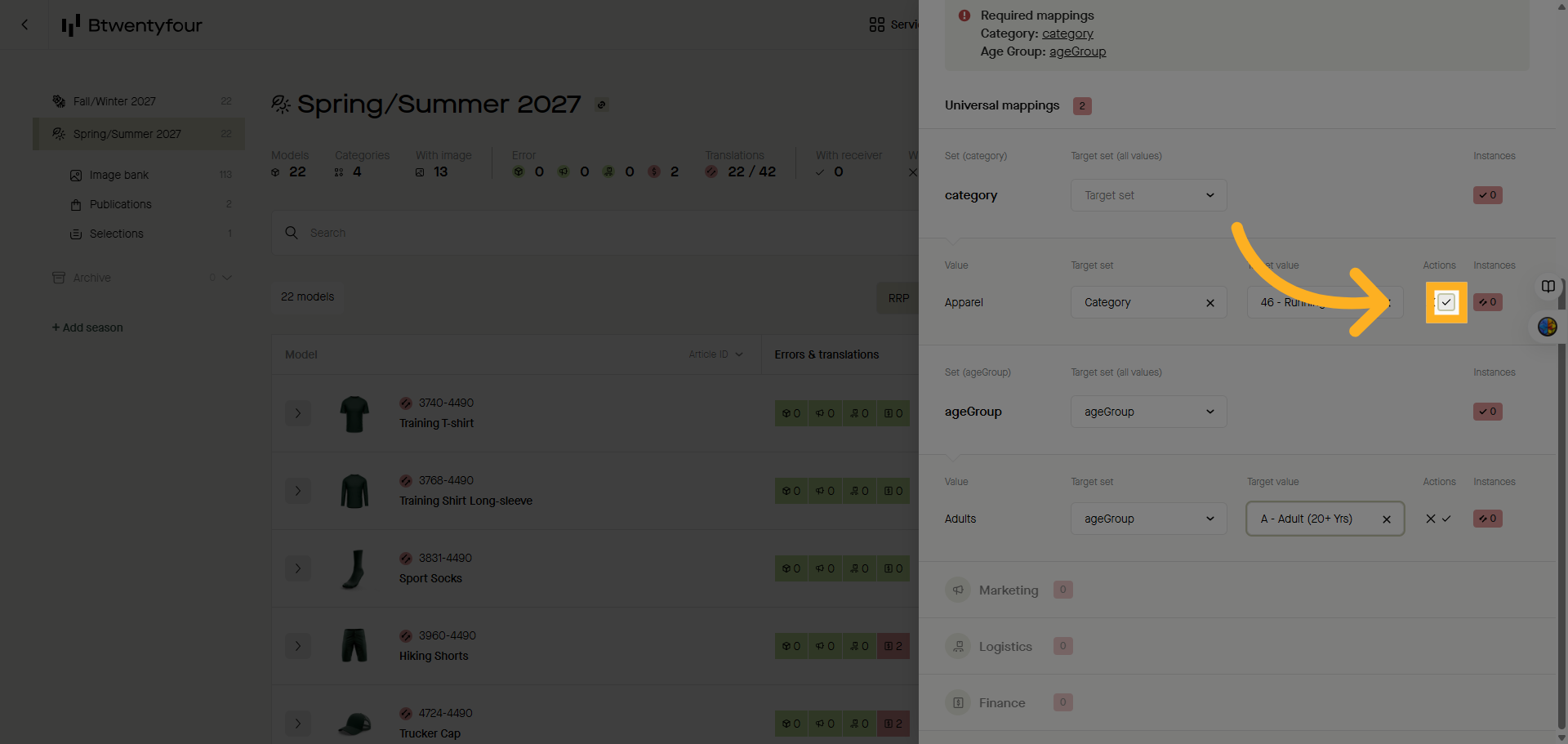
8. Confirm selection
Confirmed the selected value by clicking the checkbox and continue to the next translation to repeat.
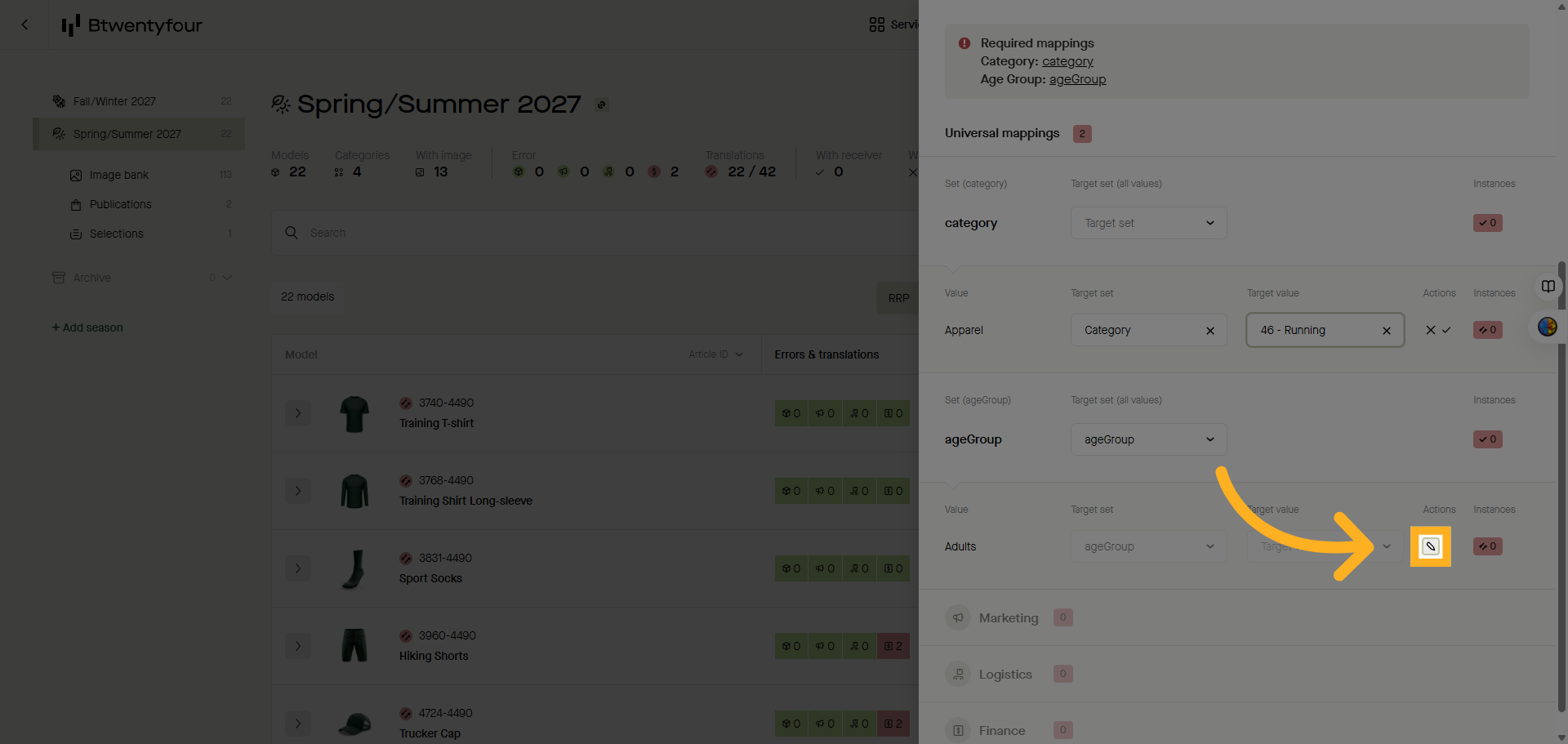
9. Open Additional Options
Repeat this for all translation errors.
10. Save Translation Changes
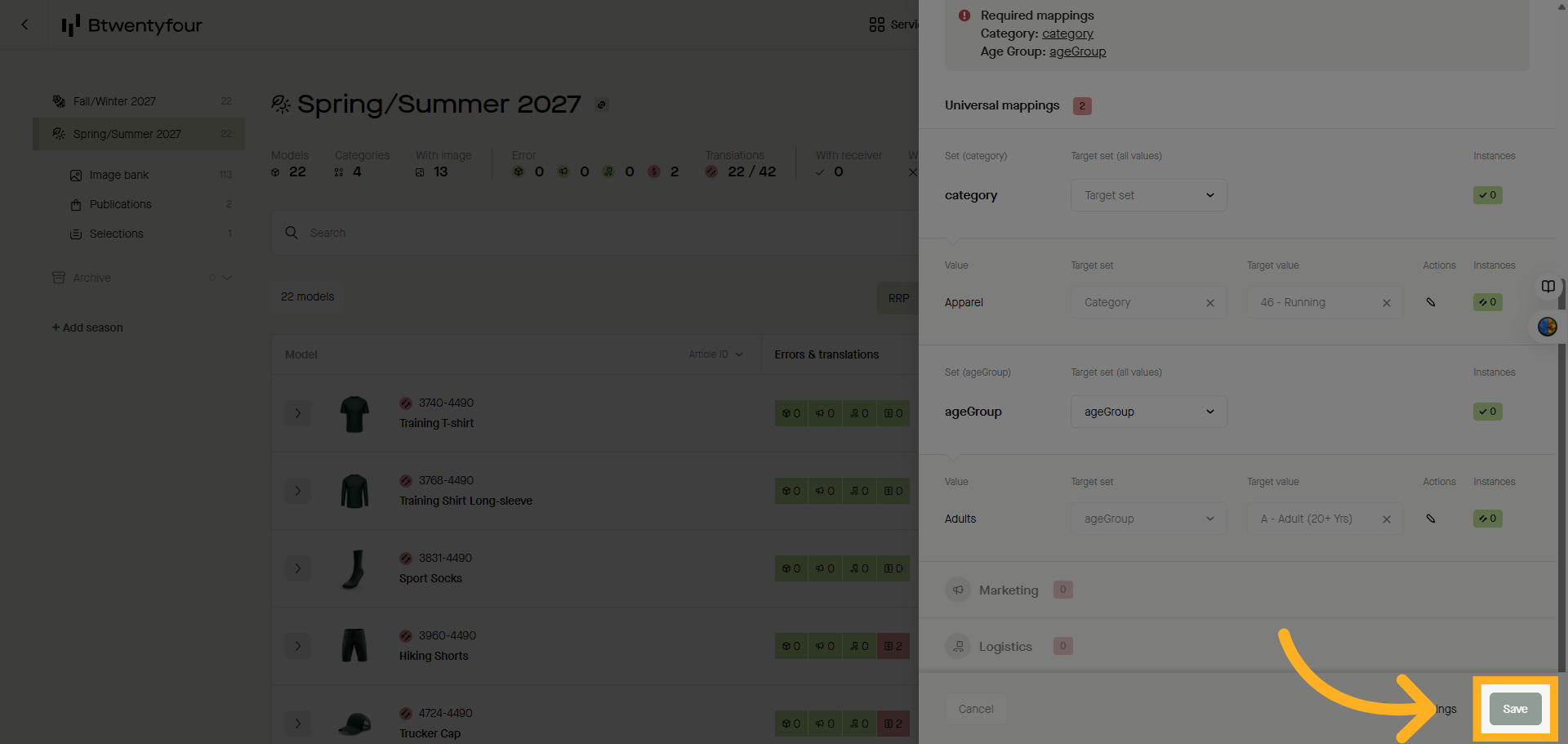
Click the Save button to apply and store all translation changes made. The item card will reload and the translations errors fixed dissapear.
Thank you for watching