You can share any of your organisation's documents with one or more of your trading partners. Sharing is done on a per-document basis, giving you full control over who can access each file.
Please note: Folders cannot be shared. Sharing is only available for individual documents. If you want to share multiple files, you'll need to share each one separately.
To share a document:
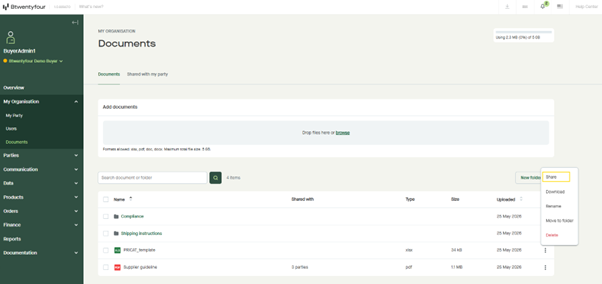
- Go to My organisation > Documents and open the Documents tab.
- Find the document you want to share and click the three-dot menu on the right-hand side.
- Select Share from the menu.
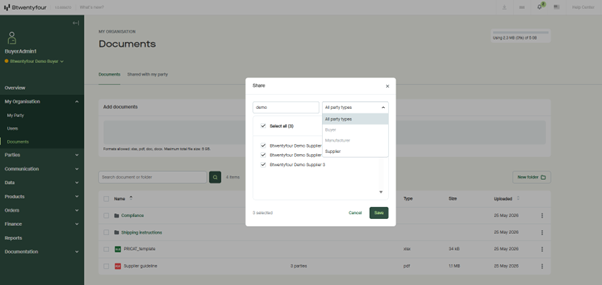
- In the Share dialog, you'll see a list of parties you have a relationship with.
- Choose who to share with:
- Use the party type dropdown in the top right to filter by Buyer, Manufacturer, Supplier, or show All party types.
- Use the search field in the top left to quickly find a specific party by name.
- Tick the checkbox next to each party you want to share with, or use Select all to include every party in the current view.
- Click Save.
The selected parties will receive a notification that you've shared a document with them, and the file will appear in their Shared with my party tab.
Sharing with additional parties later
You can share the same document with more parties at any time. Just open the Share dialog again, tick any new parties, and click Save. Parties you've already shared with will remain ticked.
Unsharing a document
To remove access for a party who previously had it:
- Open the Share dialog for the document.
- Untick the checkbox next to the party you want to remove.
- Click Save.
The document will no longer be accessible to that party, and they will receive a notification that the document has been unshared.
Checking who a document is shared with
The Shared with column in the documents list shows how many parties each document is currently shared with (for example, "3 parties").