
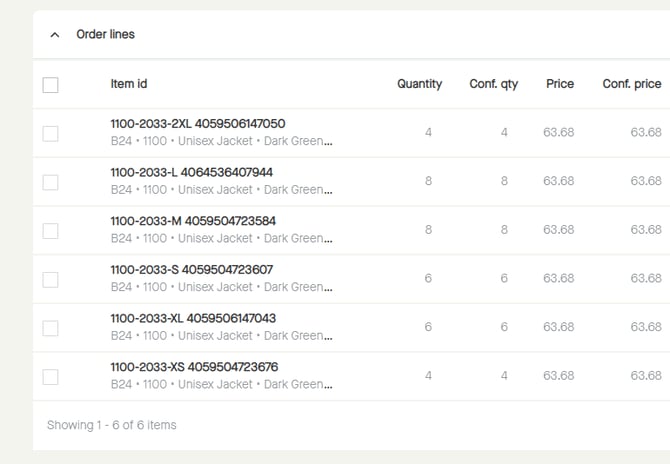
To select all lines, click the checkbox to the left of "Item id".
This could be useful when setting the same status on all lines, and/or changing dates on all lines.
For example, to set status on all lines to "Registered", start by clicking the checkbox to select all lines.
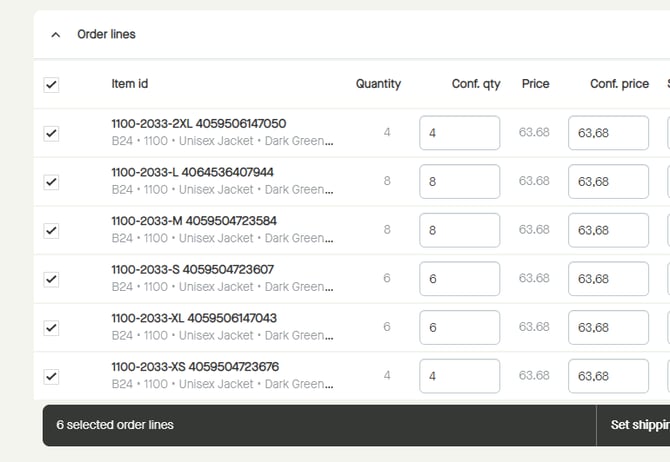
All order lines will be selected, and a floating bar appears at the bottom of the page.
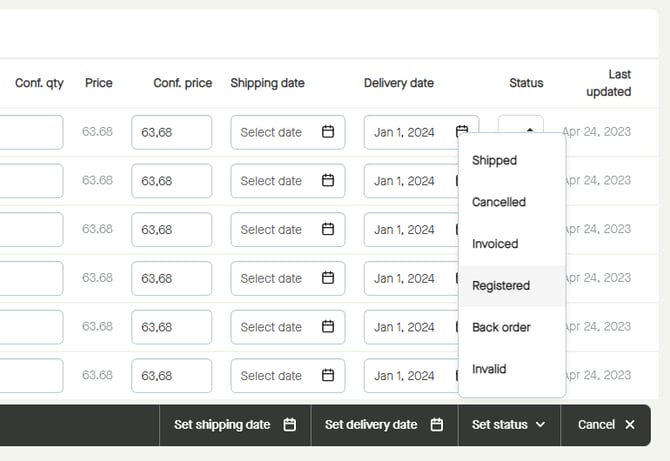
Click "Set status" in the floating bar and select "Registered".
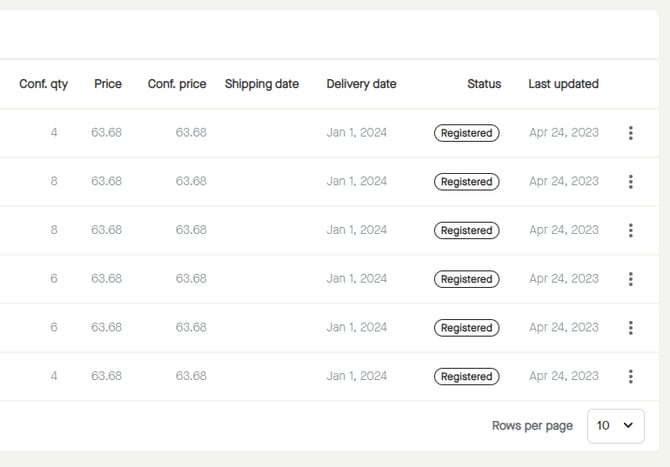
The "Status" for all lines will be set to "Registered".
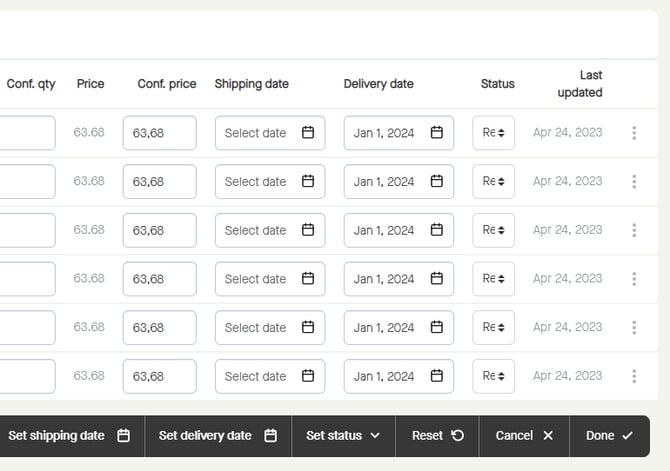
Note that it´s possible to edit rows individually even though all or some lines are selected.
For example, "Status" can be set to "Cancelled" for an order line by clicking and selecting "Cancelled".
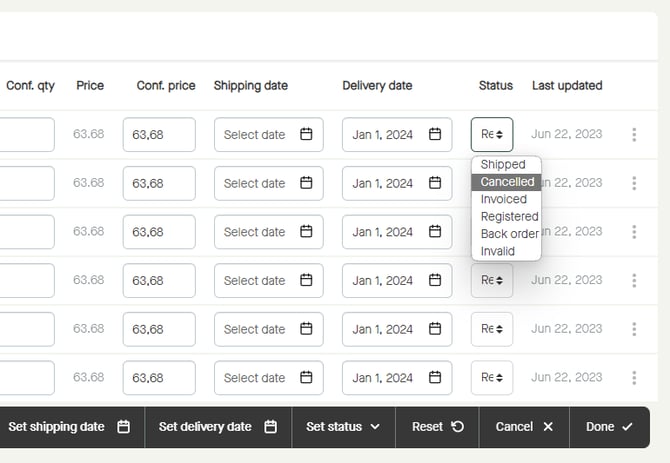
Click "Done" in the floating bar to confirm the changes.
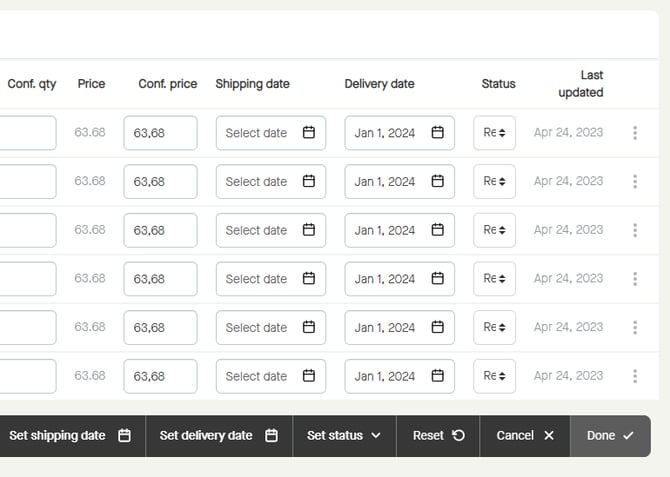
The changes will be made.
More information:
Step by step guide on how to create and send an "Order response".