
How to Search and Filter Products in Product Store
This demo showcases how to efficiently search and filter products within Product Store
1. Introduction
You'll see how to quickly find specific items and refine your results to save time.
There are two main search features that allows the user to freetext search for products across all seasons and a more powerful search and filtering tool to search within a specific season.
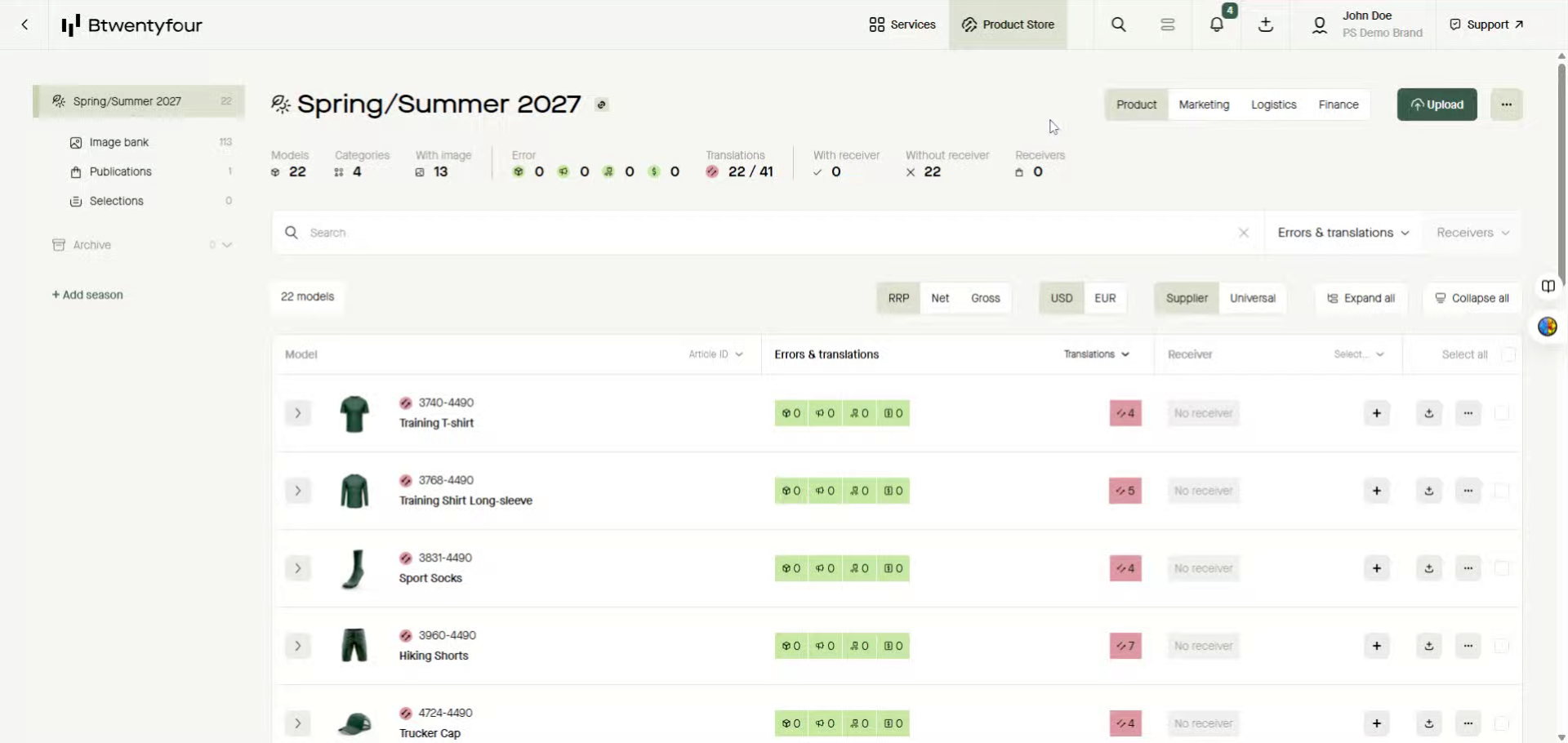
2. Click Search in Top Bar Menu
To search across multiple seasons, click the magnifying glass in the top bar menu.
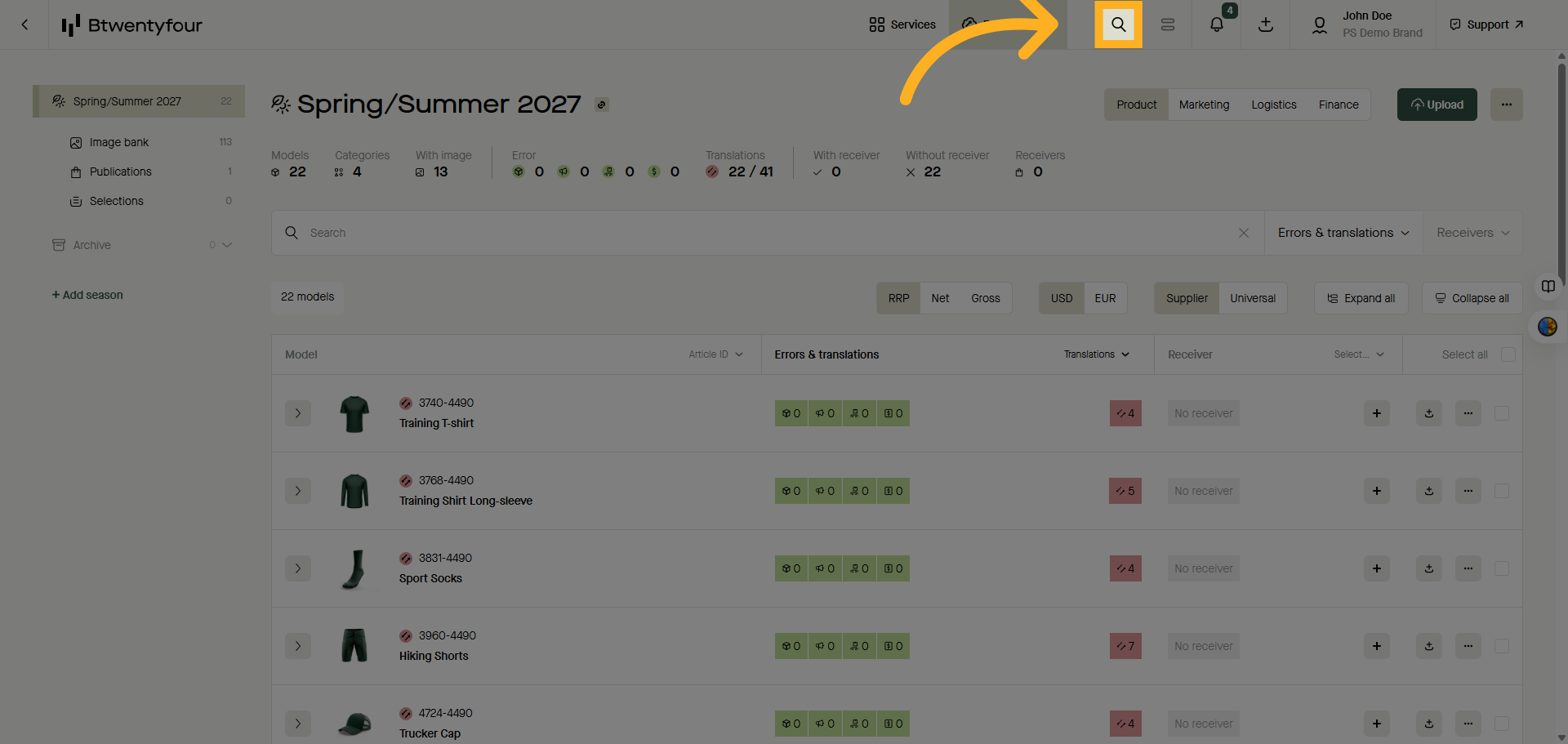
3. Enter Search Term
Enter your search term to find relevant products quickly.
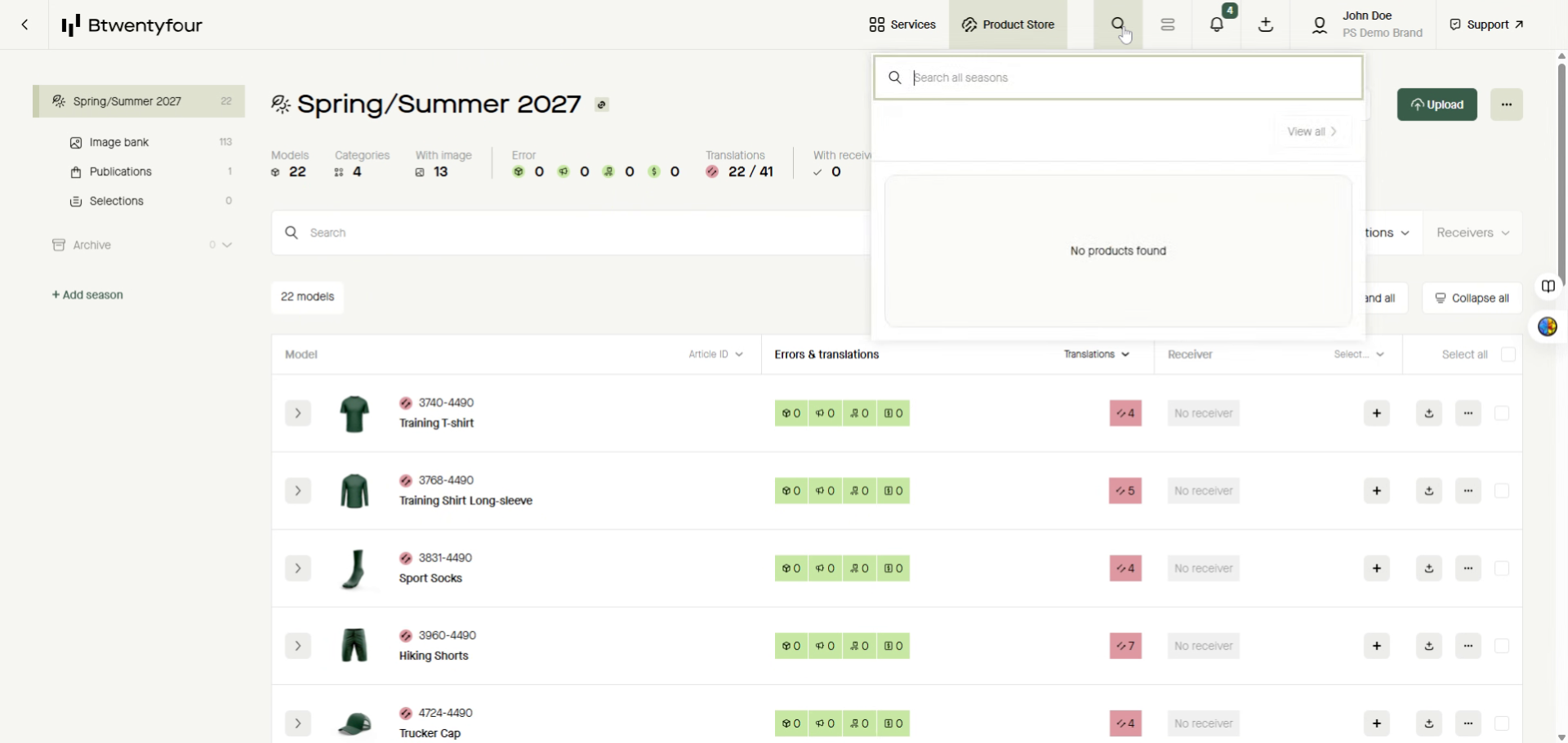
4. View All Products
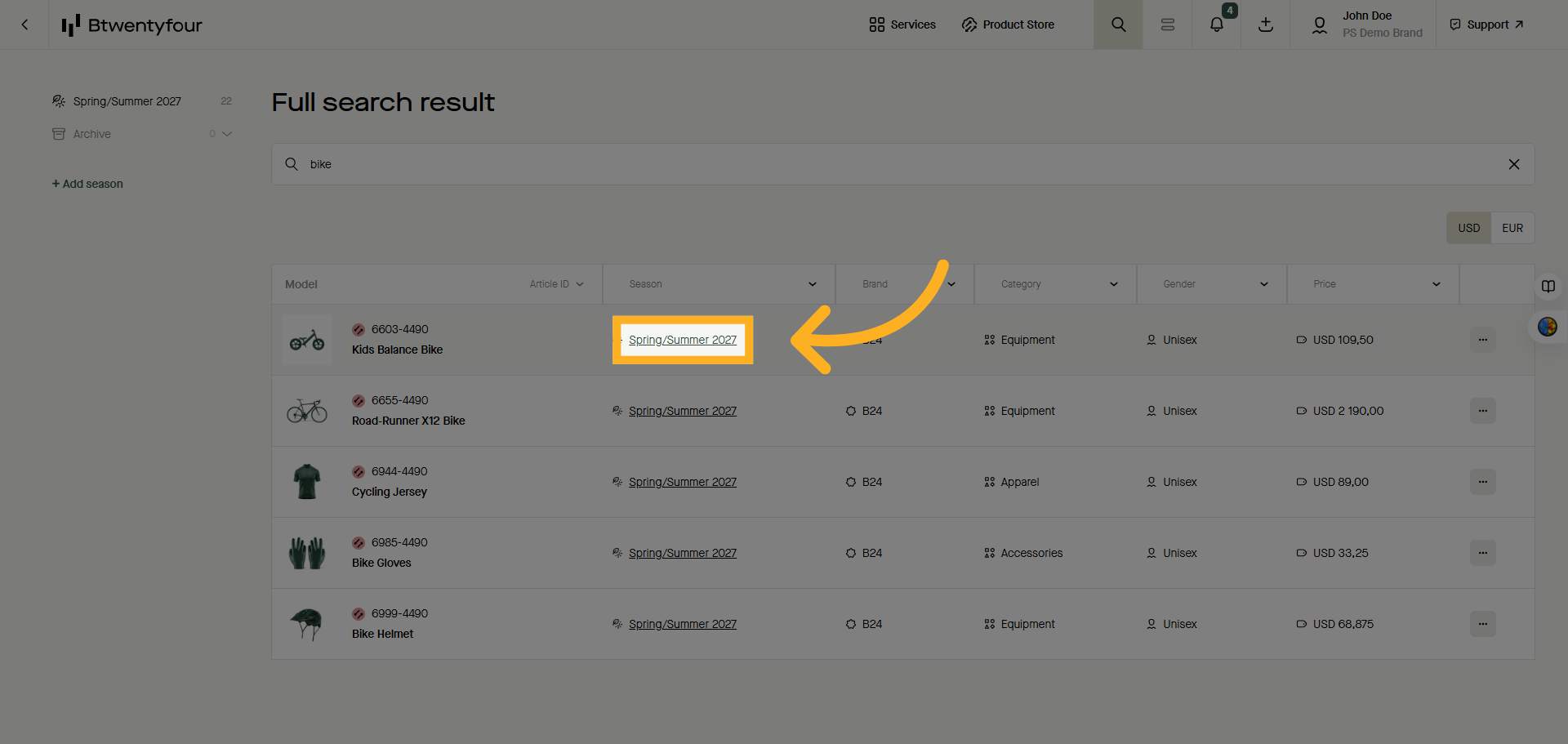
If you get a lot of results the complete list of these results can be viewed in a list by clicking view all.
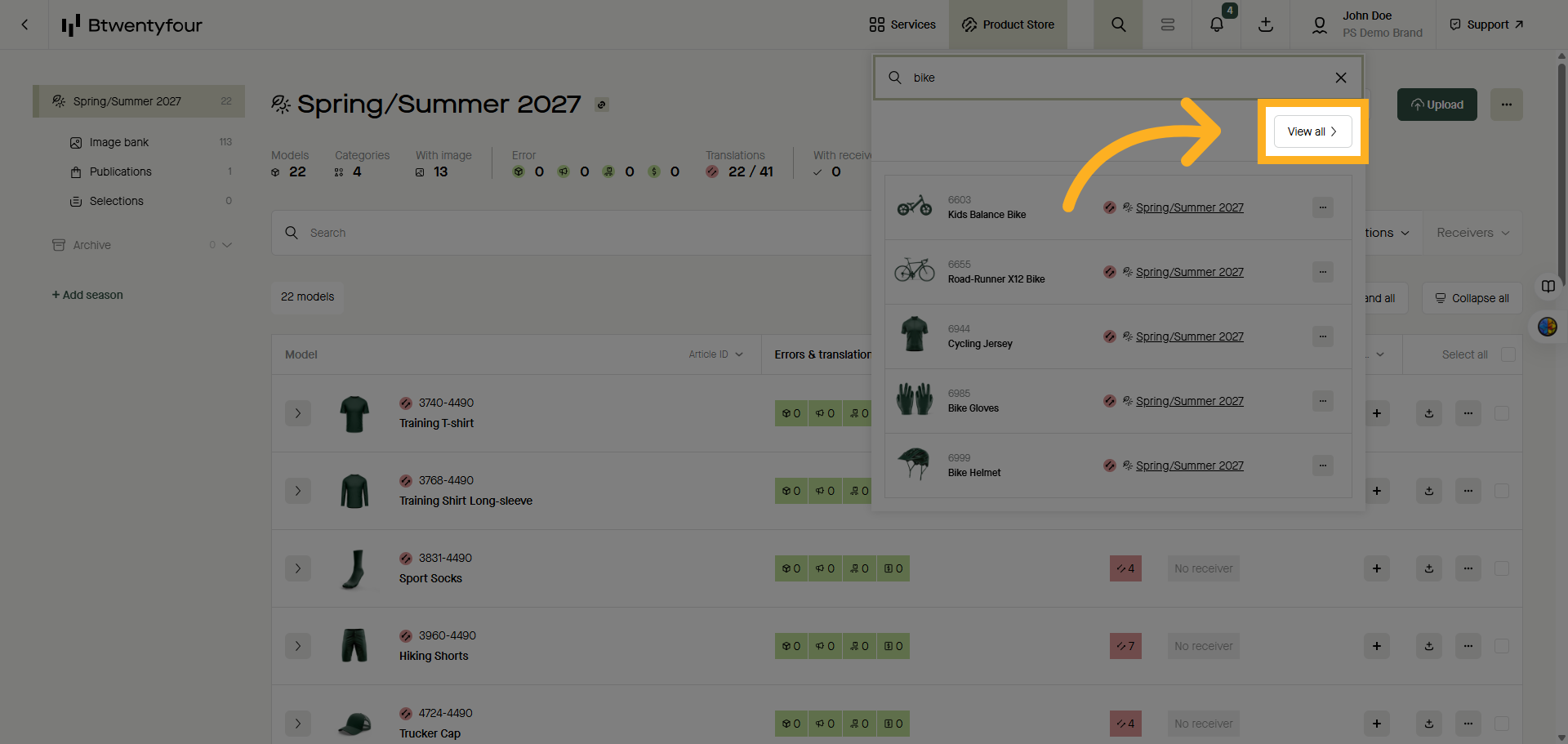
5. Select Seasonal Collection
Once the product your are looking for is located click the season name to be directed to that specific season and product.
6. Search Within Season
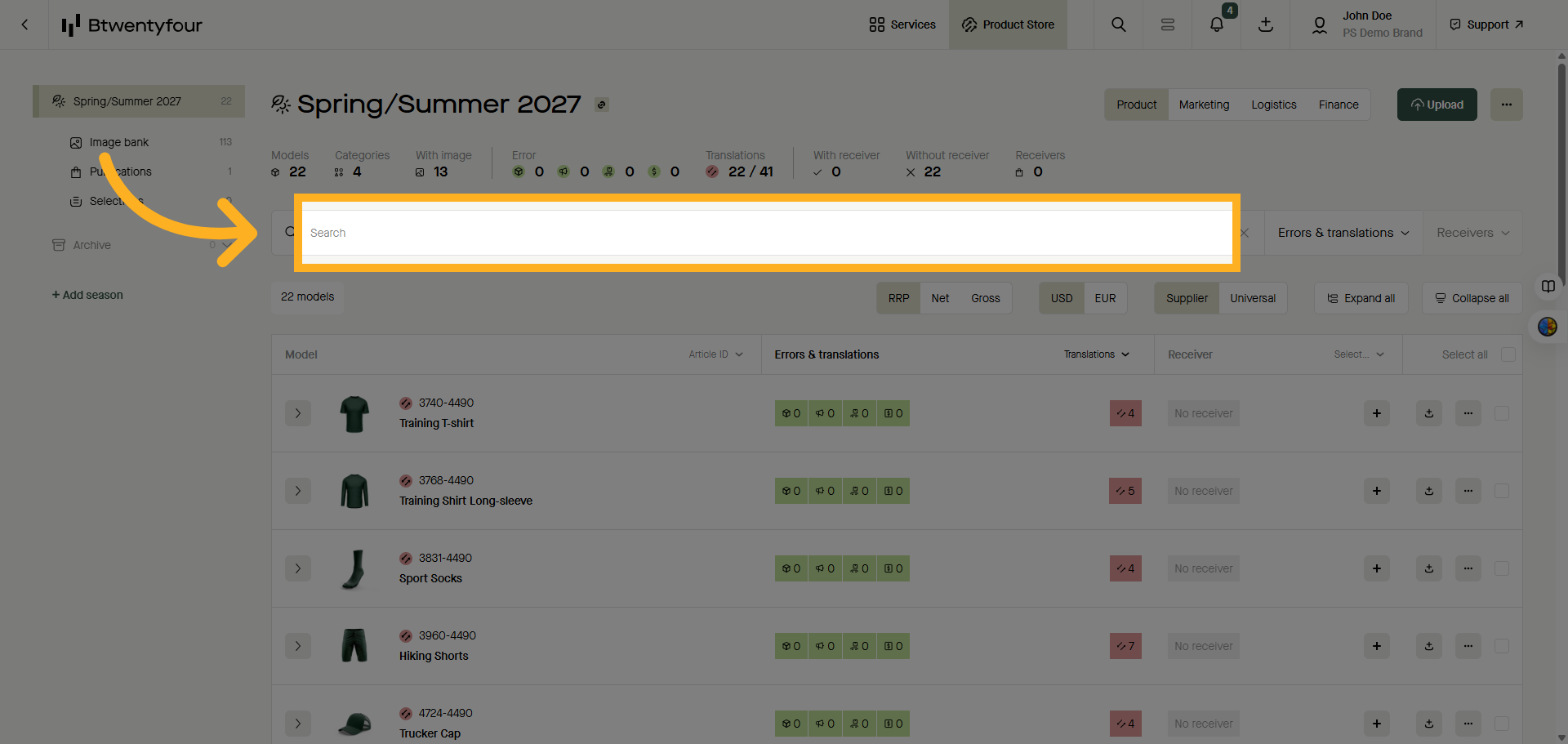
To search and filter the list of products within a season use the search bar on top of the model list and enter any search term.
7. Choose Specific Product
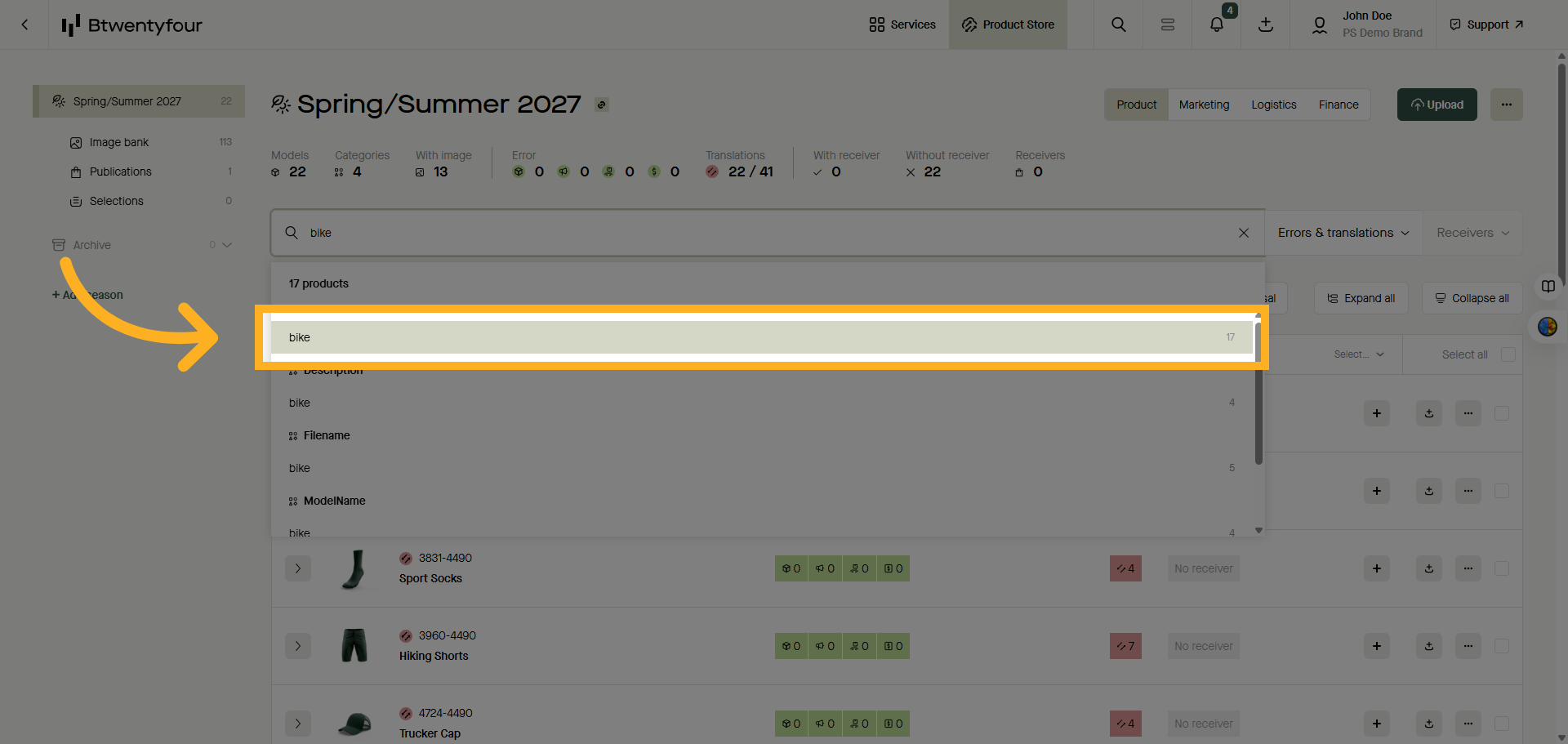
A list of results will be shown allowing you to search freetext or use any of the suggested filtering options such as category, silhouette or description.
8. Stack Filters
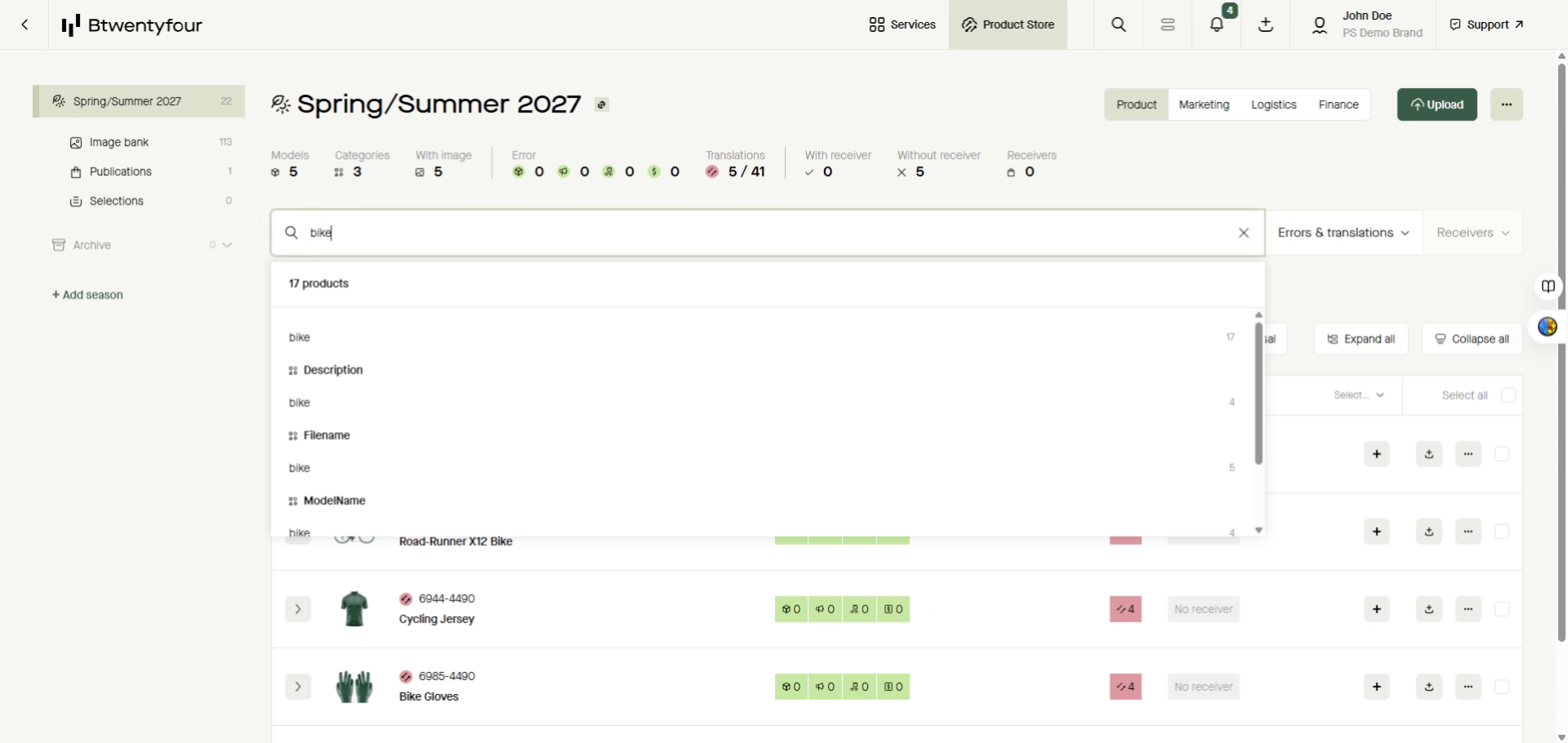
You can stack multiple search terms on each other to narrow down the list of results by performing the search all over again.
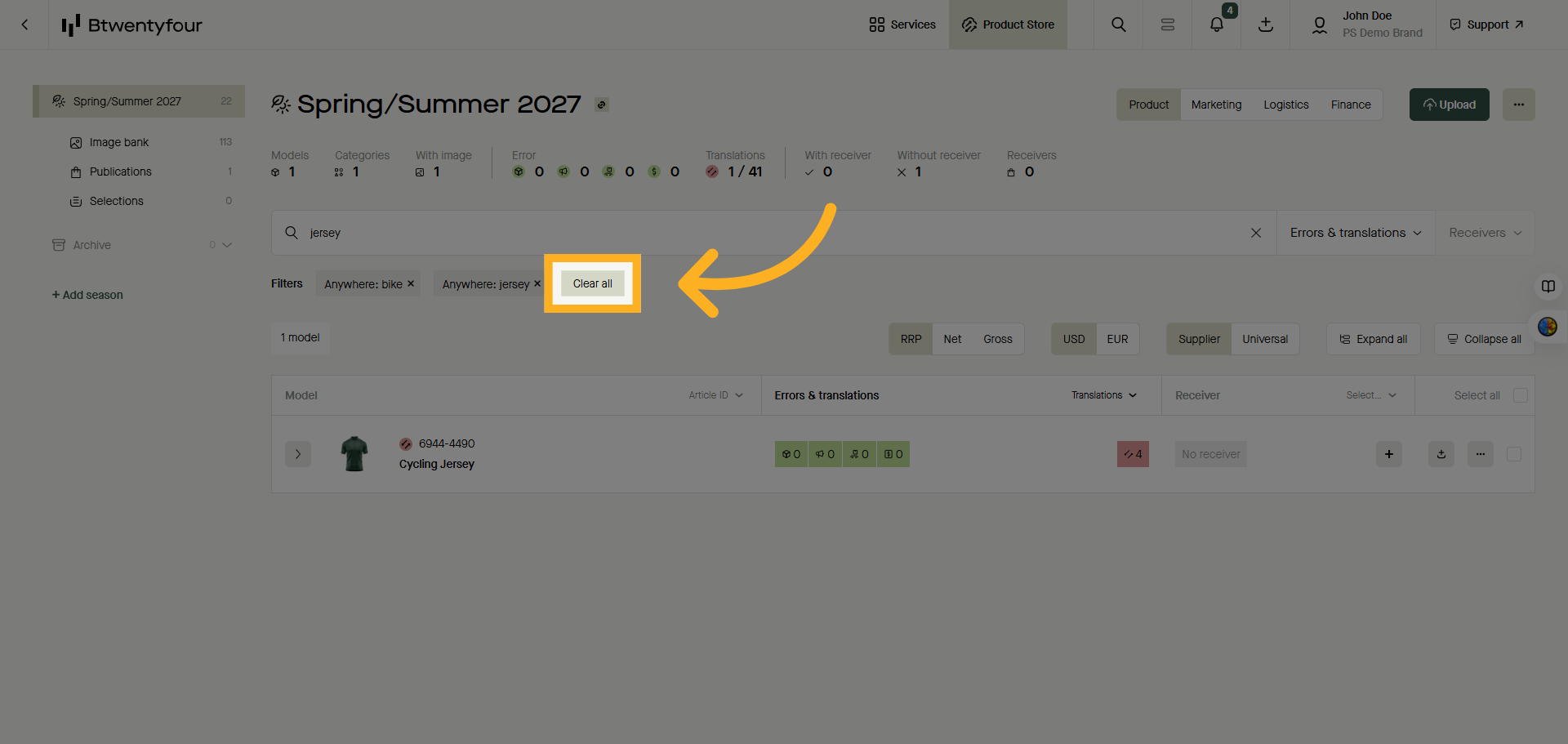
9. Clear All Filters
To re-start you search or remove specific searches use the clear all button or the search specific tiles to close remove them.
There are also predefined filtering options to filter the list on erroneous products or to filter on products published to specific receivers.
Thank you for watching