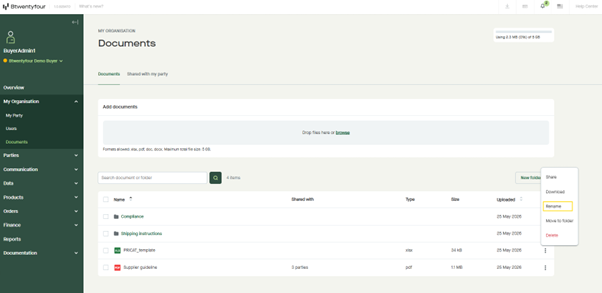
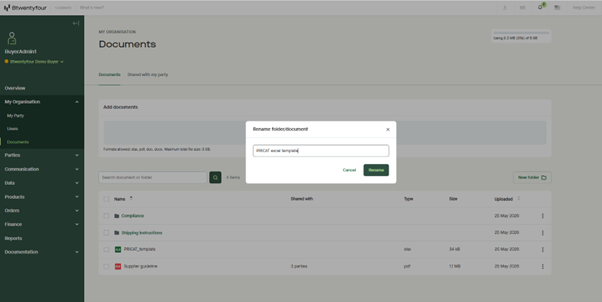
You can rename any of your organisation's documents or folders to keep your file structure clear and easy to navigate.
To rename a document or folder:
- Go to My organisation > Documents and open the Documents tab.
- Find the document or folder you want to rename.
- Click the three-dot menu on the right-hand side of the row.
- Select Rename from the menu.
- Enter the new name and confirm.
If the document is shared
If you rename a document that's currently shared with one or more parties, those parties will receive a notification about the change. The document will continue to appear in their Shared with my party tab under its new name.
Please note: You can only rename your organisation's own documents and folders. Documents shared with you by other parties cannot be renamed — they will keep the name given by the sharing party.