
Go to "Products" - "Publications".
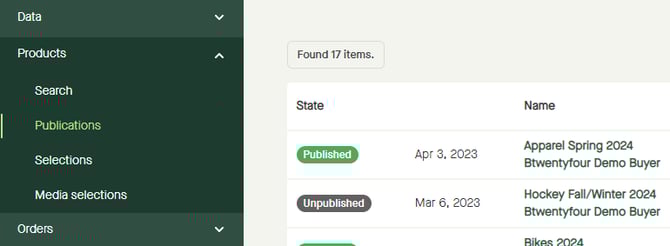
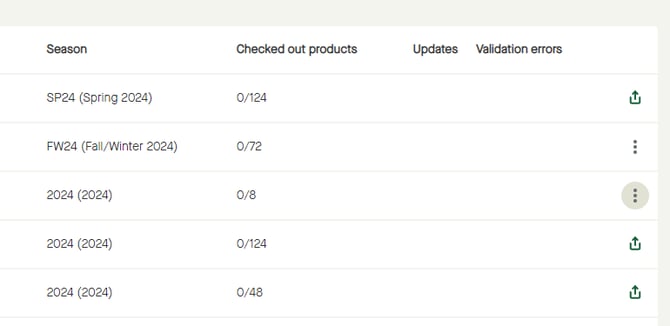
To start publishing a publication, click the three dotted icon on the row for that publication.
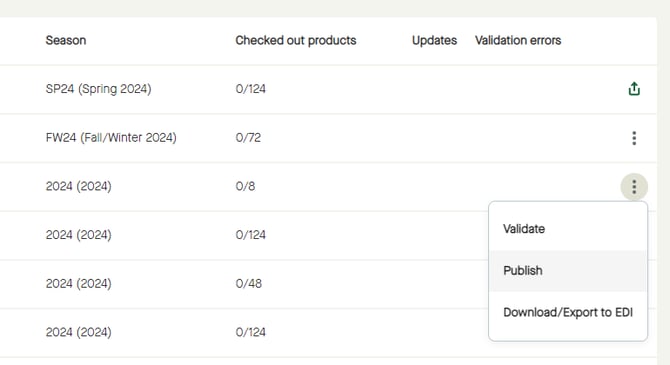
Click "Publish" in the pop-up menu.
A pop-up window appears.
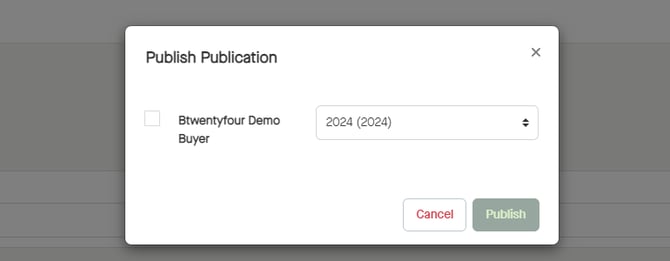
Click the checkbox for the buyer.
If publishing a publication uploaded to a GLN belonging to a group, all buyers in that group will be listed, and will be selectable via checkboxes.
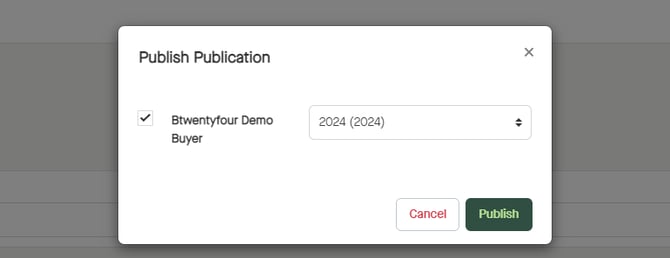
Click "Publish".
A notification will show telling a publishing task has been scheduled.
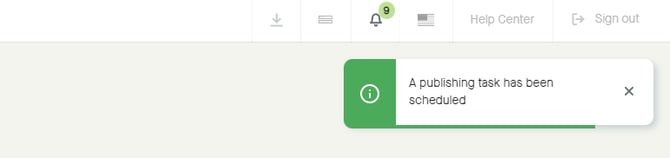
The publishing process will start and run in the background.
A notification saying the publication has been published means that the publication has been published, or partially published, to the selected buyer(s).
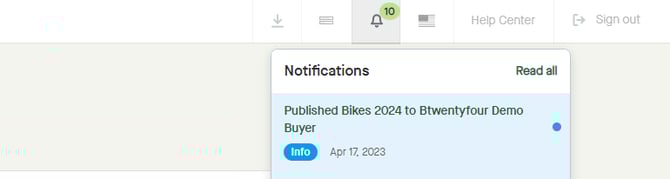
Note that if a publication has been validated with no errors, there will be no errors if publishing to the same buyer(s).
If a publication has not been validated at first, there could still be validation errors in the publication, even though it says published. As long as one item has been published with no validation errors the publication will have a status as "Published".
More information:
Step by step guide from uploading to publishing master data.