Move a single document or folder
-
- Go to My organization > Documents and open the Documents tab.
- Find the document or folder you want to move.
- Click the three-dot menu on the right-hand side of the row.
- Select Move to folder.
-
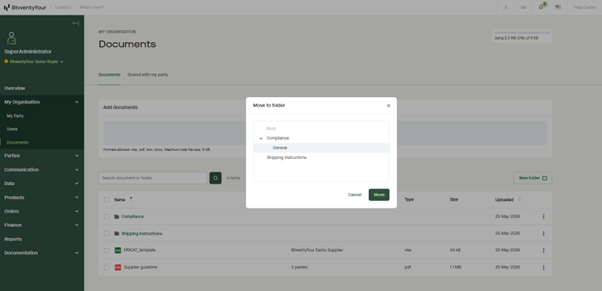
In the Move to folder dialog, choose the destination from the folder tree:
-
Select Root to move the item back to the top level.
-
Select any folder or subfolder to move the item inside it.
- Click Move to confirm.
-
Move multiple documents or folders at once
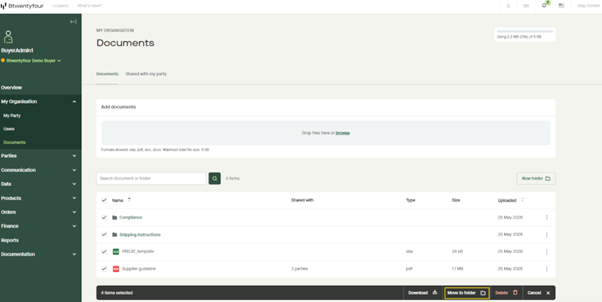
- Tick the checkbox next to each item you want to move. You can also tick the checkbox in the column header to select everything in the current view.
- A menu will appear at the bottom of the screen showing the number of items selected.
- Click Move to folder in the menu.
- Choose the destination from the folder tree and click Move.
Please note: You can only move your organization's own documents and folders. Documents shared with you by other parties cannot be moved.
Moving a shared document doesn't affect its sharing status — the parties you've shared it with will continue to have access, regardless of where the document is located within your folder structure.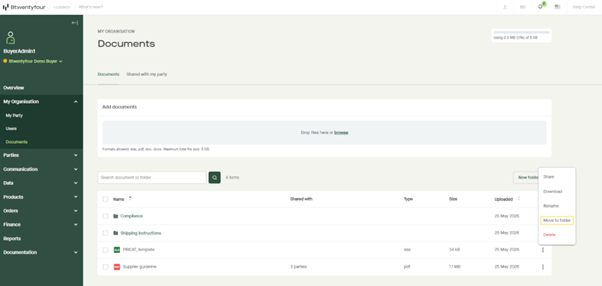
Moving a single document
Moving multiple documents and folders