
To modify a single order line when no order lines are selected, click the three dotted icon for that row.
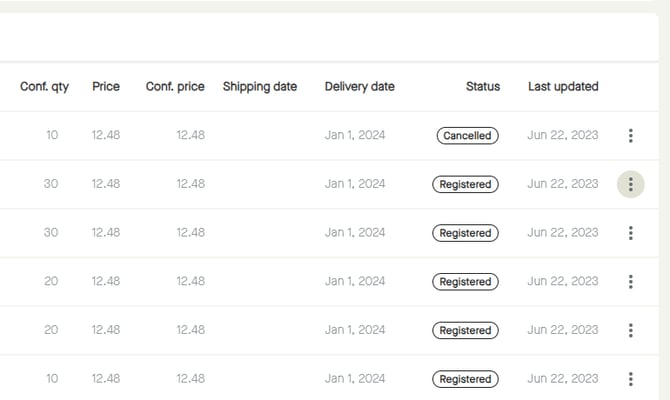
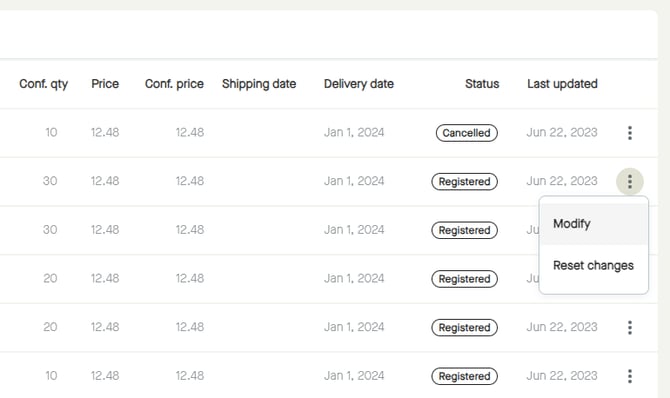
Click and select "Modify".
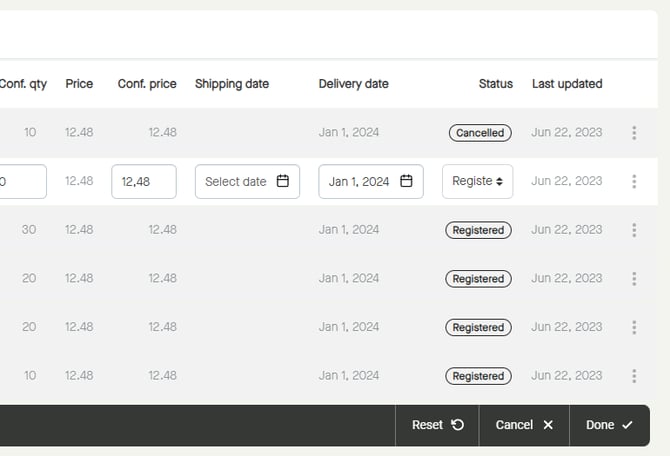
The fields possible to modify will be activated, and the floating bar will appear at the bottom of the page.
To for example decrease the quantity for an order line, click the field for "Conf. qty".
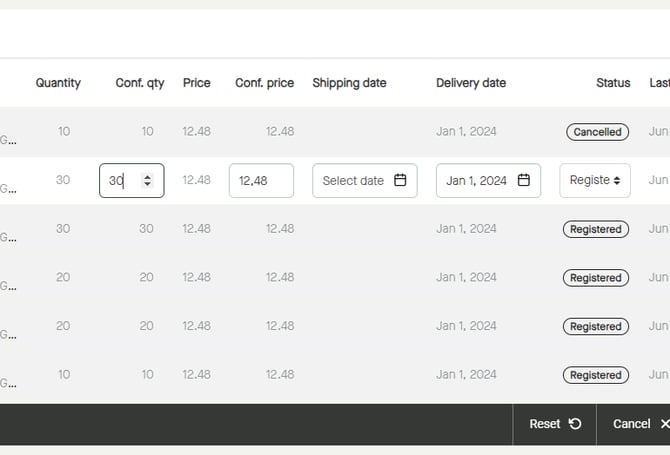
Use the arrows to decrease the quantity or enter the quantity to be confirmed.
As soon as the quantity has been decreased, a new order line will show up with the status "Back order".
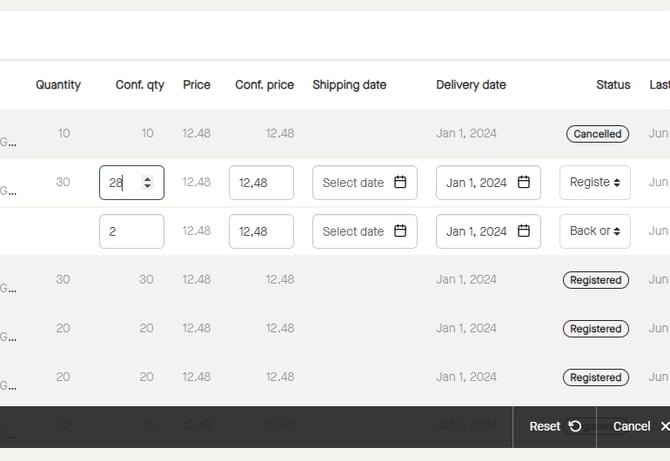
To set a new delivery date for the back order line, click the field for "Delivery date" and select a date.
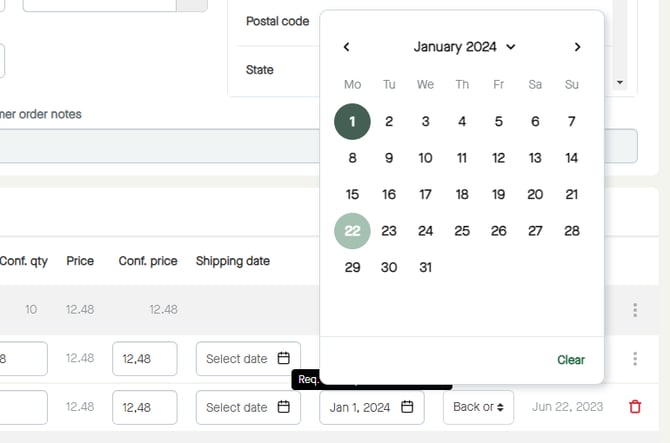
Some buyers cannot receive back order lines.
To remove a back order line, click the trashcan icon.
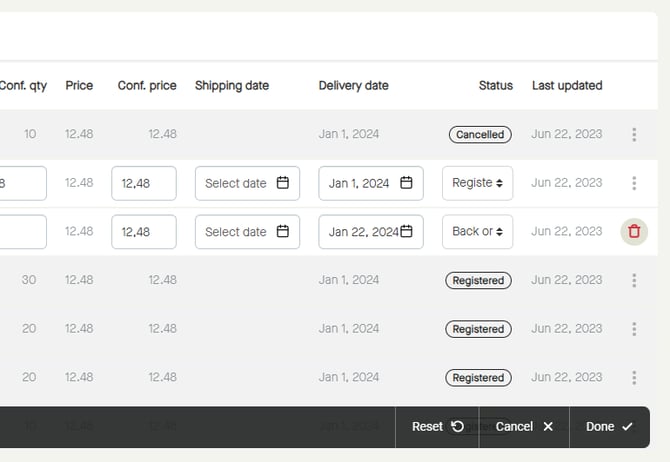
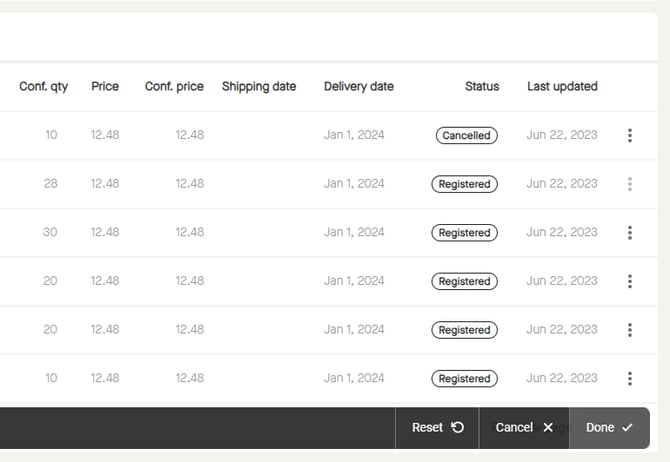
The back order line will be removed.
Click "Done".
More information:
Step by step guide on how to create and send an "Order response".