
Go to "Data" - "Data mapping".
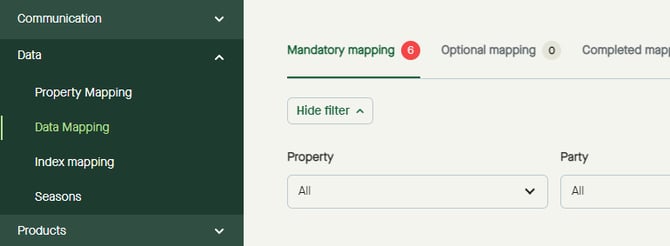
Click on the set to view the underlying set name(s), if not already showing.
Click on the row for the set to be mapped.
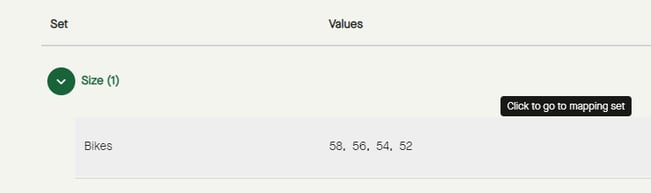
A new page will open for the set selected.
“Mappings to do” will be listed.
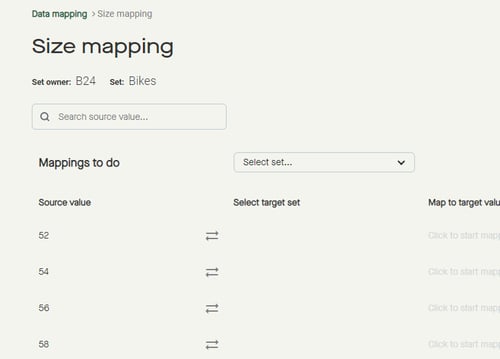
Any completed mappings will be shown below the “Mappings to do”.
To select a set for all source values to be mapped to, click "Select set".
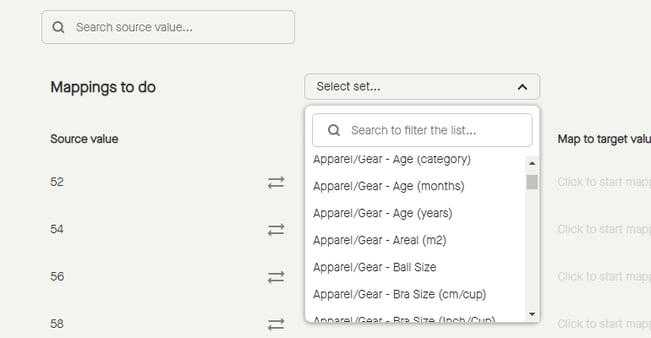
Scroll to find a set suitable for the source value to be mapped, or type to search for a suitable set, and click to select the set.
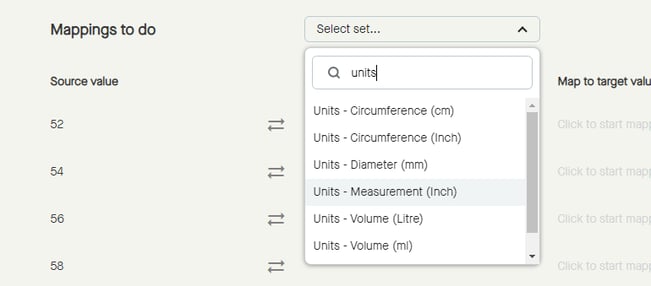
The target set will be selected.
If there is a target value within the selected target set that matches the uploaded source value, target set will be set on each row and target value will be added automatically.
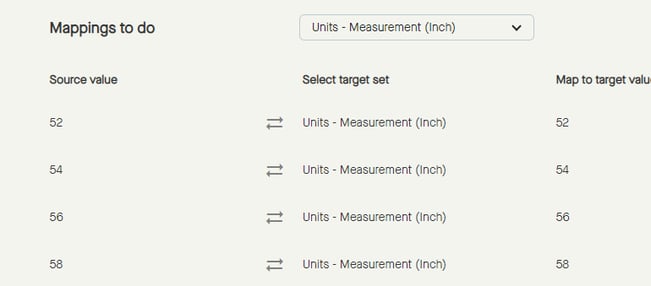
If there is no target value within the selected target set that matches the uploaded source value, target value needs to be selected manually.
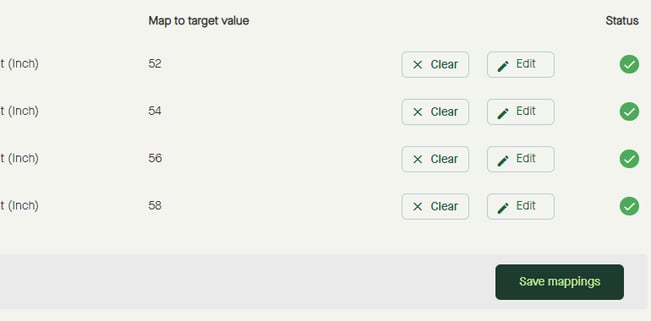
Click "Save mappings" to save mappings.
More information:
Step by step guide from uploading to publishing master data.