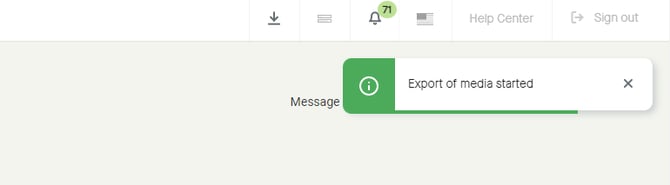
Click "Actions" to view all options.
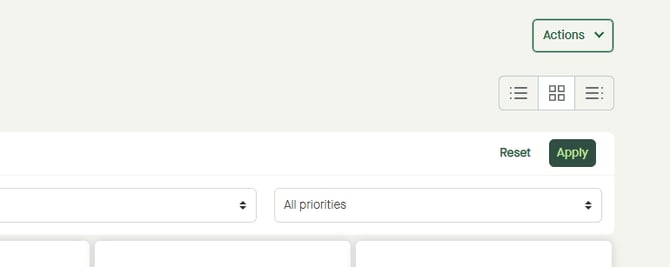
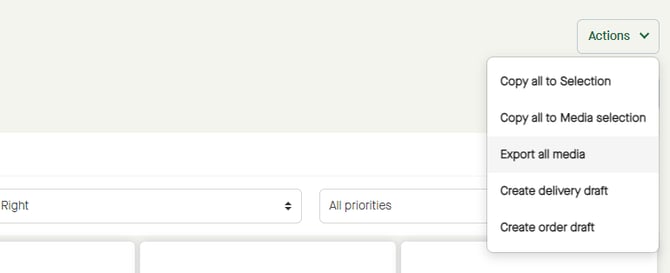
Select "Export all media" to export all media from a product search, a publication, or a selection. Any filterings will affect the export.
Note that only media that is stored in our storage will be exported. Media referred to via URL only will not be exported.
Click to select "Export all media", to start exporting all media.
A pop-up window appears.
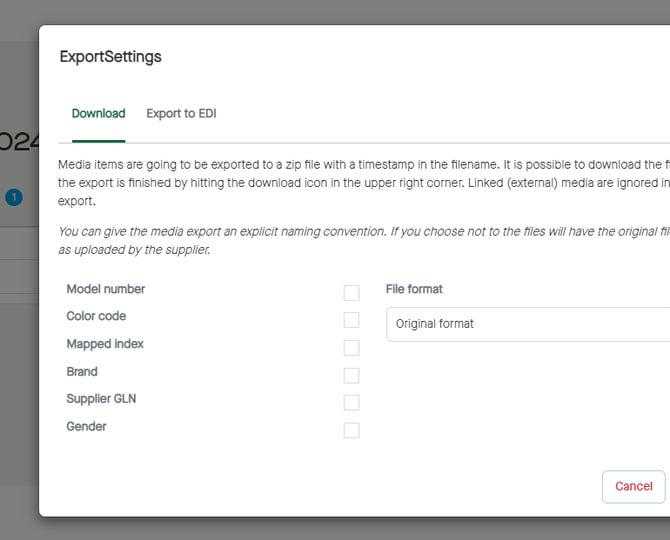
It´s possible to add settings for the media export. If no settings are made, the files will be exported with the same name and in the same format as uploaded by the supplier.
The settings are the same for both tabs, “Download” and “Export to EDI”. The difference is that it´s possible to select an integration under “Export to EDI”. Available for buyers with an integration.
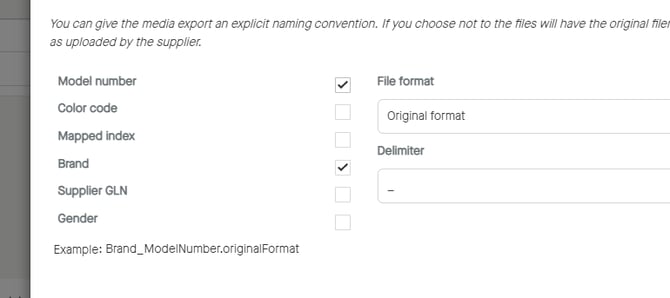
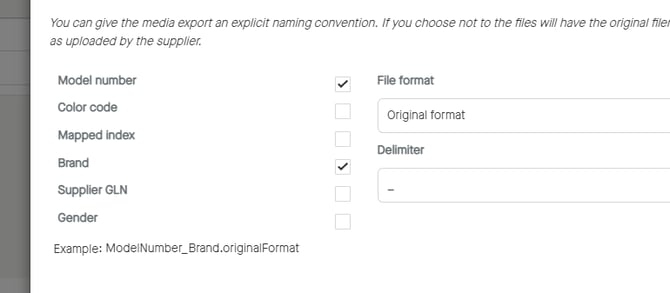
Click to check boxes to name the media thereafter. If checking two or more boxes, the order of the selection made will set the order of naming the media.
For example:
If checking “Brand” at first, and then “Model number”, the naming will be “Brand_ModelNumber.originalFormat”.
If checking “Model number” at first, and then “Brand”, the naming will be “ModelNumber_Brand.originalFormat”.
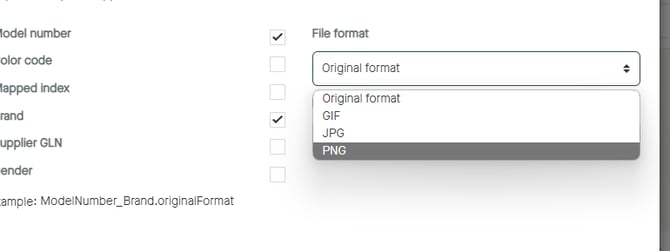
Click to select “File format”, if in need of changing the original format to a preferred format.
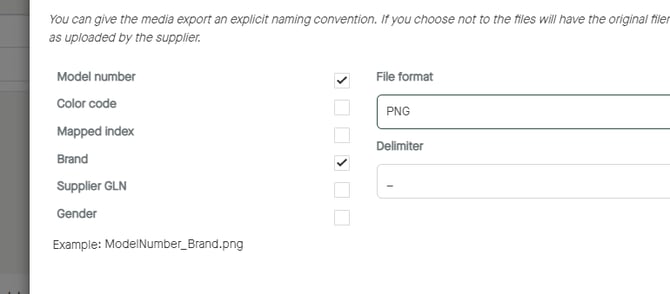
The example of the naming will change according to the selected format.
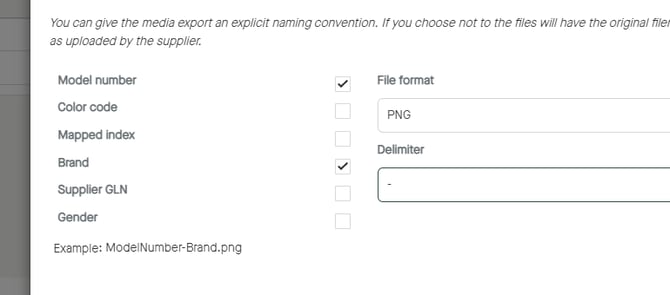
Click to change “Delimiter” if want to change from the default value “_” to “-“.
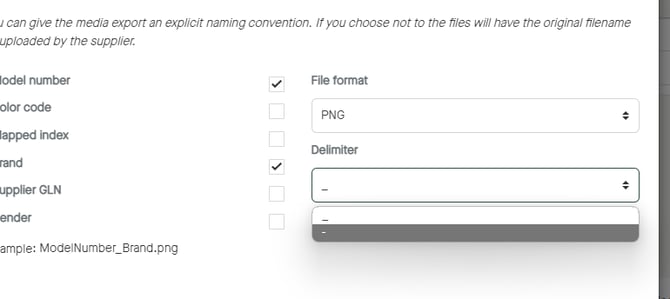
The example of the naming will change according to the selected delimiter.
Click “OK” to start the export.
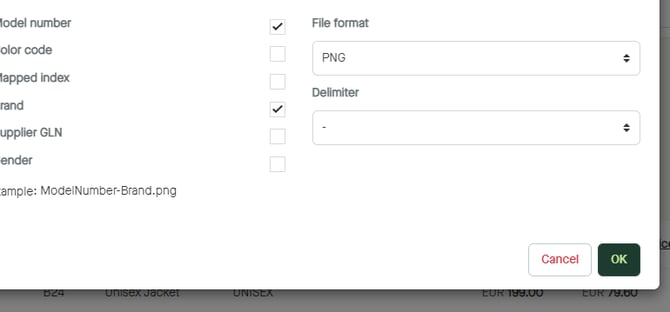
The export of media will start.