You can delete your organisation's documents and folders, either one at a time or in bulk.
Delete a single document or folder
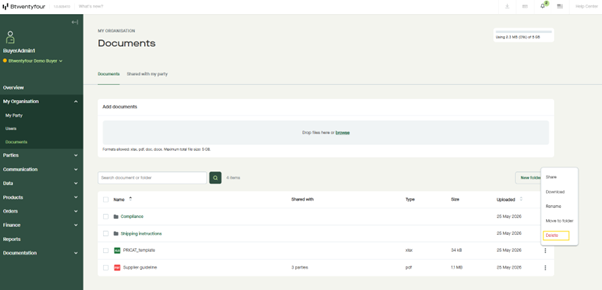
- Go to My organisation > Documents and open the Documents tab.
- Find the document or folder you want to delete.
- Click the three-dot menu on the right-hand side of the row.
- Select Delete and confirm.
Delete multiple documents or folders at once
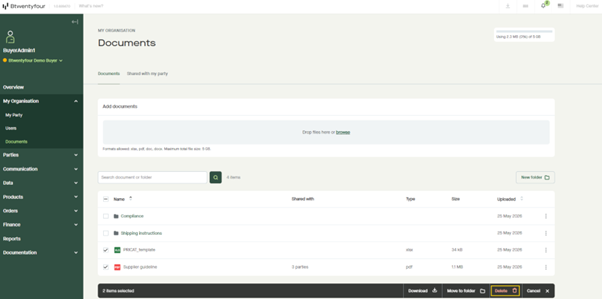
- Tick the checkbox next to each document or folder you want to delete. You can also tick the checkbox in the column header to select everything in the current view.
- A menu will appear at the bottom of the screen showing the number of items selected.
- Click Delete in the menu and confirm.
From the same menu, you can also use the Download or Move to folder options or click Cancel to clear your selection.
Deleting folders
Deleting a folder will also delete all subfolders and documents inside it. Make sure you've moved out anything you want to keep before confirming the deletion.
If a document is shared
If you delete a document that's currently shared with one or more parties, those parties will receive a notification. The document will be removed from their Shared with my party tab and will no longer be accessible to them.
This also applies when deleting folders — if any shared documents are inside the folder (or its subfolders), the parties they're shared with will be notified and lose access.
Please note: You can only delete documents and folders you've uploaded or created yourself. Documents shared with you by other parties cannot be deleted from your view — only the party who uploaded the document can remove it.