Step 1: Go to Publications
Open the Publications section from the left-hand menu under Products. Here you can view all available publications for different seasons and see the ones that are published to you.
(Next, you will select the publication you want to create orders from.) 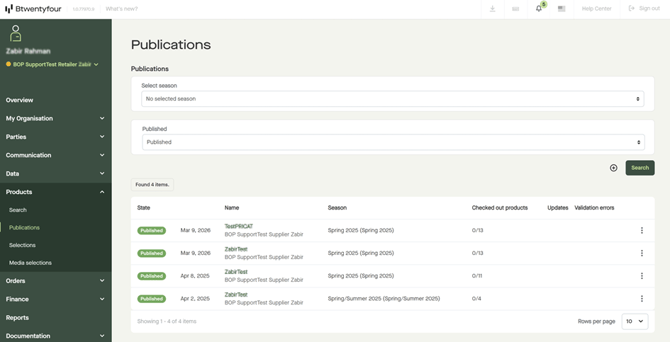
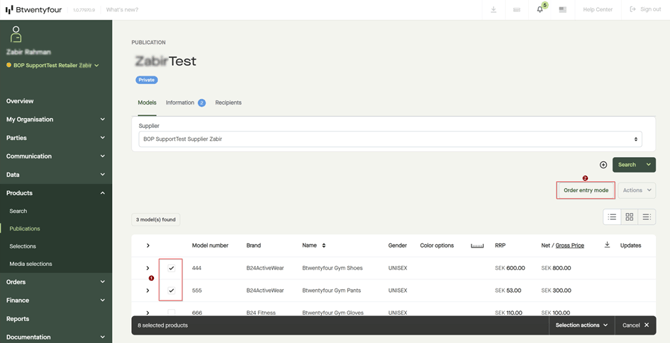
Step 2: Select Products and enable Order Entry Mode
Select the products you want to order by ticking the checkboxes next to the models. After selecting the desired products, click Order entry mode to start creating an order for the selected items.
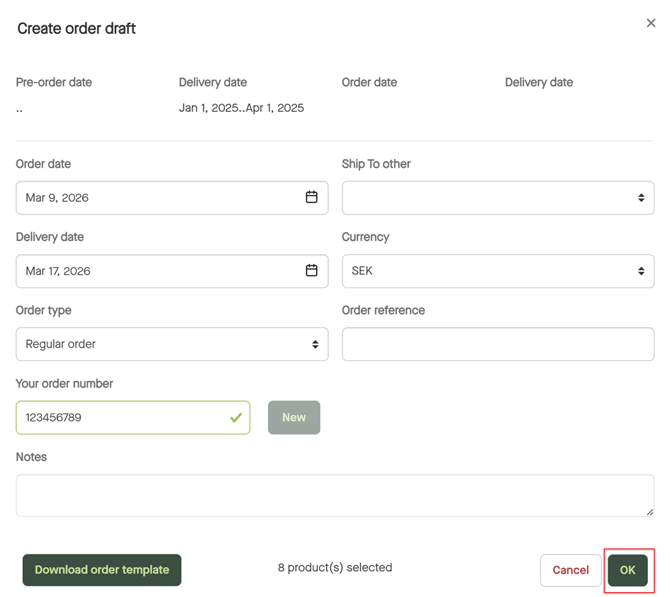
Step 3: Create Order Draft
Fill in the required order details such as order date, delivery date, order type, and order reference if needed. Once the information is correct, click OK to create the order draft.
Step 4: Edit the Order Draft
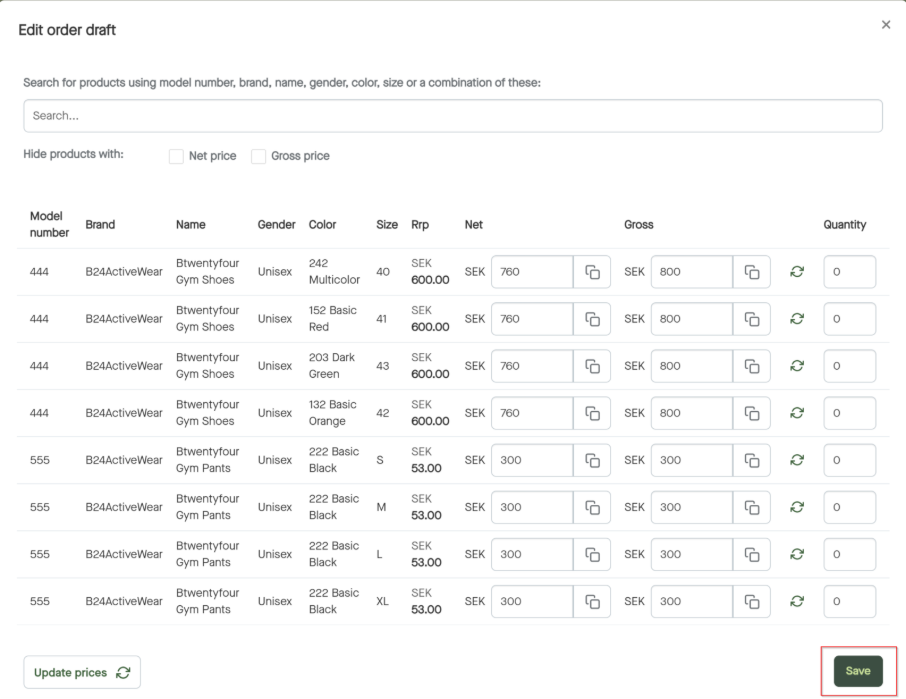
Click Edit order draft to open the order for editing. Here you can enter the quantities for the selected articles and adjust prices if necessary. When you have finished making the required changes, click Save to update the order draft.

Step 5: Review and Send the Order
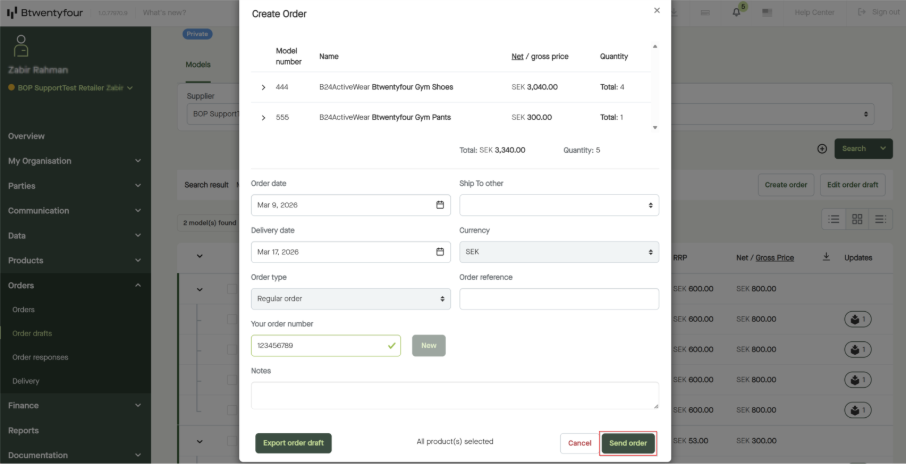
Once you have completed editing the order, click Create order to review the final order details.
After verifying that all information is correct, click Send order to submit it. If any validation errors occur, they will be displayed so you can correct them before sending.
After the order has been sent successfully, it will be available in the left-hand menu under Orders → Orders.
Alternative Method: Editing Orders via Excel
In addition to editing the order directly in the system, you can also export the order draft, edit it in Excel, and upload it again.
Step 1 – Export the Order Draft
Go to Orders → Order drafts in the left-hand menu. Locate the order draft you want to modify, open the three-dot menu, and select Export. 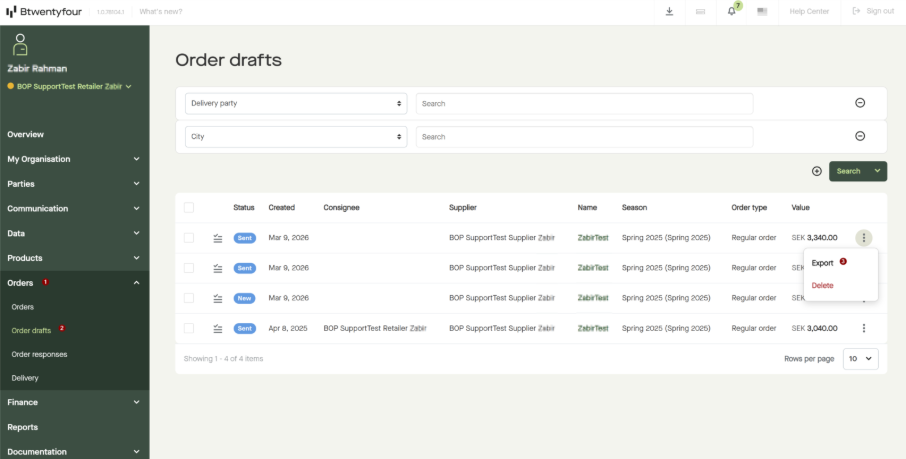
Step 2 – Download the Excel File
In the export window, choose Excel Declarative xlsx (1.0) as the format and click Download. The order file will be downloaded and can be edited in Excel. 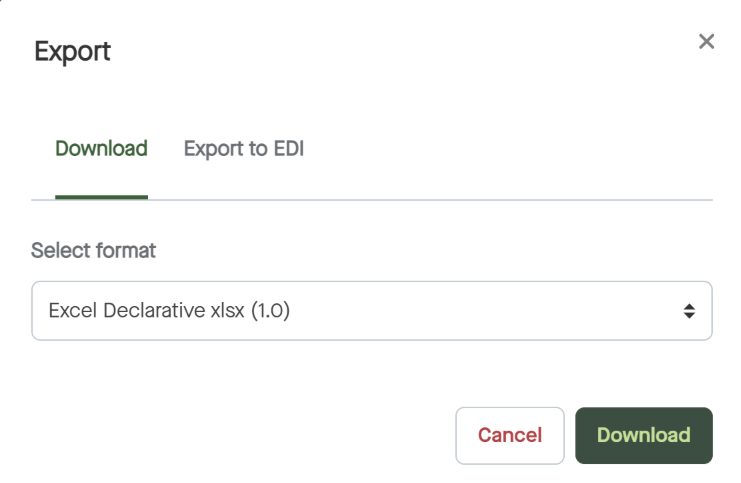
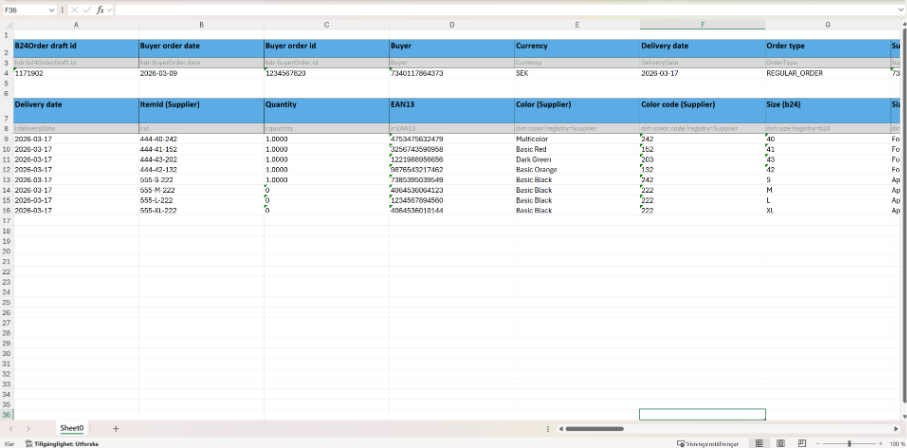
The exported Excel order may look similiar to the example below. Here you can fill in or update the necessay order information, such as quantitites, prices and other required details before uploading the file back in the system.
Step 3 – Upload the Edited Order
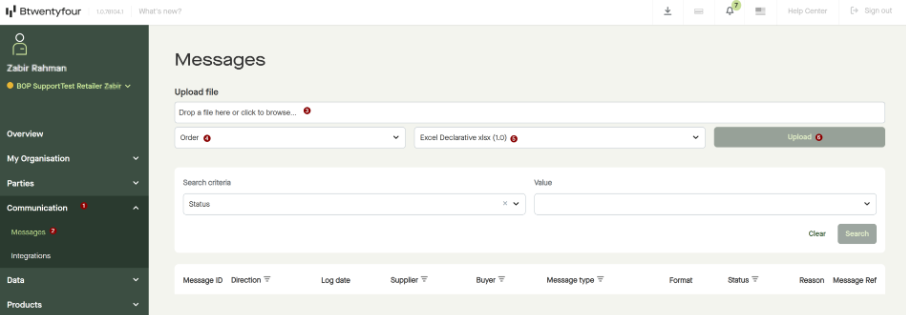
After editing and saving the order in Excel, go to Communication → Messages. Upload the file by dragging it into the upload area or selecting it from your computer. Choose Order as the message type and Excel Declarative xlsx (1.0) as the format, then click Upload to submit the updated order.