
Go to "Orders" - "Orders".
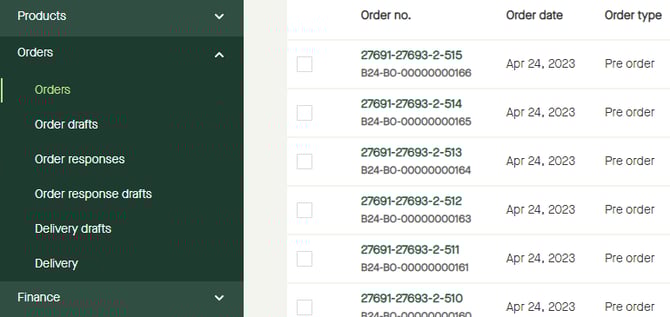
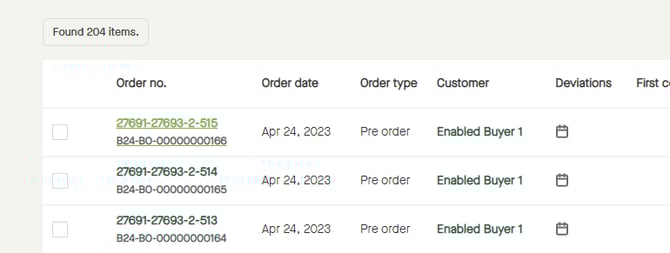
Click the "Order no." for the order to be responded.
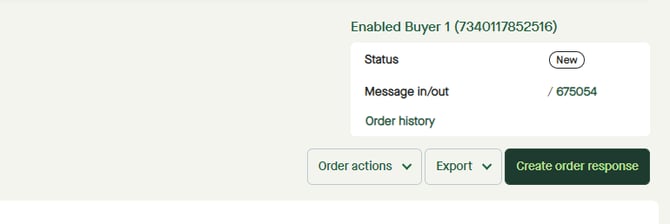
Click "Create order response".
An "Order response draft" will be created, and a notification will appear saying there are products in the order without a response.
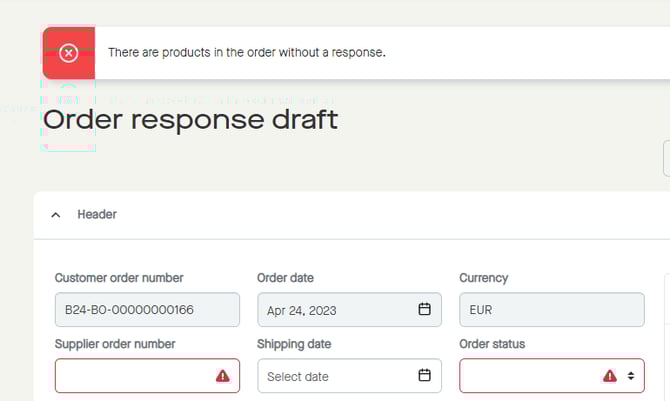
Click and enter a "Supplier order number".
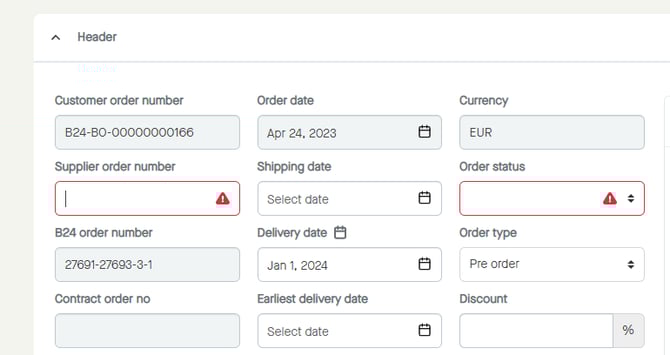
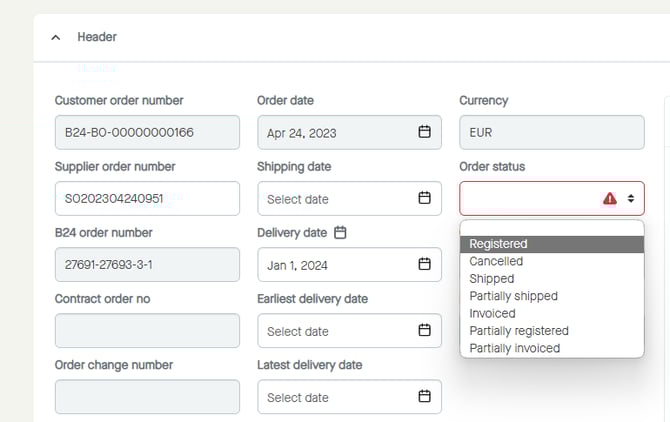
Click to select an "Order status".
Note that this will not affect the order lines why statuses need to be set on them as well.
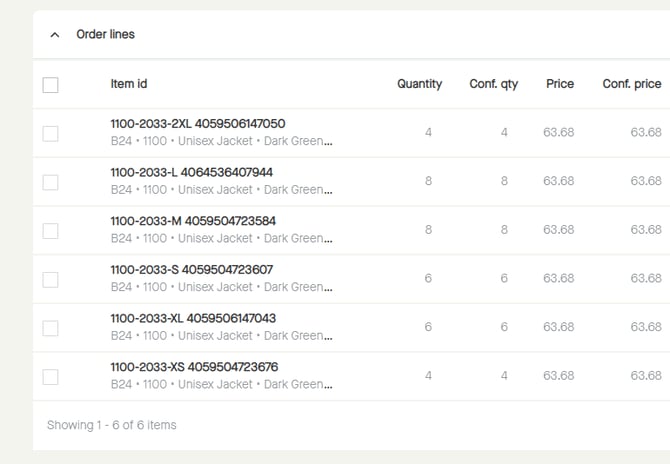
Note that all lines will have "Conf. qty", "Conf. price" and "Delivery date" set as for the values from the order.
To set status on all lines to "Registered", start by clicking the checkbox to select all lines.
All order lines will be selected, and a floating bar appears at the bottom of the page.
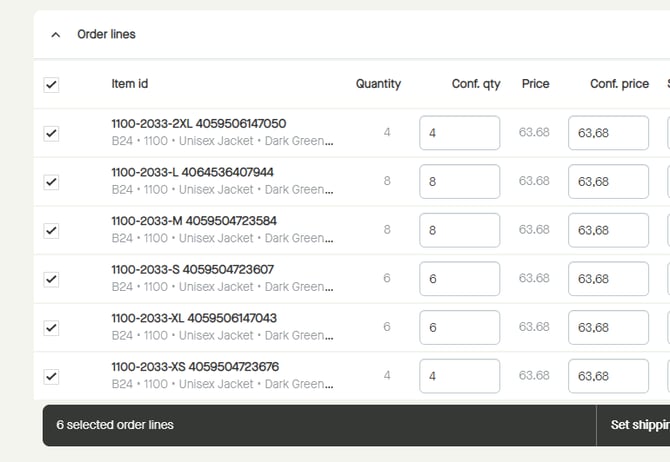
Click "Set status" in the floating bar and select "Registered".
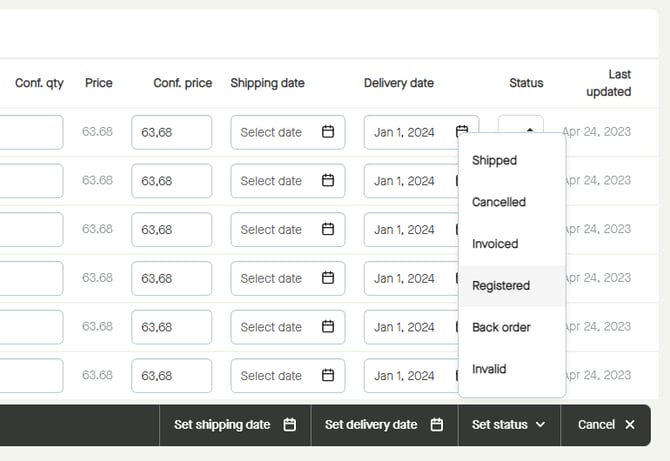
The "Status" for all lines will be set to "Registered".
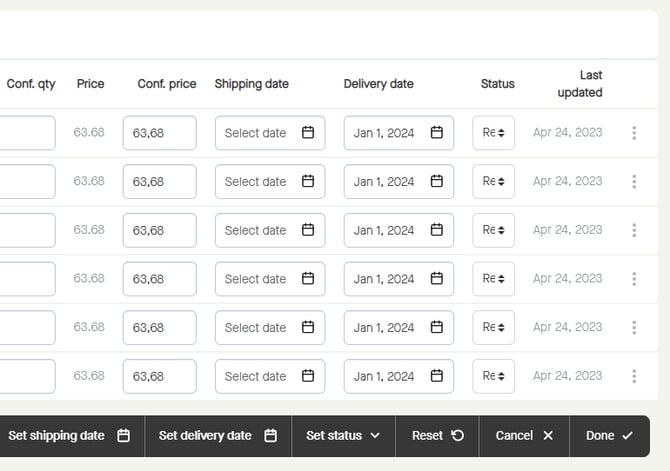
Click "Done" in the floating bar to confirm the changes.
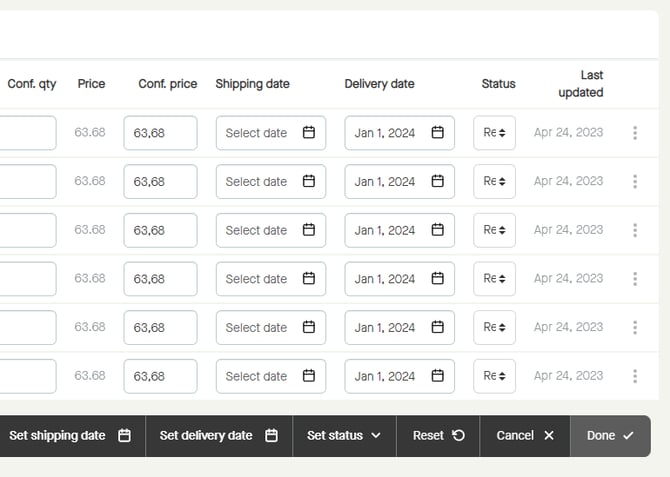
The changes will be made.
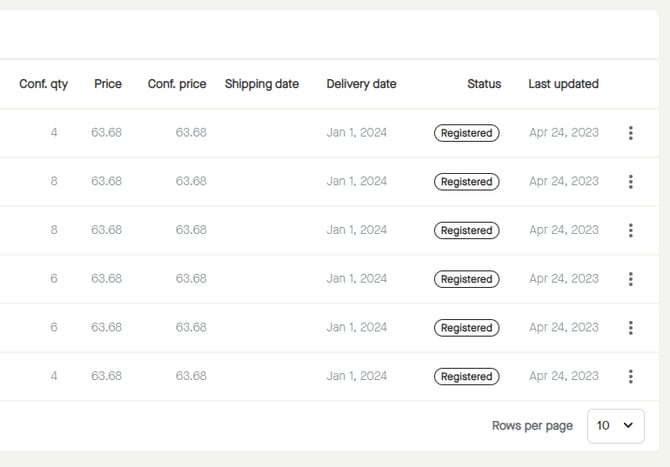
Note that it´s possible to change information on lines individually if for example in need for cancelling an order line or changing quantities or dates.
Click "Send order response".