
How to Create and Map Seasons in Product Store
This demo showcases how to create and map seasons within Product Store.
The purpose of creating and mapping seasons is to harmonize season names and conventions across the network and to find a standard regarding the naming of seasons. This is very helpful for the retailers wanting to be able to segment their products into harmonized seasons with consistent naming regardless what their suppliers choose to name their seasons. Seasons are used in the platform as a way to partition product data, meaning all product master data is contained within one universal season. Creating seasons is mandatory before uploading any product catalogues. Uploads of product catalogues using a season not already created will render a validation error and stop the upload prompting the user to create the season before proceeding.
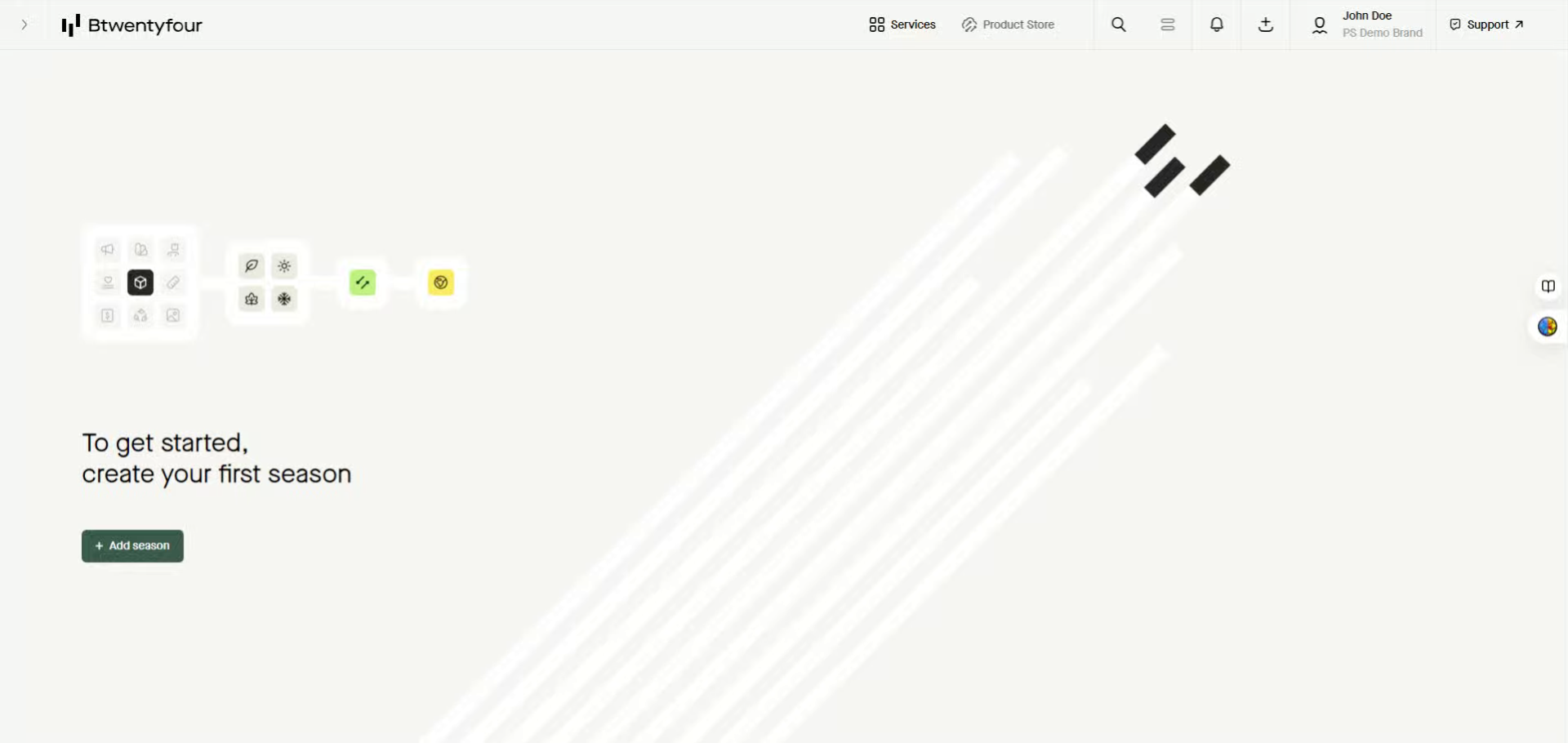
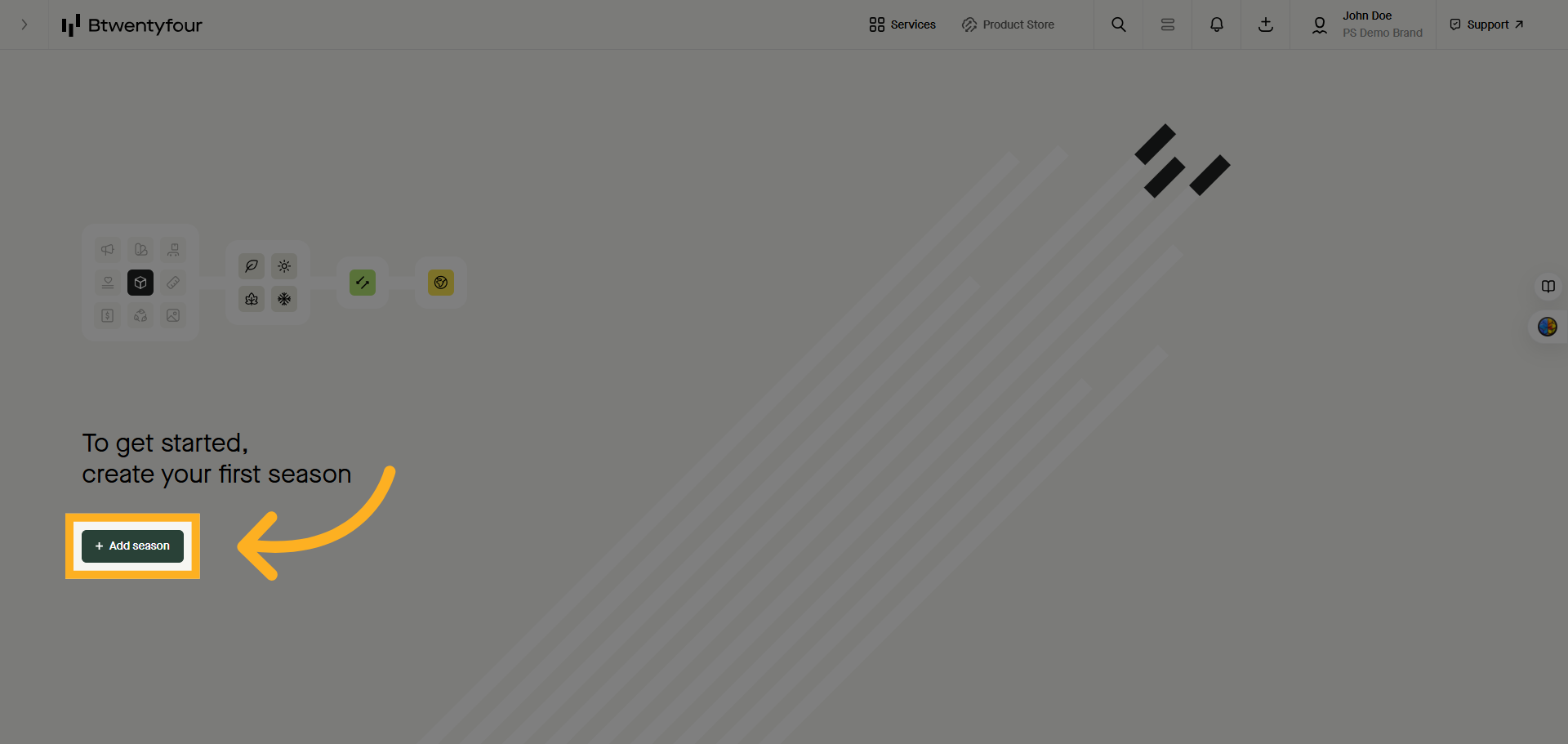
2. Click Add Season Button
Click the Add Season button to start creating a new season in Product Store.
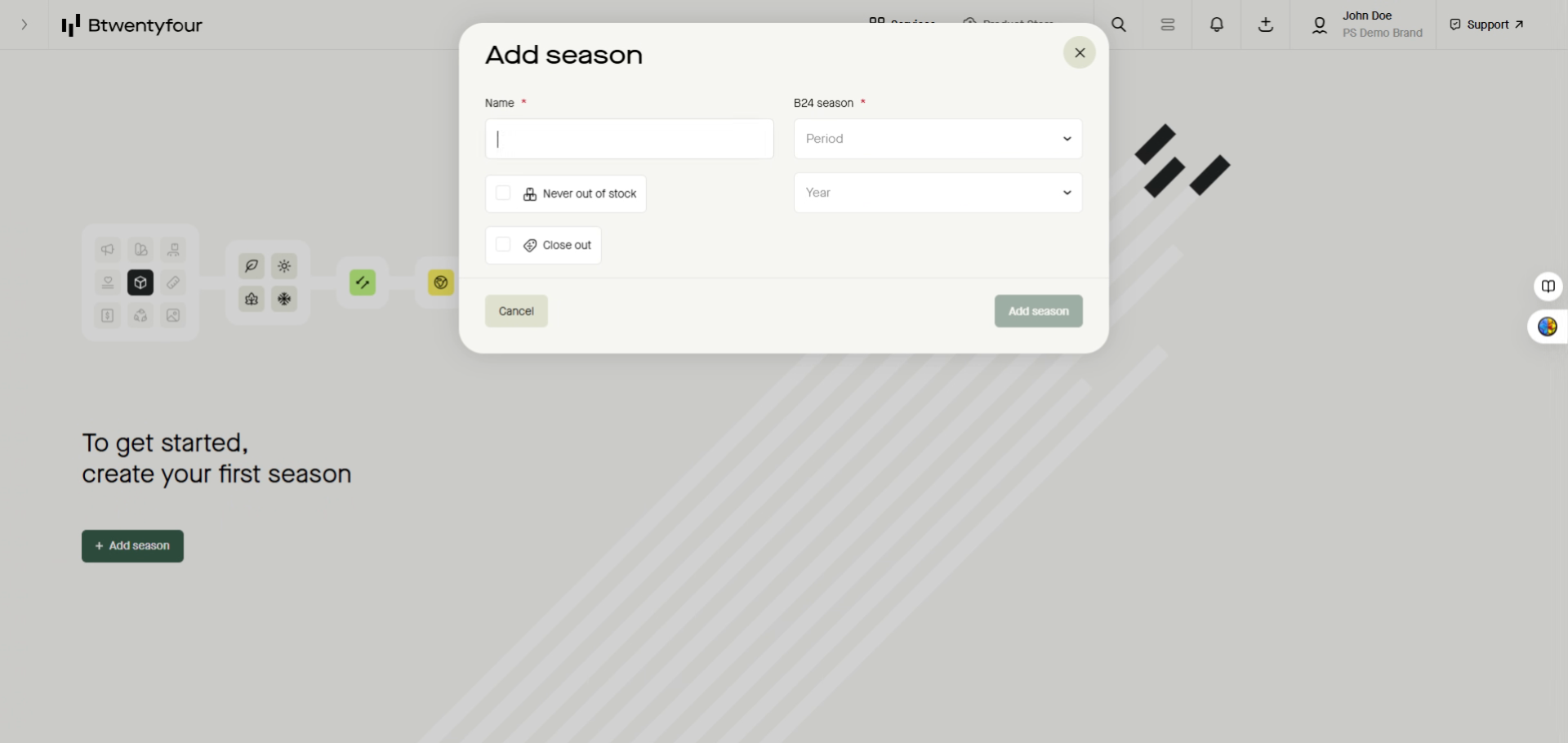
3. Enter Season Name
Enter the season name to label the period, such as SpringSummer or FallWinter. Note that the name used must match the season name in the product data you upload at a later stage
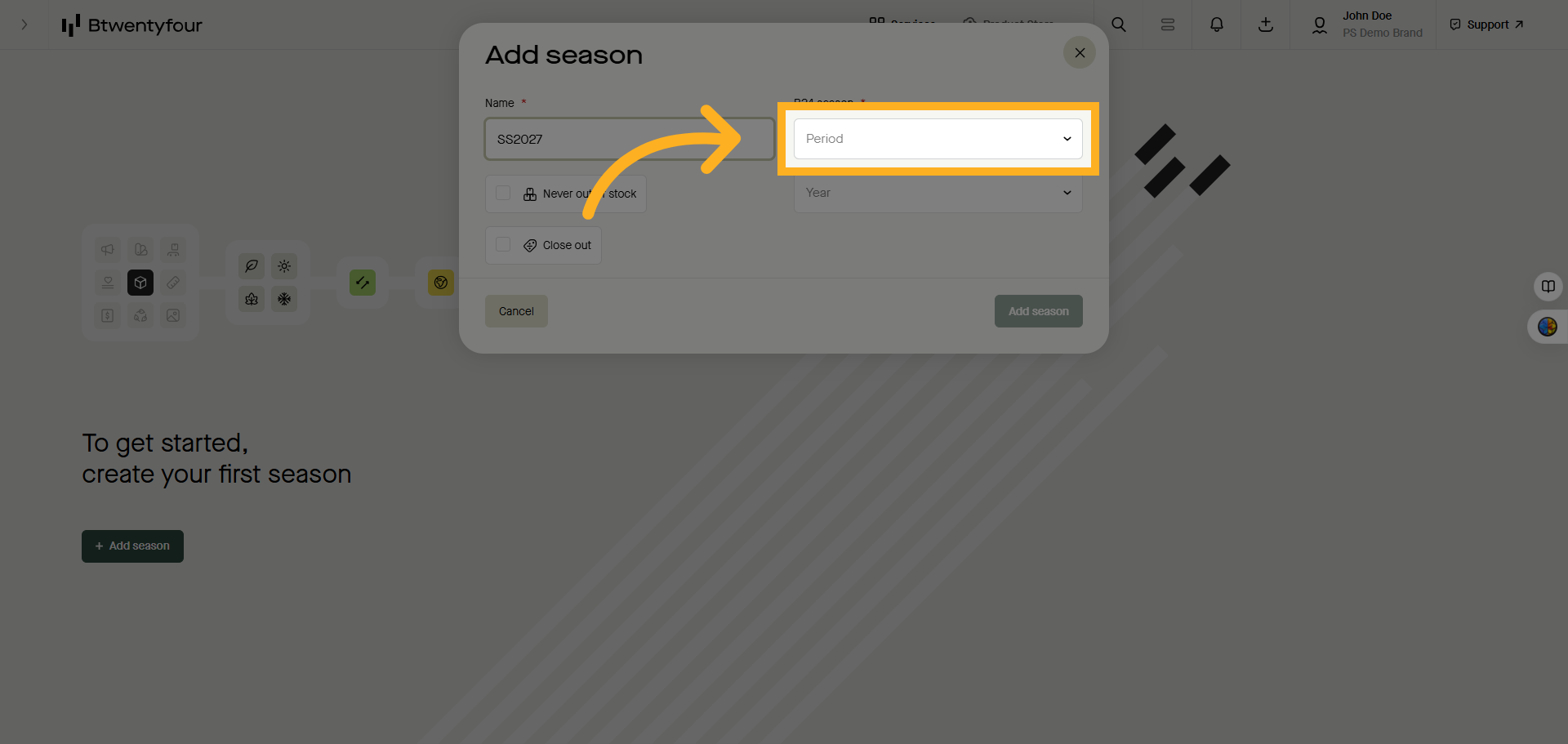
4. Select Period Field
Click the Period field to assign the seasonal timeframe for the product cycle.
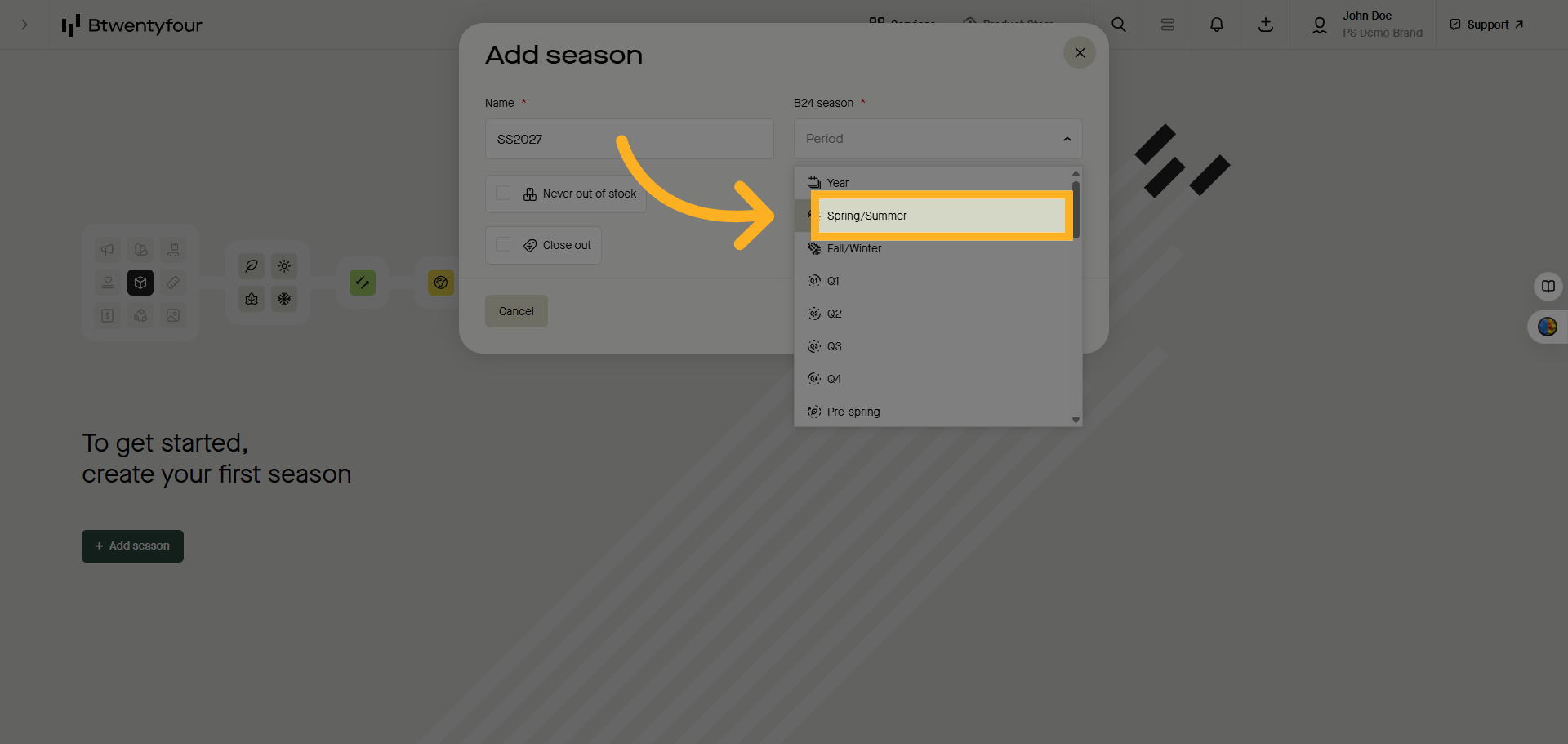
5. Choose Season Period
Select the appropriate season period, like Spring/Summer, to map the season correctly.
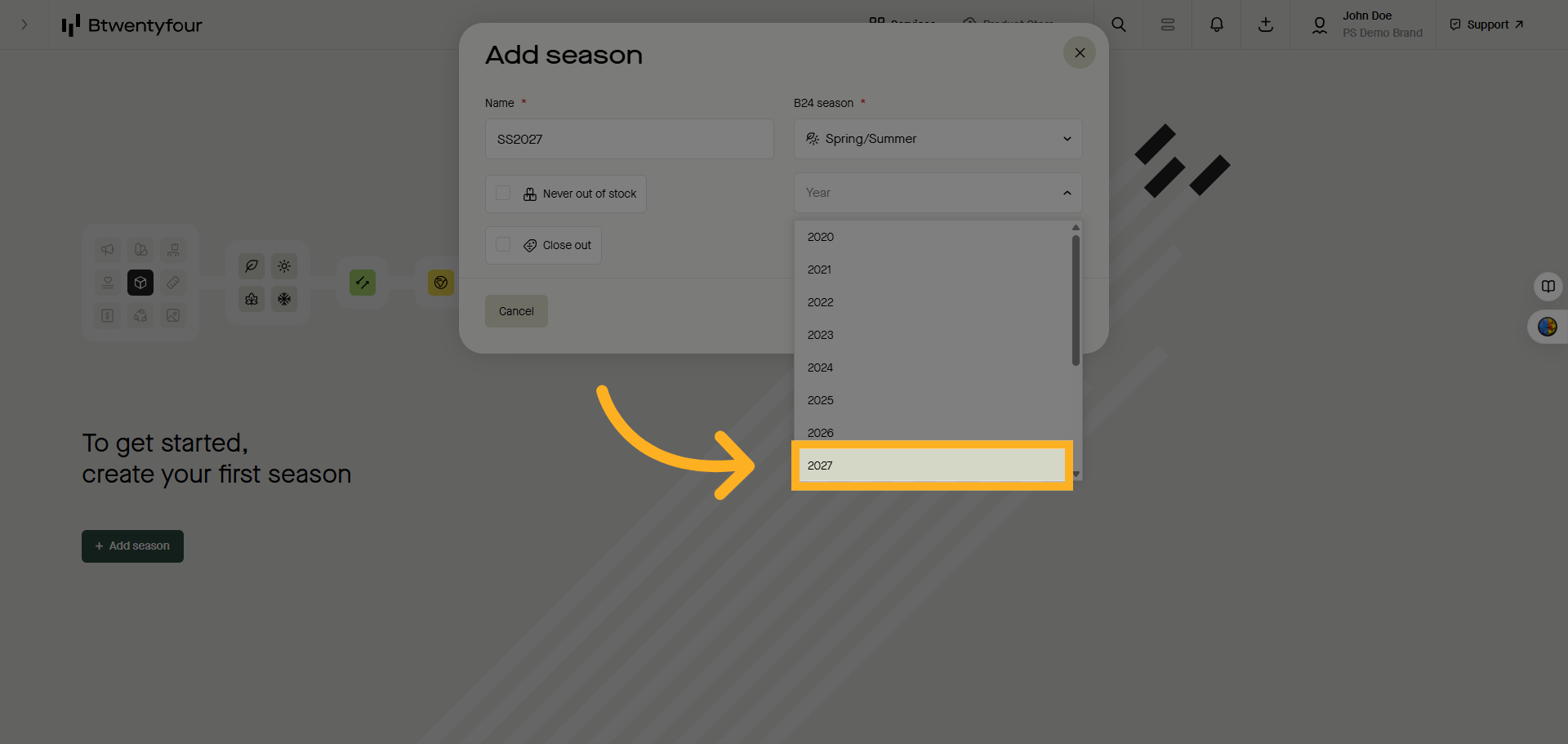
6. Select Year For Mapping
Click the year option to link the season with the correct calendar year.
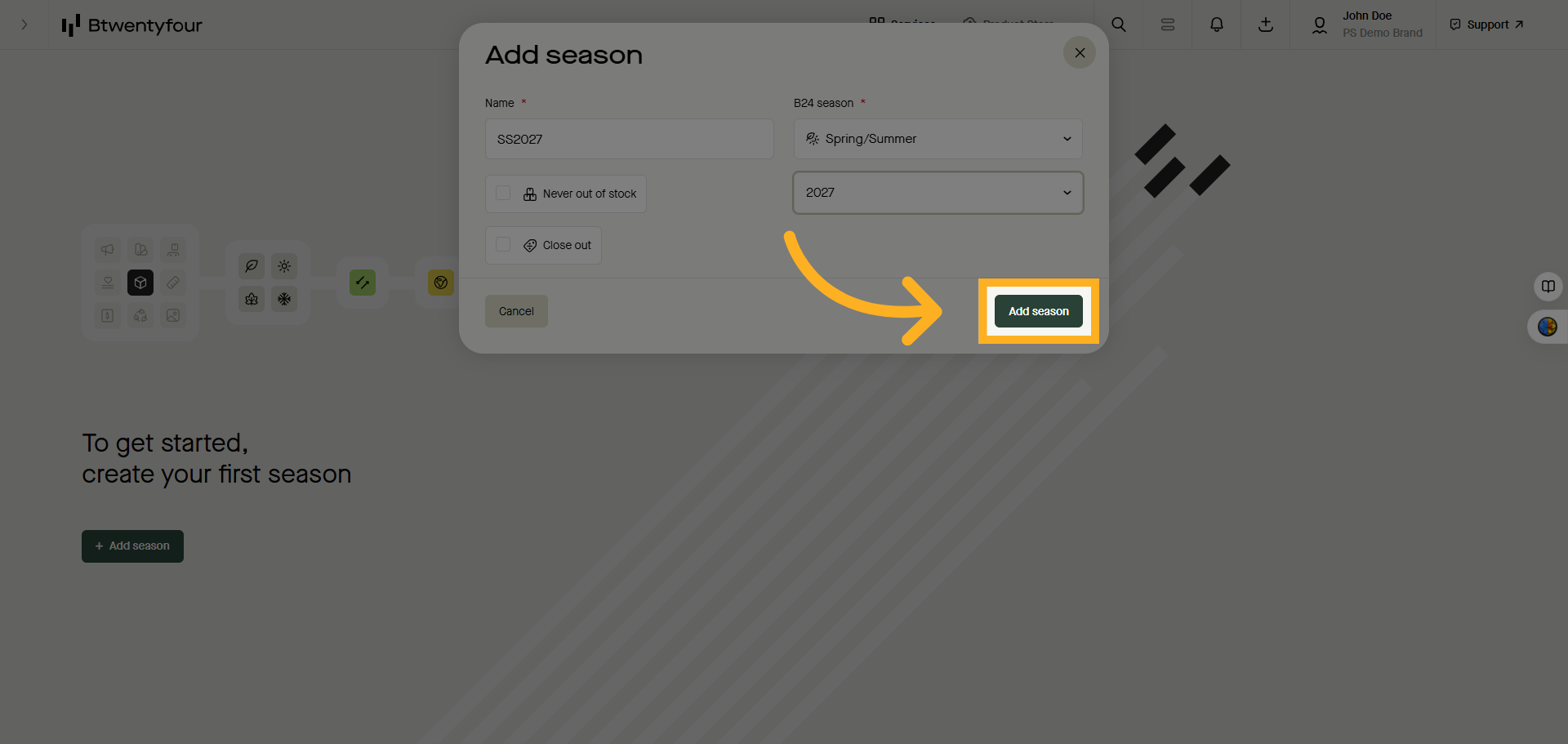
7. Create Season
Click add season to create the season and start uploading data.
For Never out of stock or sell out seasons please use the predefined alternatives.
Note that you can map multiple seasons to the same universal season, very useful for suppliers working with category specific seasons for example.
Thank you for watching.