
How to Correct Errors and Edit Data in Product Store
This demo will show how to review and manually correct errors in Product Store.
1. Introduction
Errors in Product Store are divided into four categories, product-, marketing-, logistics-, and finance errors. WIth the model list in the Product view all four categories will shown at once. Errors are malformed or missing data that needs correction.
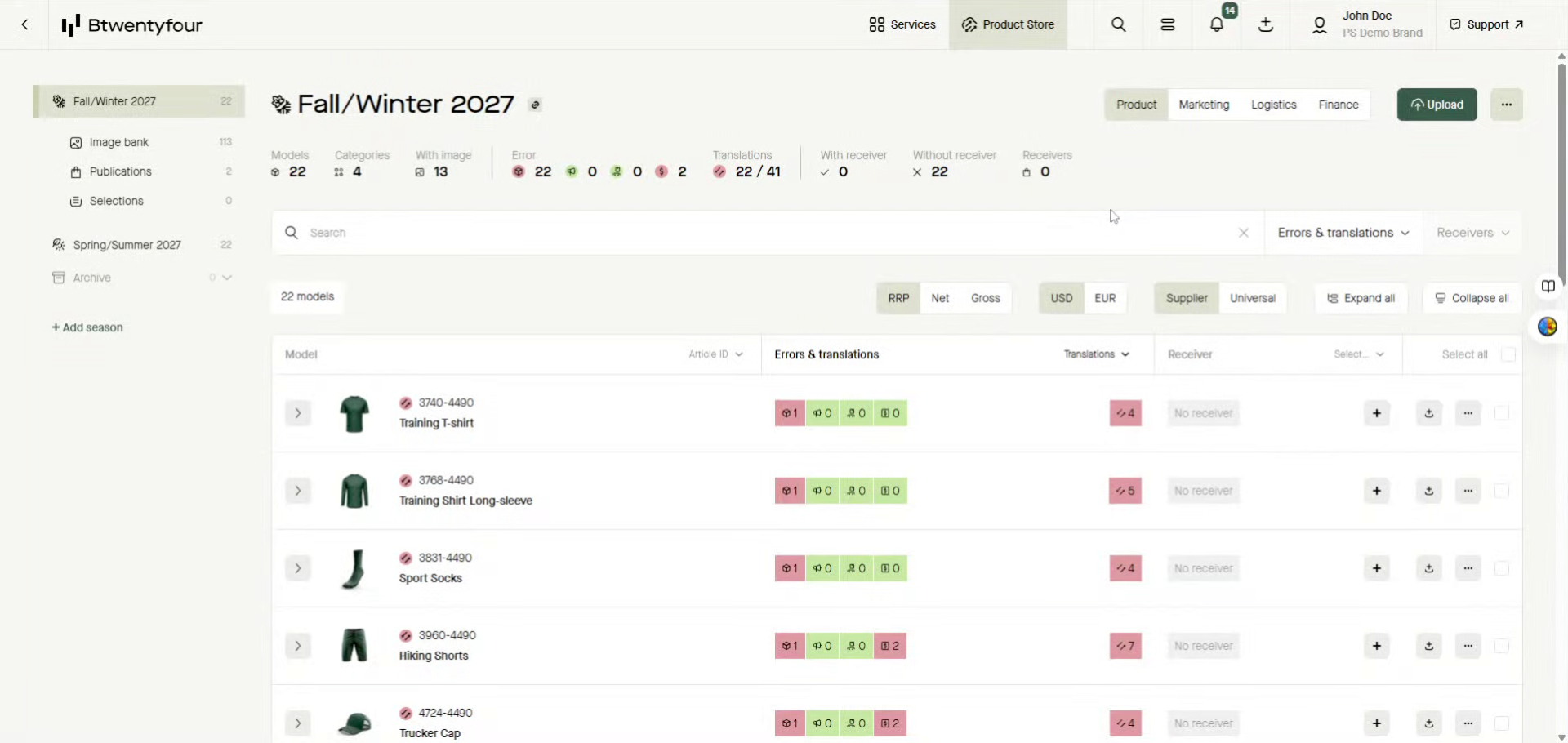
2. Select Model
To see specific errors on model level click the model to open the item card
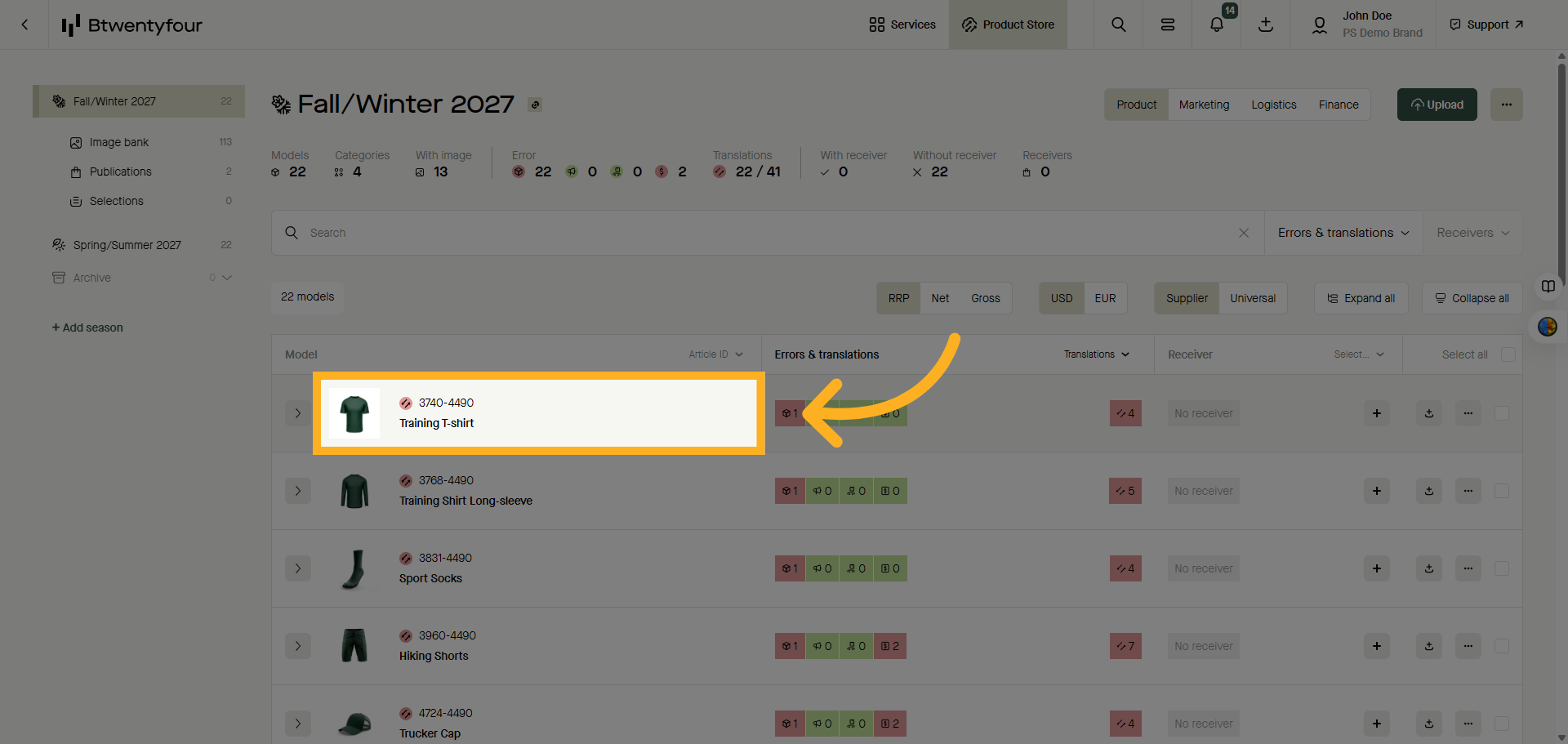
3. Open Errors Tab
Access the errors tab to identify any issues related to the selected product.
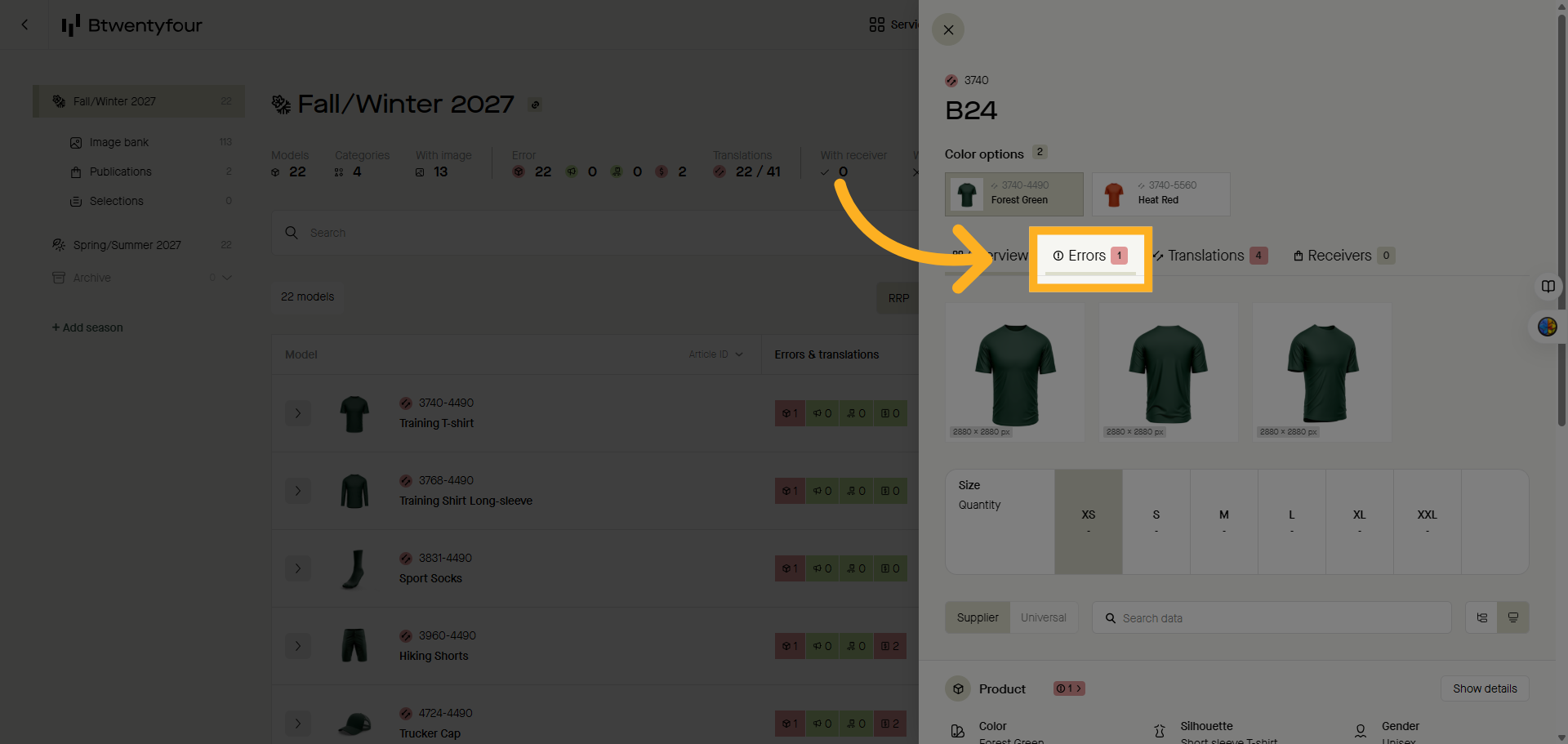
4. View Error Details
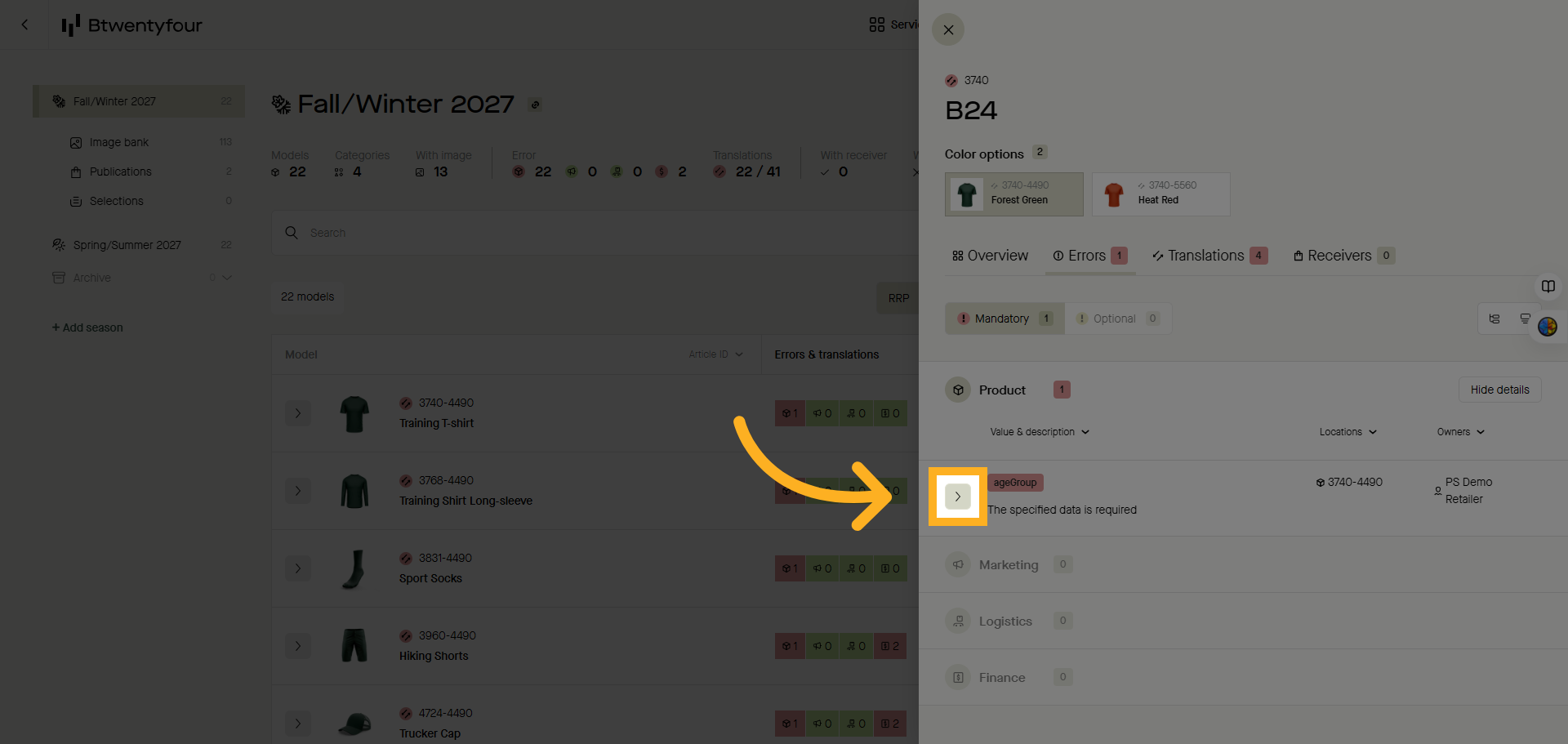
Expand the error details to show the specific problems affecting the product data.
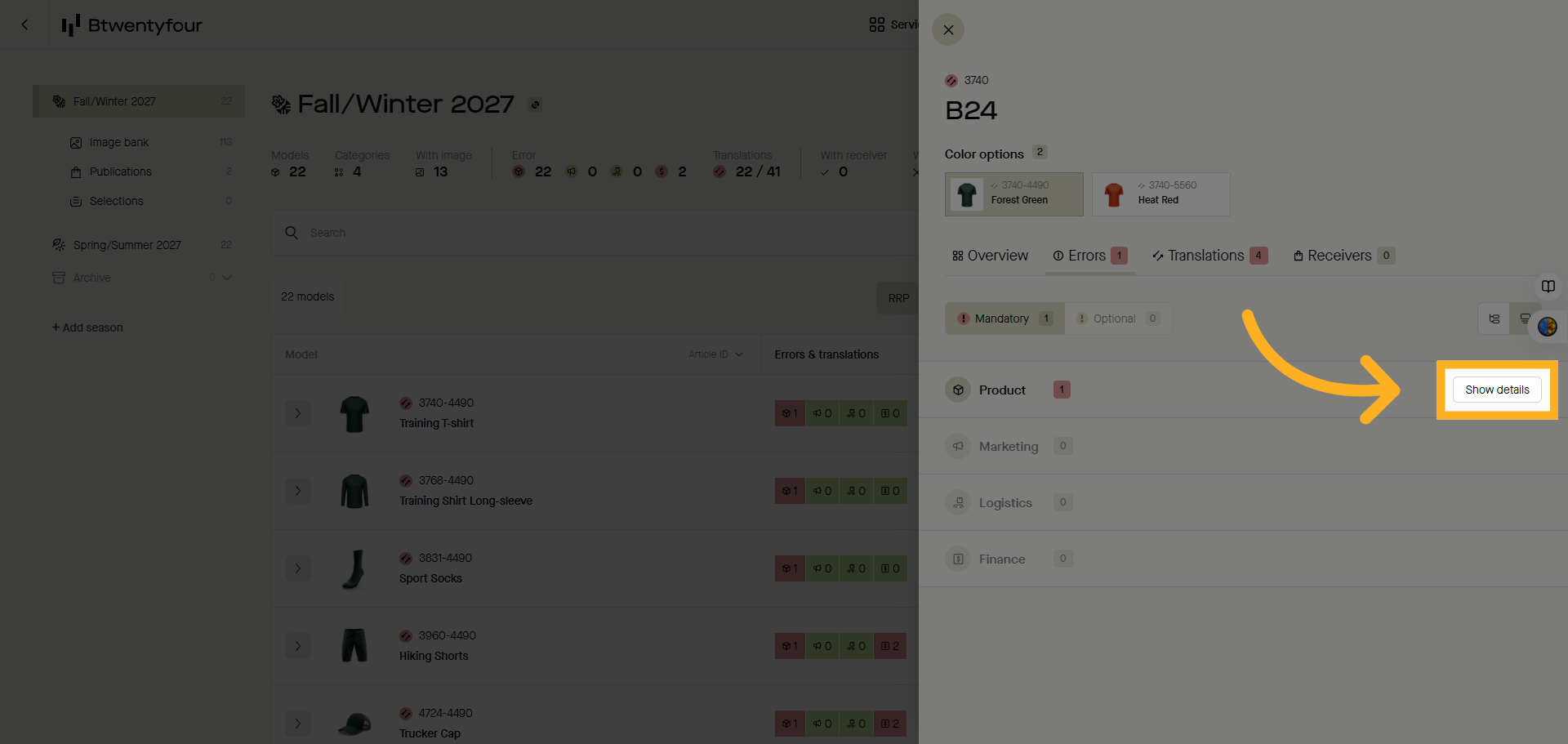
5. Expand Details
You can expand each error by clicking the expand button to review the error on SKU level.
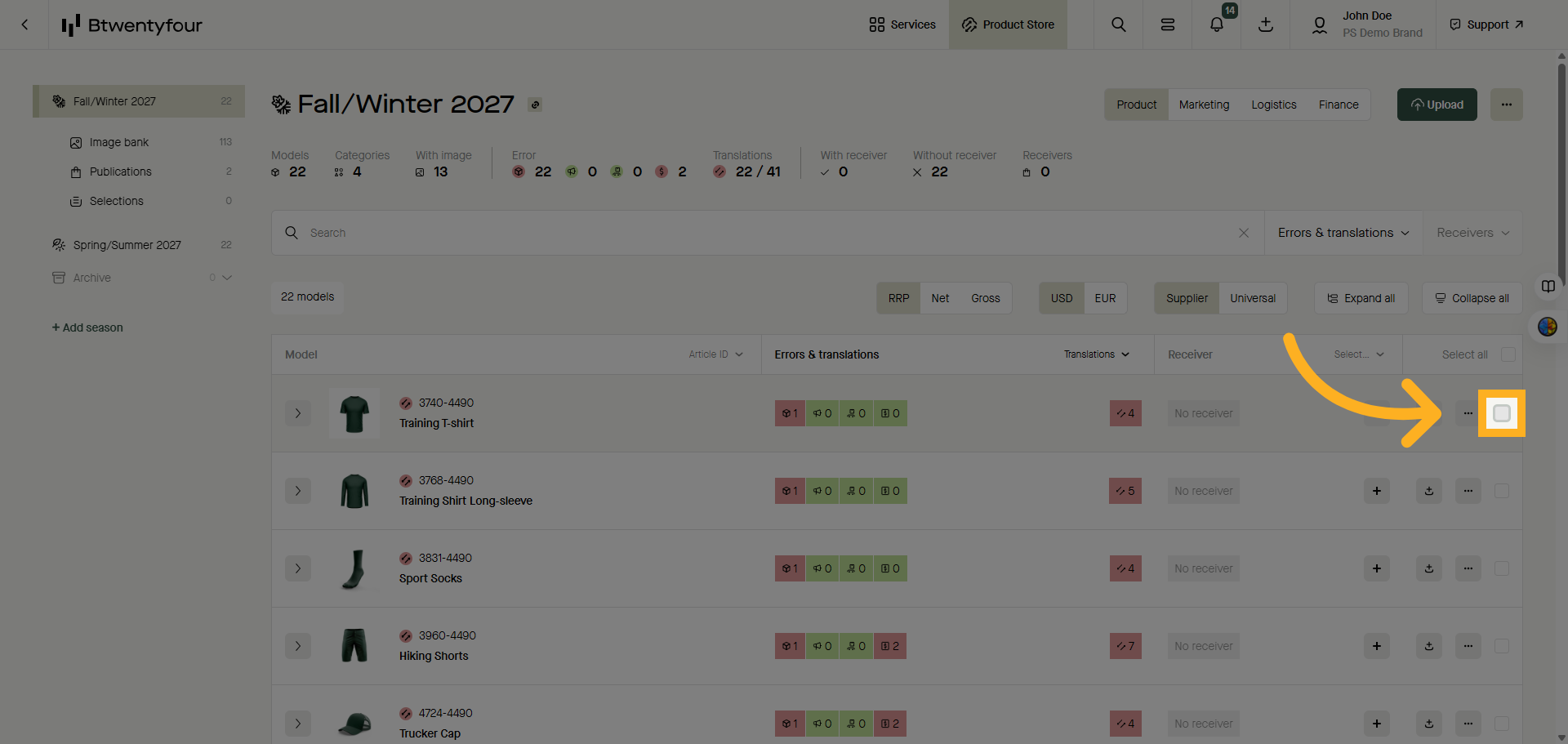
6. Mark the model or models
To correct an error manually download the product data in excel by checking the checkbox on the model row.
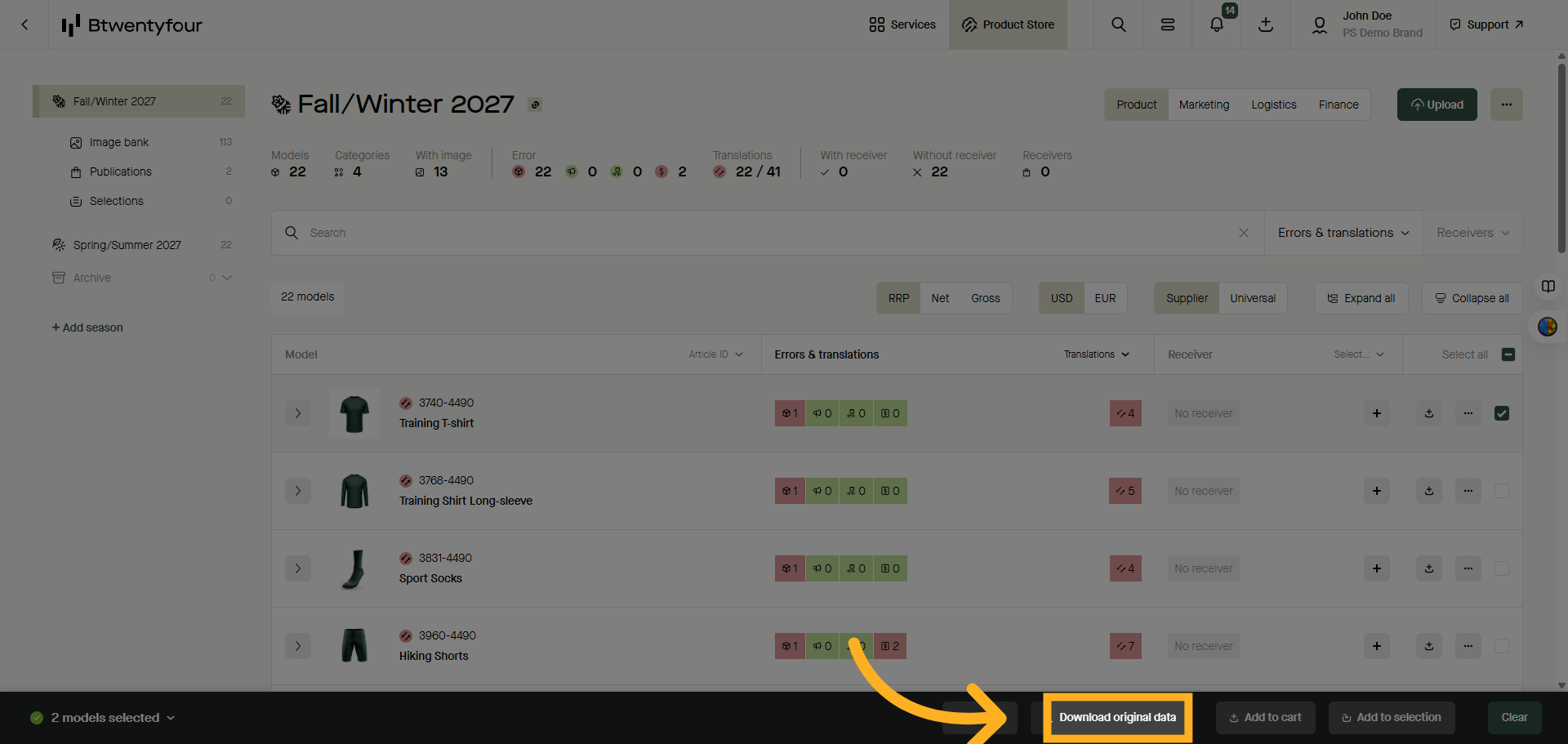
7. Download Original Data
Click Download Original Data
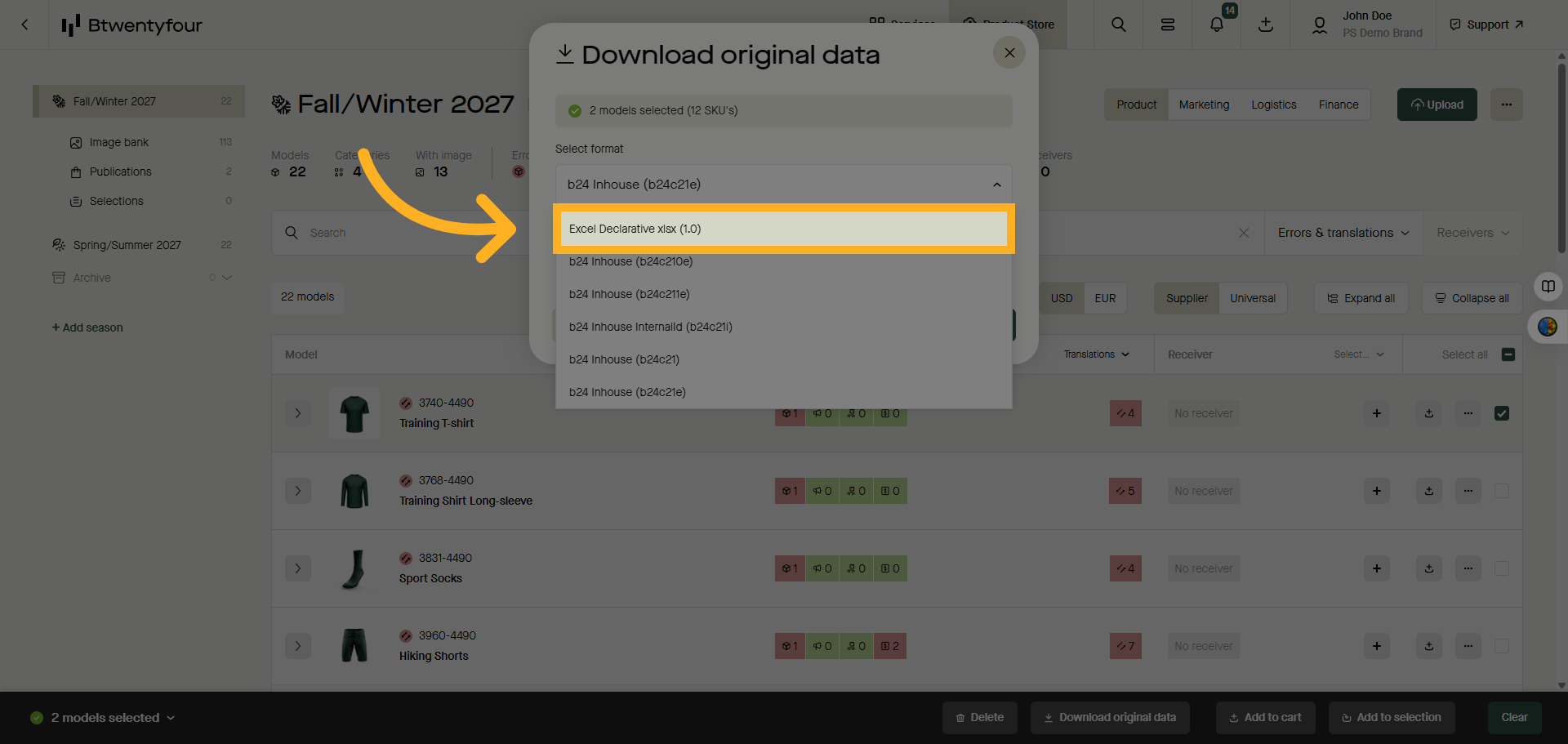
8. Choose Export Format
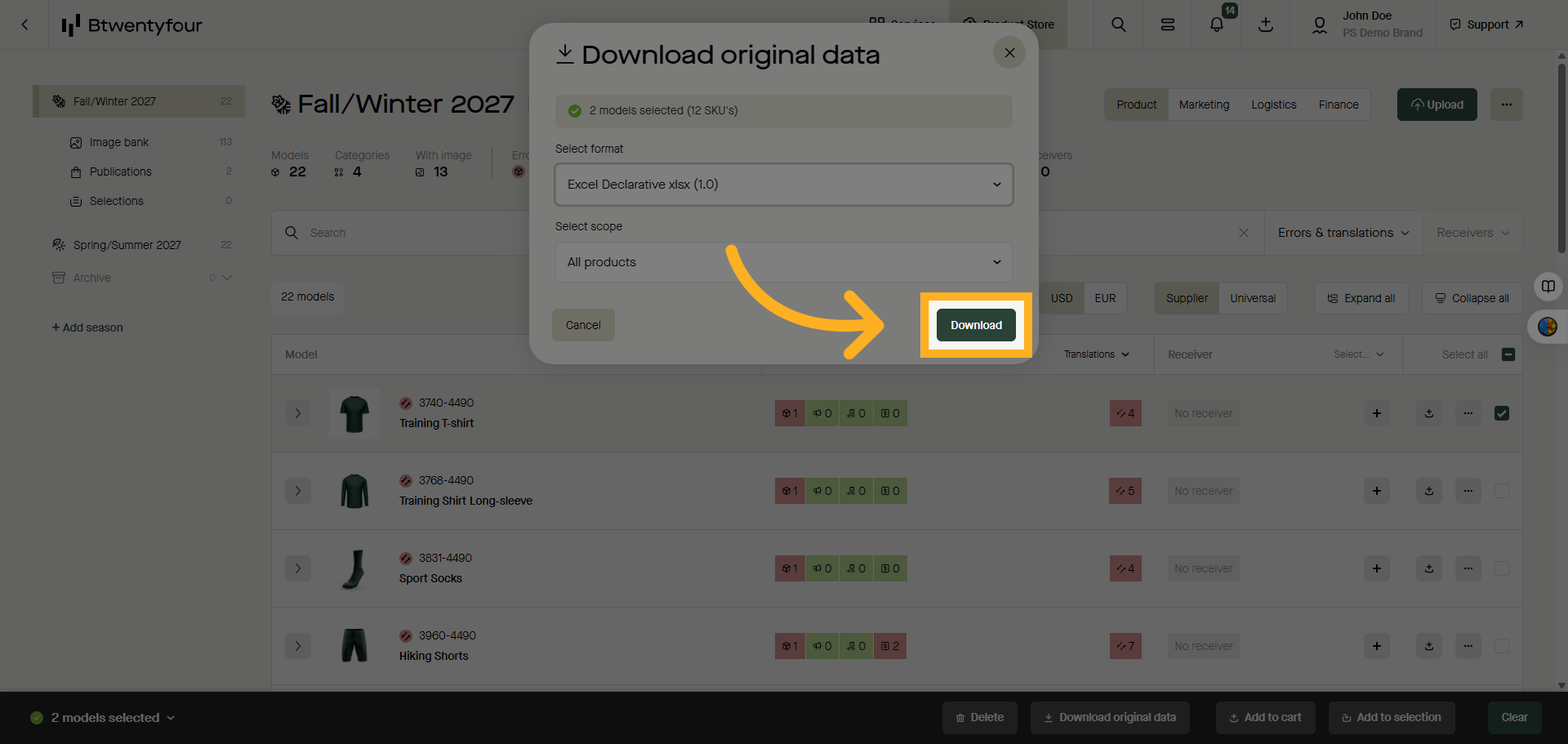
Select the Excel Declarative format to export the data for editing.
9. Download
Click the download button to save the exported data file to your device.
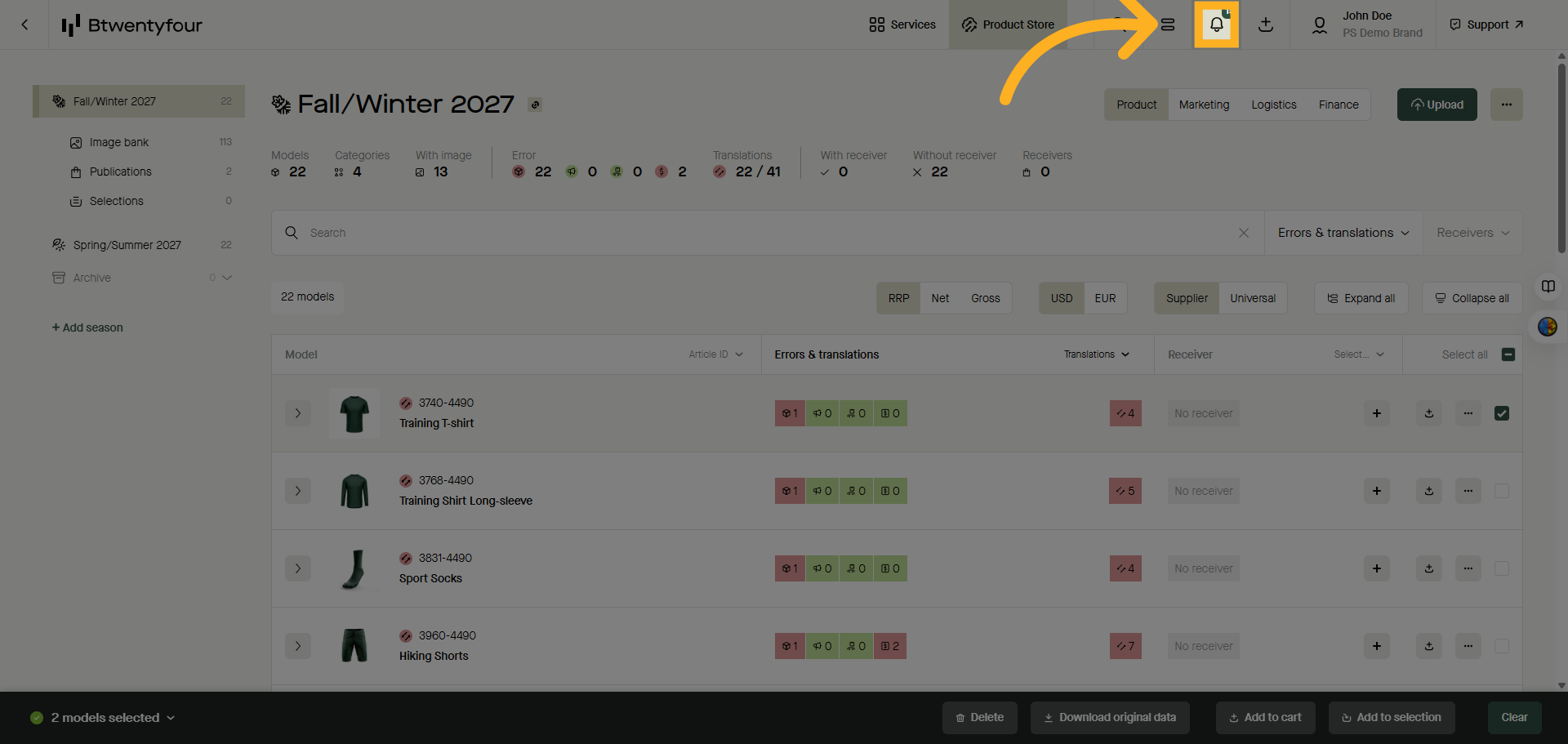
10. Click the notifications center
Click the notifications center to access your downloaded file and edit, or add the data needed to correct the error.
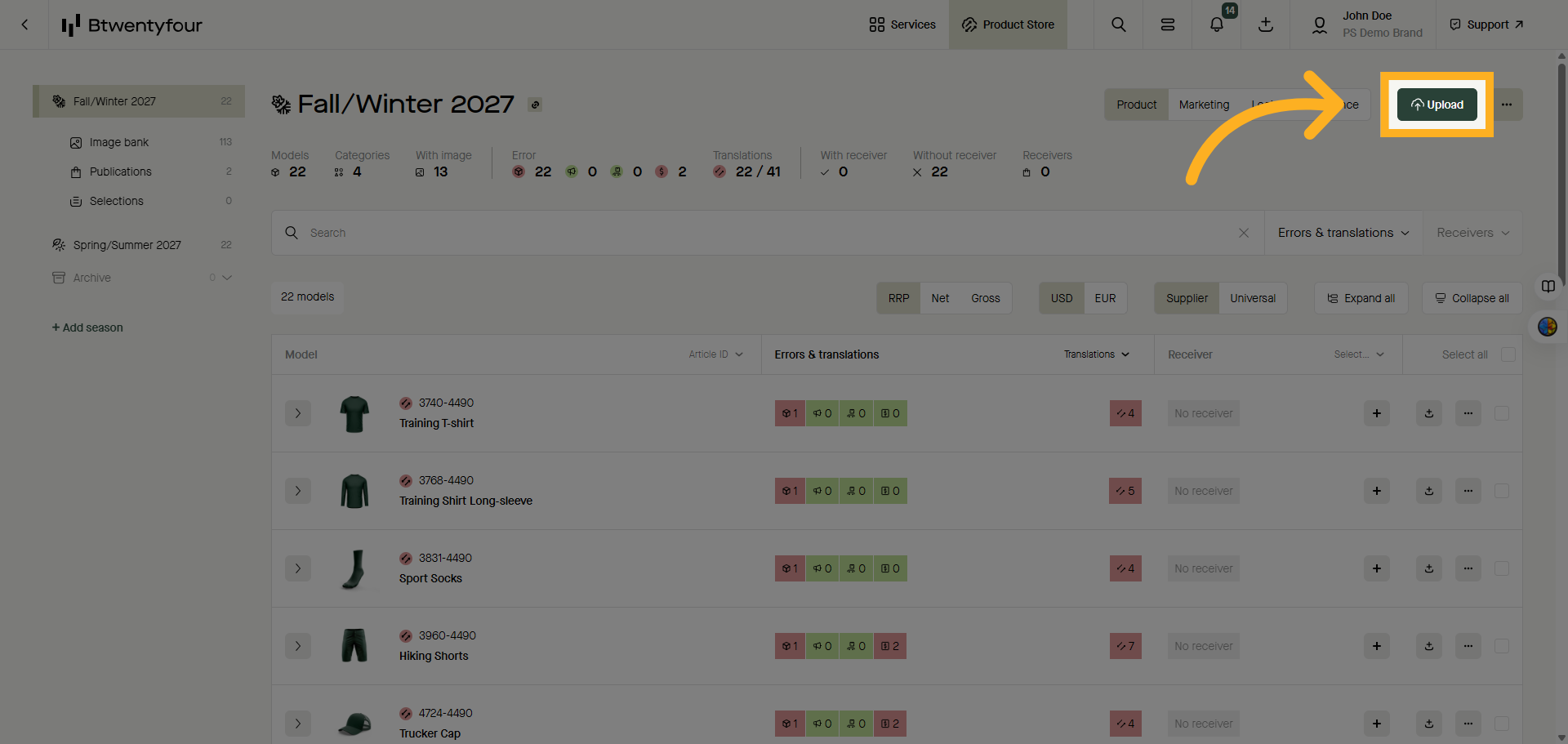
11. Open Upload Interface
Once the error have been resolved or the missing data added click upload to upload the data to product store
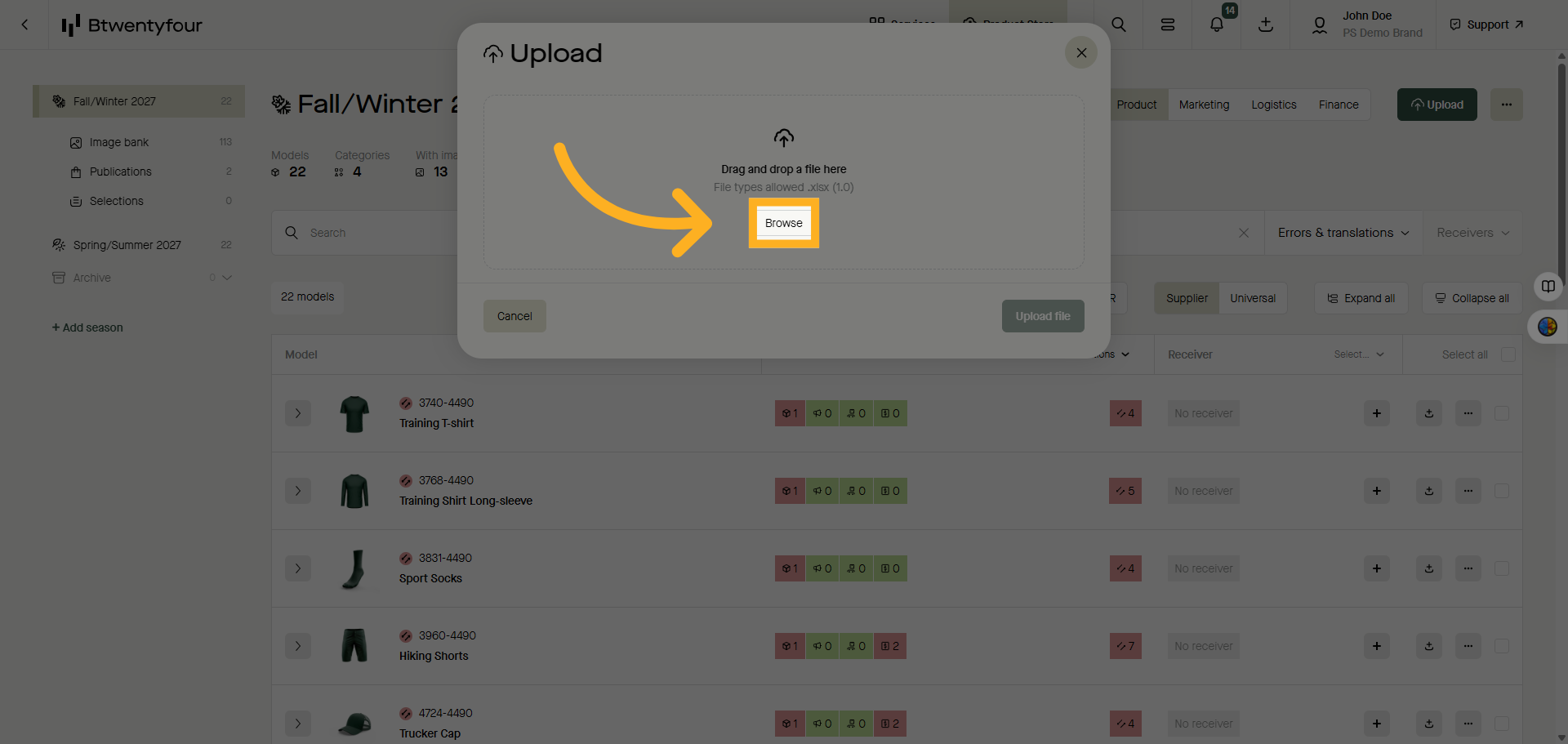
12. Browse and Select File
Browse your device to locate and select the corrected data file ready for upload.
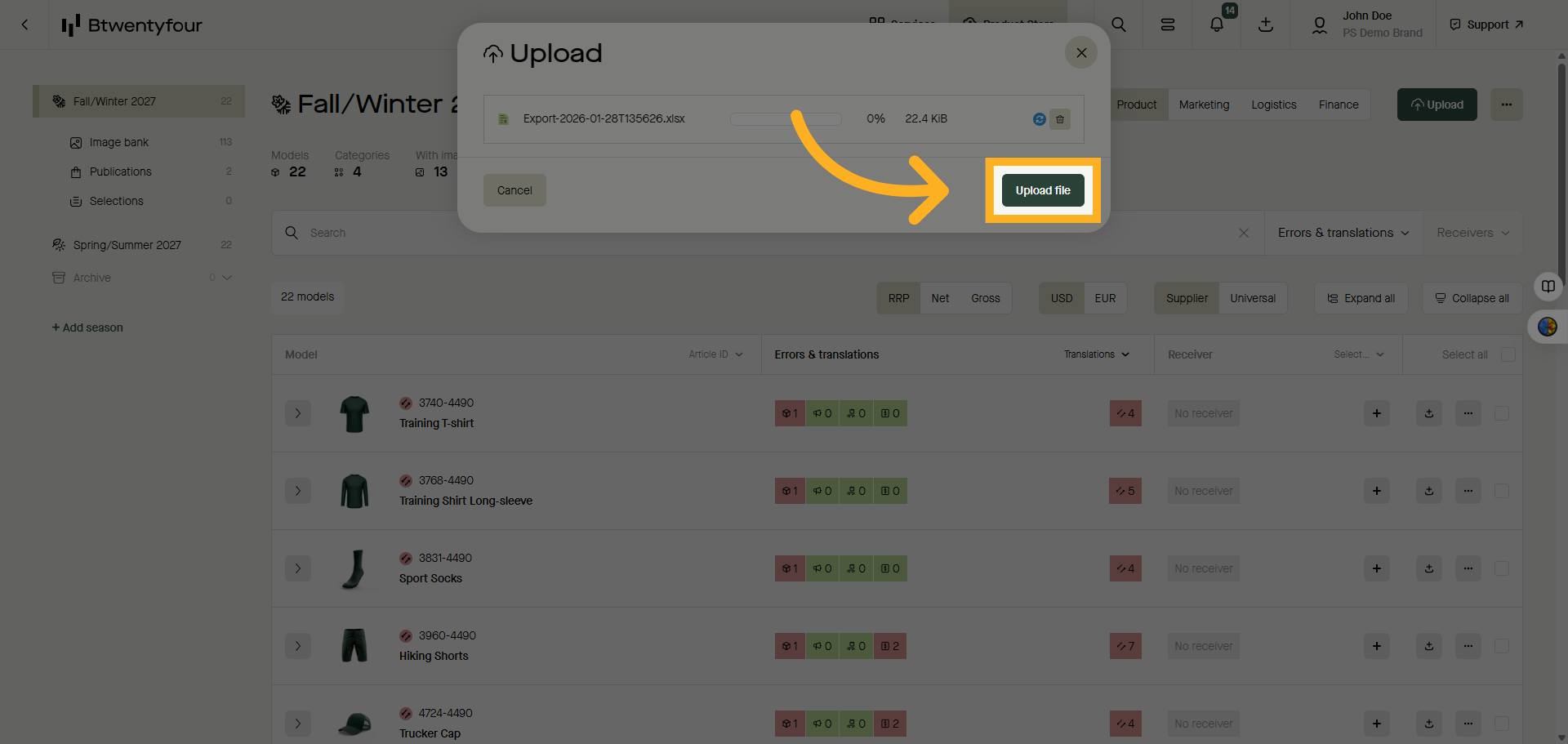
13. Upload Corrected Data
Upload the file by clicking upload
14. Review Updated Product
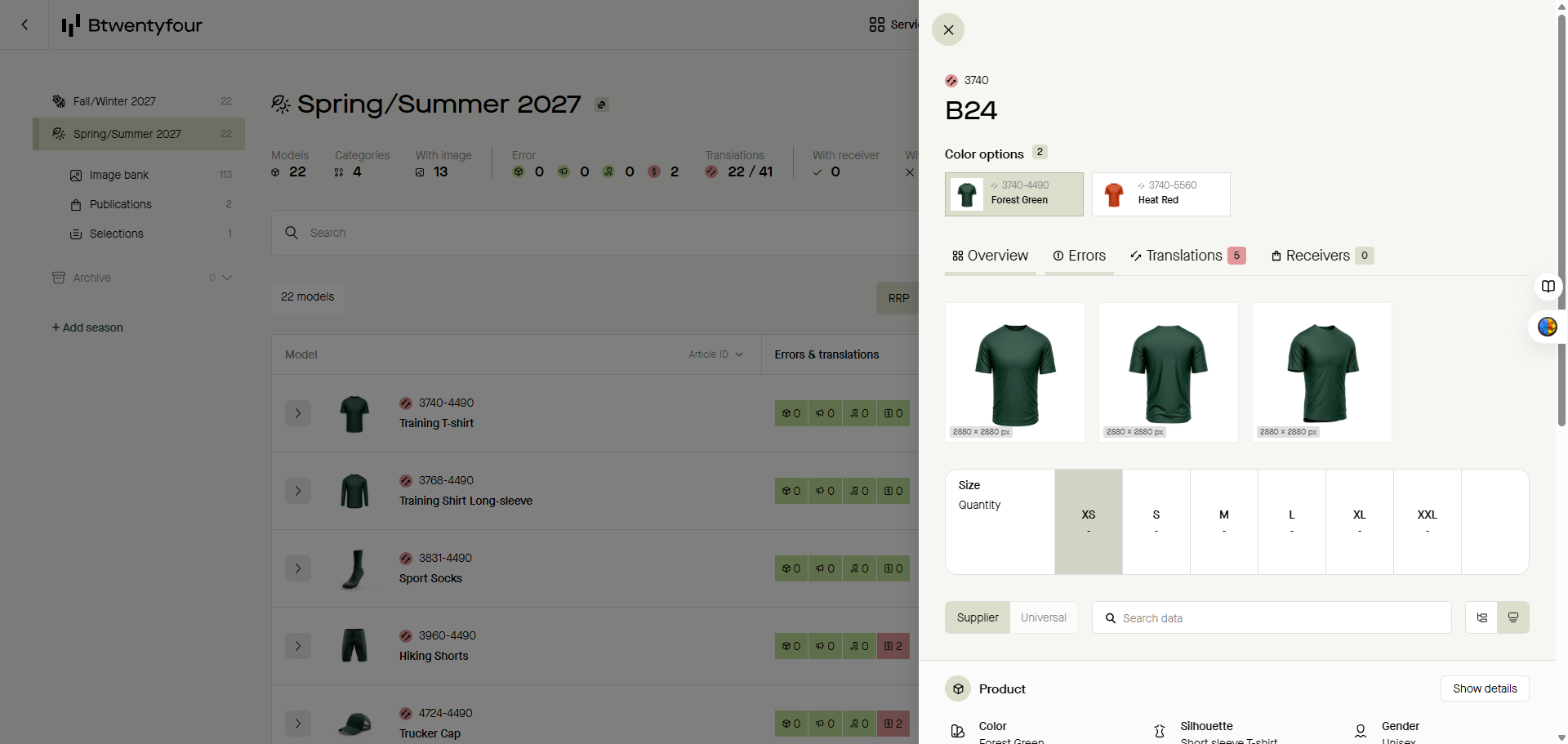
Once the data is validated the error is gone and you can reopen the item card to review your changes.
Thank you for watching!