Skip to content
  • There are no suggestions because the search field is empty.

How to add "Payment discount" in an "Invoice draft"?

It´s possible to define "Payment discount" in two ways:

  • Date
  • Number of days

Adding the percentage under "Discount".

Note that different recipients may require different ways of defining the payment discount.

Date

To start setting a "Date", click "Select date".Menu_Finance_InvoiceDraft_Draft_TermsOfPayment_PaymentDiscount_Date
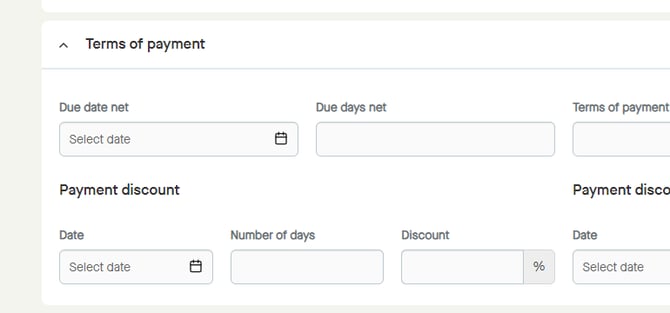
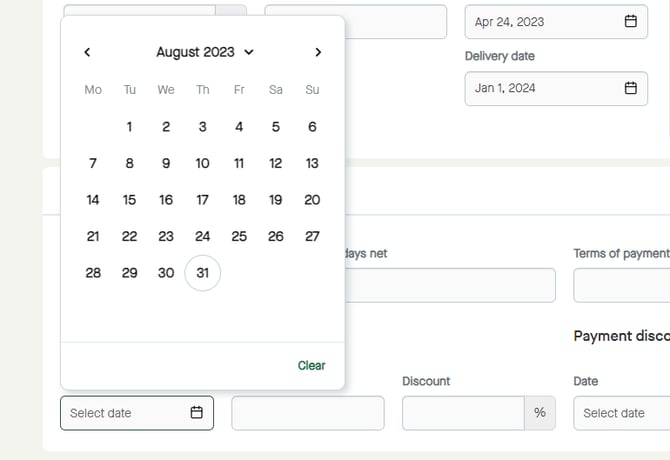
A calendar will be shown. Menu_Finance_InvoiceDraft_Draft_TermsOfPayment_PaymentDiscount_Date_SelectDate

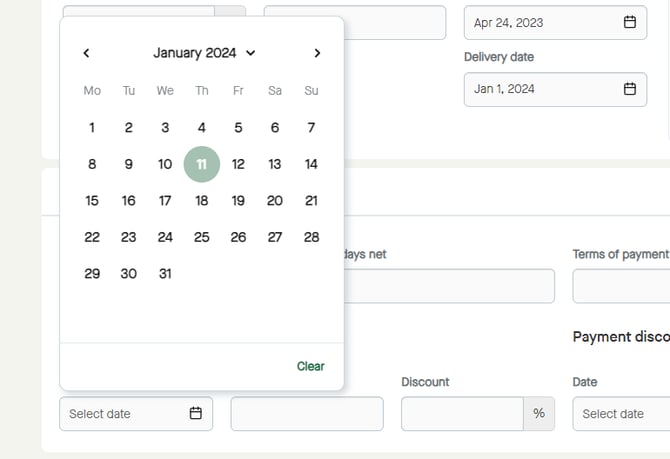
It´s possible to select year and month... Menu_Finance_InvoiceDraft_Draft_TermsOfPayment_PaymentDiscount_Date_SelectDate_Year_Month
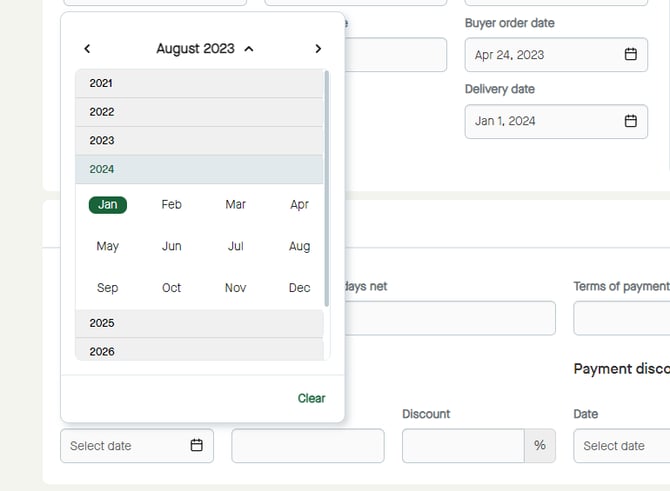
...and day to select the date. Menu_Finance_InvoiceDraft_Draft_TermsOfPayment_PaymentDiscount_Date_SelectDate_Day

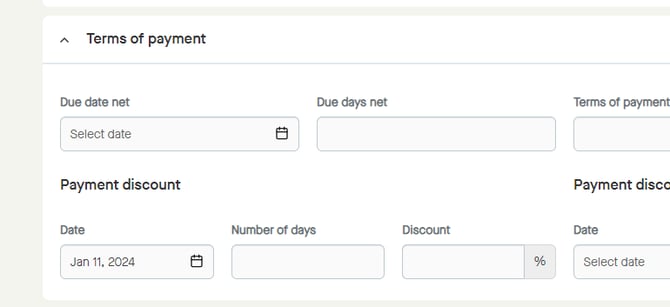
The date will be selected. Menu_Finance_InvoiceDraft_Draft_TermsOfPayment_PaymentDiscount_Date_Added 

Number of days

Click the field for "Number of days" to start adding number of days.Menu_Finance_InvoiceDraft_Draft_TermsOfPayment_PaymentDiscount_NumberOfDays
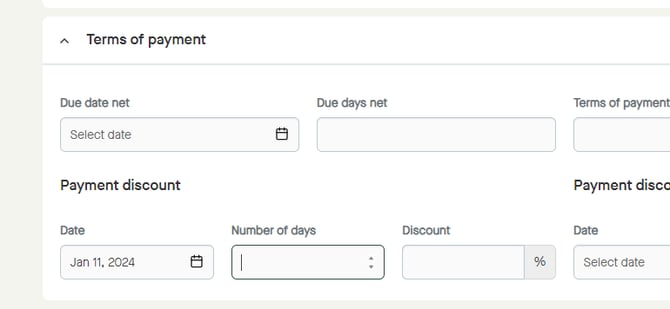
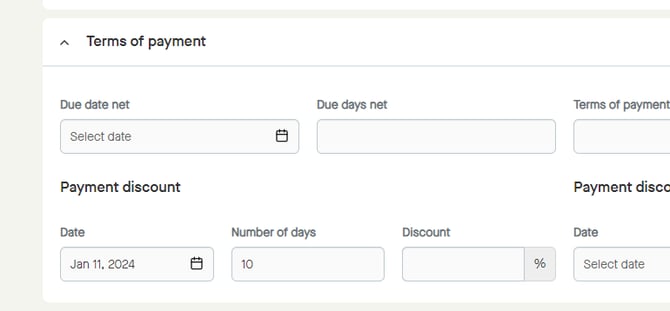
Add the number of days, manually or by using the up and down arrows. Menu_Finance_InvoiceDraft_Draft_TermsOfPayment_PaymentDiscount_NumberOfDays_10
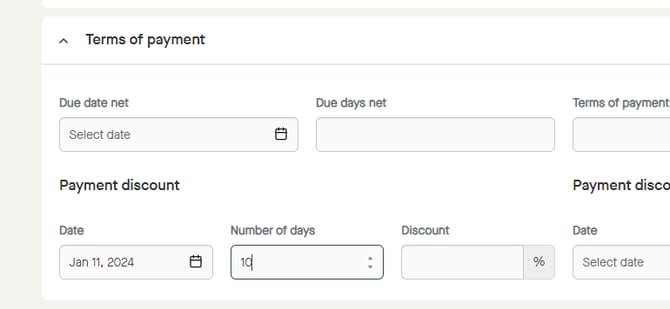
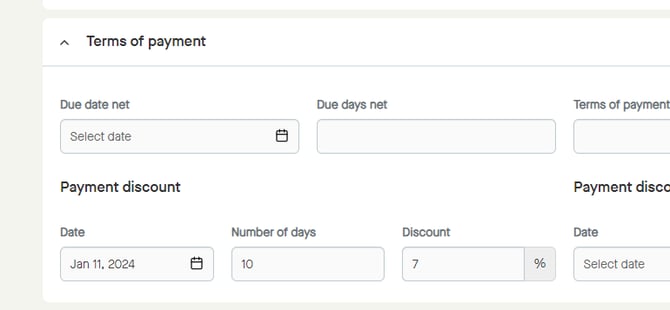
The number of days will be added. Menu_Finance_InvoiceDraft_Draft_TermsOfPayment_PaymentDiscount_NumberOfDays_10_Added

Discount

Click the field for "Discount" to start adding the discount percentage.Menu_Finance_InvoiceDraft_Draft_TermsOfPayment_PaymentDiscount_Discount
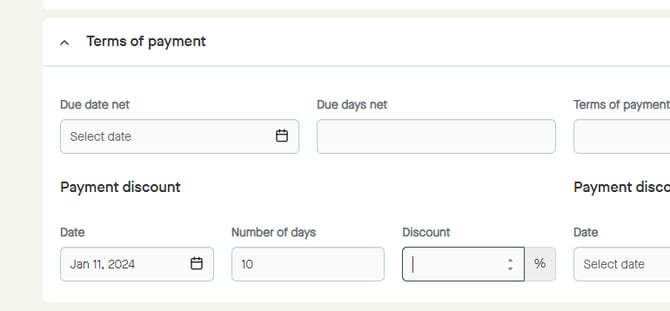
Add the discount percentage, manually or by using the up and down arrows. Menu_Finance_InvoiceDraft_Draft_TermsOfPayment_PaymentDiscount_Discount_7
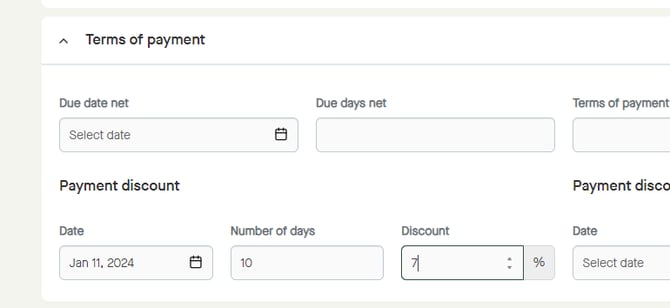
The discount will be added. Menu_Finance_InvoiceDraft_Draft_TermsOfPayment_PaymentDiscount_Discount_7_Added